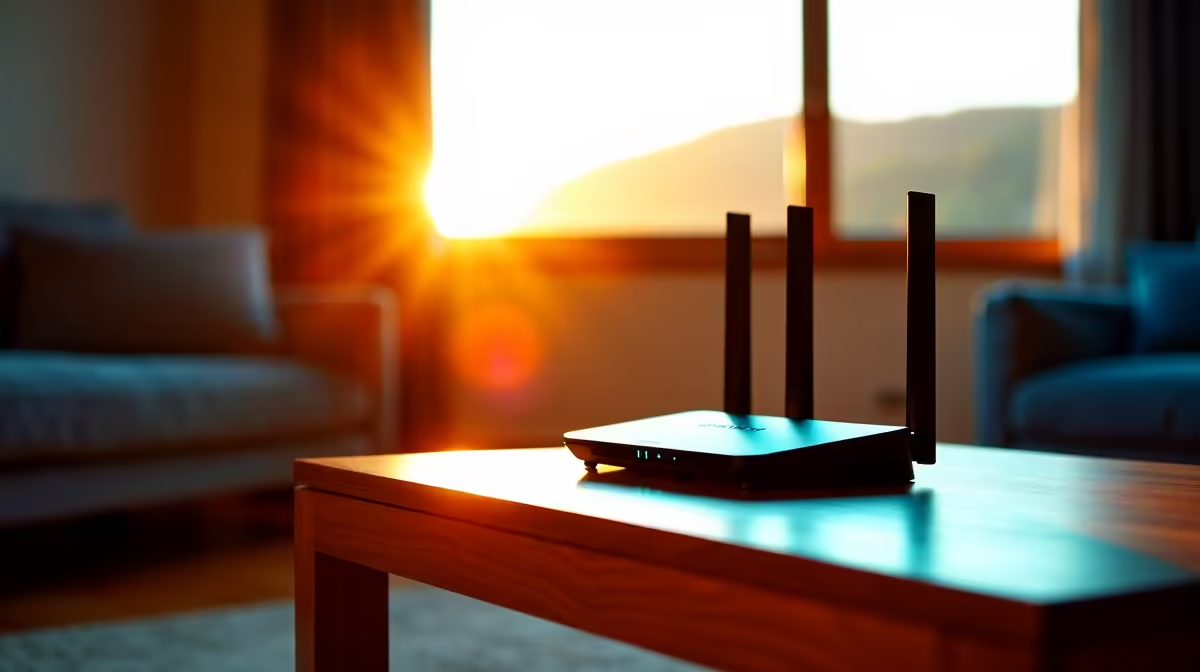
Receiving a Wi-Fi router safely in Tokoza comes down to confirming the order, checking the parcel on arrival, and testing the unit before you sign.
Quick Answer
Route the Wi-Fi router to a verified Tokoza address or an East Rand collection point and confirm the model, ports and setup before signing. A capable Wi-Fi 6 router runs about R1,200-R3,500 and sustains real-world speeds above a 100Mbps fibre line.
Tokoza Delivery Checks
The Courier Guy, Aramex and RAM deliver to Tokoza. A router is a compact parcel, but a collection point or workplace where you can inspect and sign is the safer route. Confirm the router matches your connection (fibre via Vumatel or Openserve, or an LTE/5G SIM model) before you order.
Setup Steps With IP Detail
Connect the router to your fibre ONT, then browse to its admin page at 192.168.0.1 or 192.168.1.1. Log in with the credentials printed under the unit, set a strong Wi-Fi password, and enable the 5GHz band for full-speed local connections. A Wi-Fi 6 router on 5GHz easily carries a 100Mbps or 200Mbps plan in the same room.
Ports And Warranty
For a wired gaming PC or console, confirm the router has Gigabit LAN ports (ideally four). Wi-Fi 6 (802.11ax) is the current standard and copes better with many connected devices. Keep the invoice for the warranty, which runs from the invoice date, and test every port on arrival.
FAQ
How do I open the router settings?
Type 192.168.0.1 or 192.168.1.1 into a browser and log in with the username and password printed on the sticker underneath the router.
Which router setup gives the fastest Wi-Fi?
Enable the 5GHz band on a Wi-Fi 6 router and place it centrally. At close range this comfortably delivers the full speed of a 100-200Mbps fibre plan.
Does Tokoza have courier delivery?
Yes. The Courier Guy, Aramex and RAM all deliver to Tokoza. Inspecting at a collection point before signing is the safest approach.
On setup, open 192.168.1.1, set a strong password and switch on the 5GHz band, then confirm every Gigabit LAN port works before you finish.