Quick Answer
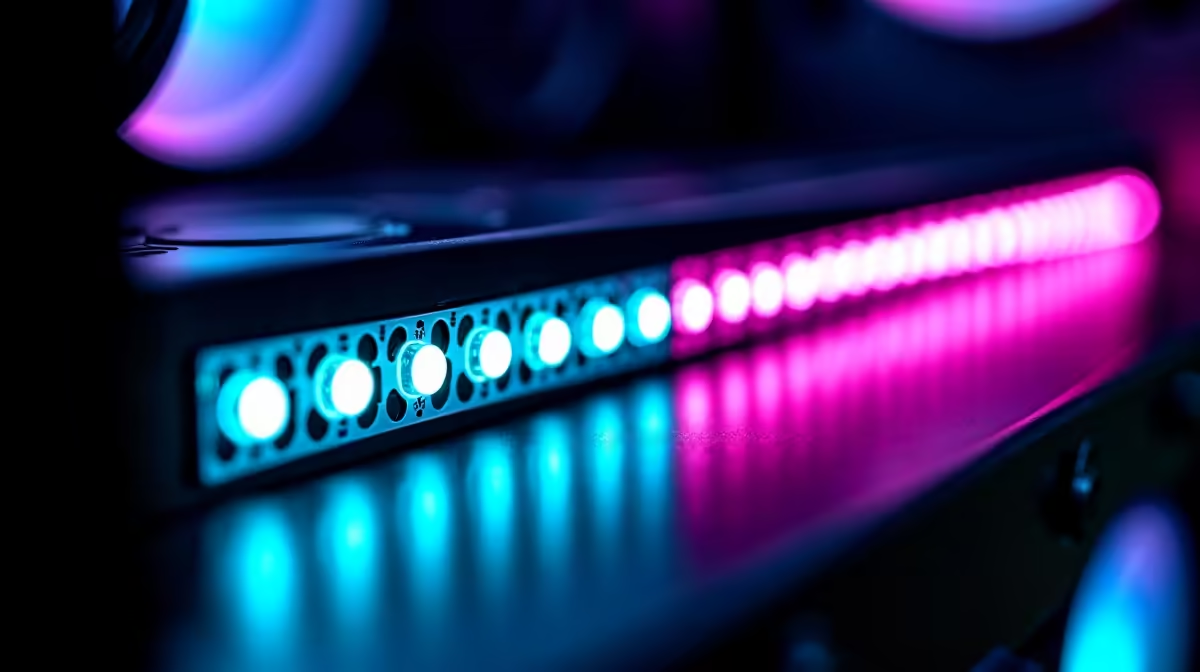
Syncing 16 addressable ARGB LEDs requires all components to connect to a 5V ARGB 3-pin header network controlled by a single software source, typically your motherboard's RGB app or a dedicated ARGB hub. The key challenge is header count: most motherboards offer two to four ARGB headers, so a hub is essential when fan count exceeds available headers.
Understanding the 5V ARGB Ecosystem 🌈
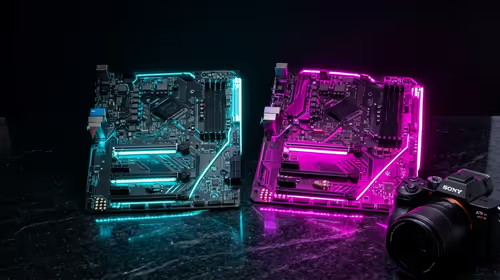
ARGB operates at 5 volts over a 3-pin header using the WS2812B or SK6812 LED protocol. Each LED receives individual colour data sequentially, which is what makes per-LED animation possible. In a 16-LED setup across three triple-pack fans, you have 48 discrete data addresses total, grouped by fan connection. Your motherboard ARGB header pushes data down the daisy chain or to each hub port, and the software assigns colour zones. Motherboards from ASUS (Aura), Gigabyte (Fusion 2.0), MSI (Mystic Light), and ASRock (Polychrome) all support ARGB sync natively when components use the standard 5V 3-pin connector.
Selecting and Installing an ARGB Hub 🔧
An ARGB hub takes one motherboard 5V header input and expands it to six, eight, or ten output ports. Popular options include the Lian Li UNI Hub, DeepCool FH-10, and Phanteks D-RGB Splitter. Connect the hub's single 3-pin ARGB cable to your motherboard header and the SATA power connector to a free SATA lead from your PSU. Then connect each fan or strip cable to the hub output ports. Label or photograph the port order since software may assign animations sequentially.
Configuring Software for Full 16-LED Sync 💻
Open your motherboard's lighting software after all ARGB cables are connected. In ASUS Aura Sync, devices connected via Aura-compatible headers appear automatically. In Gigabyte RGB Fusion 2.0, select the motherboard diagram and choose ARGB strip or fan for each header. If you have a mix of motherboard-connected fans and a standalone hub, ensure both are routed to the same software control layer. If components from different brands refuse to sync, third-party tools like SignalRGB (free tier available) can act as a universal bridge across ecosystems.
Troubleshooting Sync Failures 🛠️
The most common issue is LEDs showing the wrong colour or animating out of phase. First, verify every connection is fully seated: the 3-pin ARGB connector has a clip that must click. Second, check header polarity: the 5V pin must align with the 5V mark (a miswired 12V RGB header will immediately burn out 5V ARGB LEDs). Third, if using daisy-chaining, confirm the data-out port of the upstream fan connects to the data-in port of the next. If sync still fails, disconnect all components and add them back one at a time to identify which device breaks the signal.
Plan Your Hub Placement Early ⚡
Mount your ARGB hub behind the motherboard tray before installing components. This keeps cable runs short and prevents the tangled cable mess that appears when hubs are added as an afterthought. Cable ties and Velcro straps at R20 to R50 per pack locally help secure everything neatly.
FAQ
Can I mix ARGB fans from different brands on the same hub?
Yes, as long as all fans use the standard 5V 3-pin ARGB connector. Colour accuracy may vary slightly between brands due to LED binning differences, but they will follow the same animation from a single software source.
Do I need special software to sync ARGB on a budget motherboard?
Budget boards may lack dedicated RGB software. In that case, SignalRGB or OpenRGB (both free) support a wide range of motherboards via USB and can control ARGB headers connected through compatible hubs.
What happens if I accidentally plug an ARGB fan into a 12V RGB header?
The higher voltage will immediately damage or destroy the LEDs in the ARGB fan. Always check header labels before connecting: 5V ARGB headers have three pins while 12V RGB headers have four pins.
Building an ARGB-synced gaming rig?
Evetech stocks ARGB case fans, hubs, LED strips, and the cases to show them off, all available for your next build or upgrade.