



PCIe 5.0 vs PCIe 4.0 for Video editing in 4k in SA
PCIe 5.0 vs PCIe 4.0 for video editing in 4k is mainly about fit, features, compatibility, cost, and upgrade path, not one automatic winner. SA buyers should match the choice to the setup.
Read moreWire two front-panel USB-C 20Gbps ports for portable SSDs, two rear for cameras and capture cards, and two case-side passthroughs for a dock, giving creators and gamers six high-bandwidth lanes. Match specs to your build and use case before you commit to the upgrade.
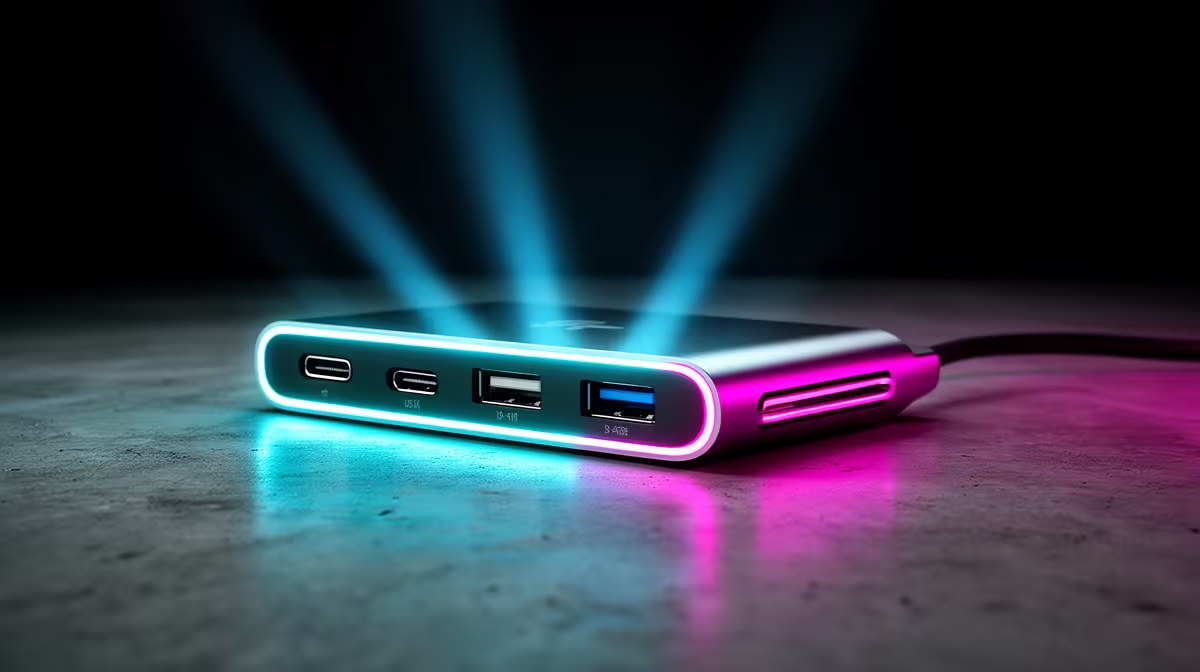
Six 20Gbps USB-C ports let you simultaneously connect an external NVMe enclosure, a high-res capture card, two USB-C gaming peripherals, a docking station, and a secondary display hub without speed-sharing penalties. Assign the most bandwidth-intensive devices (external SSDs and capture cards) to dedicated ports rather than through a hub to get the full 2,500 MB/s theoretical throughput per port.
USB 3.2 Gen 2x2 at 20Gbps provides real-world sustained transfer speeds of around 1,800 to 2,200 MB/s to a quality external NVMe SSD, depending on the SSD's own interface rating and the enclosure quality. For content creators working with 4K ProRes or 6K RAW footage files, this means transferring a 100GB project file in roughly one minute instead of four minutes over USB 3.2 Gen 1. For South African content creators using local cloud backup services via Vumatel or Frogfoot fibre at 200Mbps to 1Gbps upload speeds, the bottleneck is the internet pipe, not the USB-C ports, making local-to-external-drive workflows the primary beneficiary of 20Gbps connectivity.
For pure gaming setups, the most common use of 20Gbps USB-C is connecting a docking station that routes to multiple peripherals from a single cable, reducing desk cable clutter. A quality USB-C dock at this speed supports two 1080p displays or one 4K display over DisplayPort Alt Mode alongside keyboard, mouse, and headset connections. Streaming creators benefit from connecting a capture card at one port and an external SSD at another, letting OBS Studio record directly to the fast drive while simultaneously pulling from the capture device. The RTX 50-series GPUs that target high-end creator and gaming builds draw significant power from the PCIe slot, and USB-C ports at 20Gbps pull their power from the motherboard's USB controller, so there is no GPU power conflict.
Label cables at the connector end with small coloured cable tags once your workflow is established. A permanent setup with six active devices benefits from a PCIe add-in USB controller card if your motherboard's rear I/O only has two or three native 20Gbps ports, routing the remainder through the case front-panel headers. Confirm your motherboard supports the USB 3.2 Gen 2x2 front-panel header connector (a 20-pin connector distinct from the standard 19-pin USB 3.0 header) before purchasing a case advertising front-panel 20Gbps USB-C.
A case listing a 20Gbps USB-C front port is only useful if your motherboard has the matching 20-pin USB 3.2 Gen 2x2 internal connector. Mid-range X670 and Z890 boards often include it; budget B650 and B760 boards sometimes omit it. Check your board's specification sheet under Internal Connectors before finalising your case purchase.
USB 3.2 Gen 2x2 does not support daisy-chaining in the same way Thunderbolt 4 does. Each device connects to its own port or through a compatible hub that splits the 20Gbps bandwidth. For dedicated full-speed access, one device per native port is the correct approach.
No. Thunderbolt 4 provides 40Gbps bandwidth and supports daisy-chaining, PCIe tunnelling, and dual 4K display output. USB 3.2 Gen 2x2 at 20Gbps handles data transfers and charging but lacks Thunderbolt's PCIe tunnel and multi-display over a single cable capabilities.
Native 20Gbps USB-C ports on PC cases typically support USB Power Delivery at 15W to 100W depending on the motherboard controller. Check the case and motherboard specification for PD wattage. At 100W, you can charge a large laptop or power a tablet simultaneously with data transfer.
Kitting out a creator or high-end gaming rig? Explore Evetech's range of PC cases with fast front I/O to make sure your ports keep up with your hardware.
PCIe 5.0 vs PCIe 4.0 for video editing in 4k is mainly about fit, features, compatibility, cost, and upgrade path, not one automatic winner. SA buyers should match the choice to the setup.
Read more
Wi-Fi 7 vs Wi-Fi 6e for competitive esports comes down to router support, latency goals, device compatibility, and coverage. SA buyers should match the choice to the real network setup.
Read more
ATX 3.1 vs ATX 3.0 for mMO and live-service games buyers - what changes is mostly about compatibility, budget, upgrade path, and setup fit. SA buyers should check device support and real needs before expecting a clear win from either option.
Read more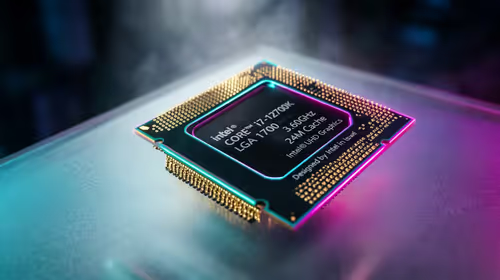
LGA 1851 vs LGA 1700 can affect Twitch and YouTube streaming when gaming and encoding share CPU resources. For SA creators, the real-world difference depends on encoder choice, memory support, motherboard cost, thermals, and upgrade plans.
Read more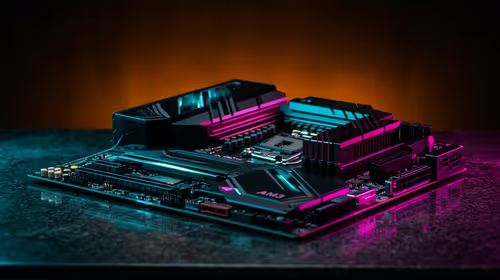
X870E vs X670E for aaa single-player gaming is mainly about fit, features, compatibility, cost, and upgrade path, not one automatic winner. SA buyers should match the choice to the setup.
Read more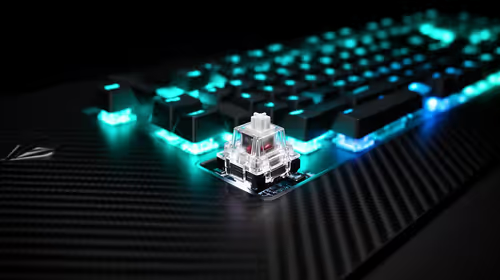
Hall Effect switches vs Mechanical switches for mMO and live-service games is mostly about compatibility, budget, upgrade path, and setup fit. SA buyers should check device support and real needs before expecting a clear win from either option.
Read more
A fake 113GB GTA VI ISO reportedly used empty padding around a small malware payload. SA gamers should delete unofficial builds, keep Windows security active and wait for official channels.

Wi-Fi 6E vs Wi-Fi 6 matters for 4K video editing when files move across a network. The real-world difference between Wi-Fi 6E and Wi-Fi 6 for video editing in 4K depends on NAS access, cloud uploads, router range, and SA creator workflows.

The difference between PCIe 5.0 and PCIe 4.0 for SA gamers is mostly bandwidth headroom. Compare GPU slot needs, NVMe speed, motherboard support, and upgrade timing before paying extra for a newer platform.

Gaming PC stuck pixel checks in South Africa should confirm the monitor fault first. Use colour tests, screenshot comparison, cable swaps, display menu checks, and clear photos before deciding on support.

Shokz OpenFit Air 2 earbuds weigh 7.2g each and use a redesigned dual-driver open-ear layout. SA buyers should choose them for comfort and awareness, not maximum isolation.

AMD's current driver now lists a Radeon RX 9050 4GB, while product coverage details a narrowed memory system. SA buyers should weigh the low VRAM ceiling against current local Radeon options.

Samsung Display has demonstrated a 16-inch 2.5K OLED laptop panel running at 300Hz. SA buyers should wait for a named notebook, full panel specifications and a local price before planning an upgrade.

Microsoft says some Windows 11 game crashes after recent updates are linked to RGB-related drivers. Affected SA gamers should confirm the update and driver before using the published registry workaround.

Minisforum's M2 Pro pairs Core Ultra X7, Arc B390 graphics and 32GB onboard memory in 1.8 litres. SA buyers should weigh its fixed memory and $1,439 launch offer against local mini PCs.

Smart monitors can add apps and convenience, but they also add privacy settings and unwanted-software risk. SA buyers should audit the operating system before paying for extras.

Lenovo says Legion Go failures linked to BIOS N3CN42WW are not user error. Affected SA owners should stop retrying the update, preserve proof and open a support case.
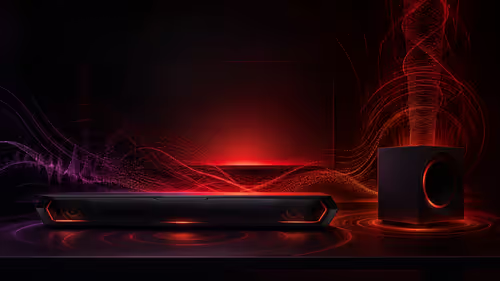
The ROG Gjallar gaming soundbar is now listed in the US at $599.99. SA buyers should compare its 2.1.2 audio, wireless bass and built-in chat controls with simpler local options.