So, you’ve got the brand-new MSI Claw 8 AI+ in your hands… what a feeling! This Intel Core Ultra-powered beast is a portable powerhouse, but are you tapping into its full potential? Don’t let it just be a handheld. By creating a proper MSI Claw 8 AI+ external display setup, you can transform it from a travel companion into a full-fledged desktop gaming rig. Let’s get you docked and ready for action. 🚀
Choosing the Right Monitor for Your MSI Claw Setup
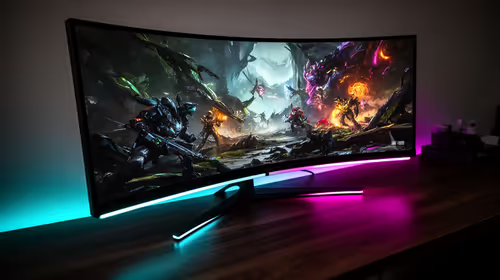
The first step in any MSI Claw 8 AI+ external display setup is, well, the display. The Claw’s new Intel processor with XeSS upscaling is more than capable of pushing pixels beyond its built-in screen. But what should you look for?
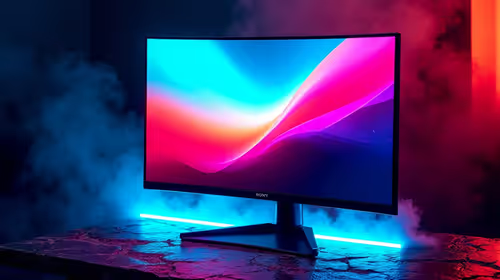
For most gamers, a 24-inch or 27-inch monitor with a 1080p (Full HD) or 1440p (QHD) resolution is the sweet spot. This resolution ensures you get crisp visuals without overtaxing the hardware, allowing for higher frame rates. Look for a monitor with at least a 120Hz refresh rate to get that buttery-smooth gameplay the Claw can deliver.
Connection is key. The MSI Claw features a Thunderbolt 4 (USB-C) port, which is fantastic news. This single port can handle video output, data transfer, and even power delivery. To connect everything seamlessly, a good quality USB-C hub or docking station is one of those essential tech accessories you won't regret buying.
Single Cable Simplicity ✨
Use a monitor that has a built-in USB-C hub with Power Delivery (PD). This allows you to connect a single Thunderbolt 4 cable from your MSI Claw to the monitor, which then powers the handheld, sends the video signal, and connects all your peripherals (keyboard, mouse, headset) that are plugged into the monitor's USB ports. It's the cleanest setup possible!
Essential Peripherals for Your Docked Claw
A monitor alone doesn't make a desktop experience. To complete your MSI Claw 8 AI+ external display setup, you need the right tools for the job. You’re not going to be playing competitive shooters with the built-in thumbsticks when docked, are you?
Keyboard & Mouse
A responsive mechanical keyboard and a high-DPI gaming mouse are non-negotiable. They offer precision and speed that built-in controls simply can't match, especially in fast-paced titles like Apex Legends or Valorant. Whether you prefer wired for zero latency or wireless for a clean desk, you can find incredible deals on gaming accessories that fit any budget.
Immersive Audio
Don't rely on monitor speakers. A dedicated headset is crucial for hearing enemy footsteps and immersing yourself in the game world. A good headset provides clear communication with your teammates and rich, detailed sound that brings your games to life. Check out some of the best gaming headset deals in SA to find one that delivers both comfort and crystal-clear audio.
Don't Forget Storage and Speed ⚡
With modern game sizes ballooning, the Claw's internal storage can fill up fast. When you're using it as a desktop, an external SSD is a fantastic addition. It gives you a massive library of games ready to play at a moment's notice, with lightning-fast load times that rival internal storage. An external NVMe drive connected via the Thunderbolt port ensures you're getting maximum speed. Explore Evetech's best SSD deals to easily expand your gaming library.
Ready to Build Your Ultimate Claw Station?
The MSI Claw 8 AI+ is powerful, but the right peripherals unlock its true potential. From high-refresh-rate monitors to responsive keyboards, we've got everything you need. Explore our massive range of PC hardware and build the setup your handheld deserves.