A laptop's wireless card is a thumbnail-sized board under the base panel, and the right network card for laptop upgrades comes down to three checks: is the card removable, which slot does it use, and which Wi-Fi standard does your router speak. Get those wrong and the part will not fit or will not help. Get them right and a tired Wi-Fi 4 laptop can feel like a new machine on a modern fibre line.
Quick Answer
Most laptops from the last decade use a removable M.2 wireless card, usually the 2230 size in an E-key slot. A Wi-Fi 6 or Wi-Fi 6E replacement typically sits around R250 to R700, while a USB adapter that skips the screwdriver work is about R200 to R800. If your laptop solders the chip to the board, or you do not want to open it, the USB route is the safe answer.
🔍 Step One: Find Out What Is Inside Your Laptop
Do not guess the card from the sticker on the lid. Open Device Manager on Windows, expand Network adapters, and read the name of the wireless entry. Something like "Intel Wi-Fi 6 AX201" or "Realtek 8822CE" tells you the chipset, and a quick search of that name shows whether it is a standalone M.2 card or a chip built into the board.
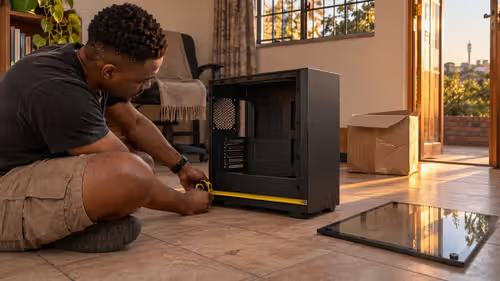
Then look for your laptop's service manual, which the maker usually publishes under the exact model number printed on the underside. It shows whether the base panel comes off with a handful of screws, where the card sits, and how many antenna leads attach to it. Two leads is the norm, with a third on some models.
Soldered versus removable
Thin and light machines, and a fair number of budget models, sometimes solder the wireless chip straight to the motherboard. In that case there is nothing to swap, and no amount of searching will produce a compatible card. The manual or a teardown video for your exact model settles this in a minute.
🧩 Step Two: Match Size, Slot and Antenna Leads
Almost every modern laptop card is an M.2 2230 module in an E-key slot. Older machines may use a half-height mini PCIe card, which is a different shape entirely and needs a matching replacement. Pull the old card out, read the printed size, and confirm before you pay for anything.
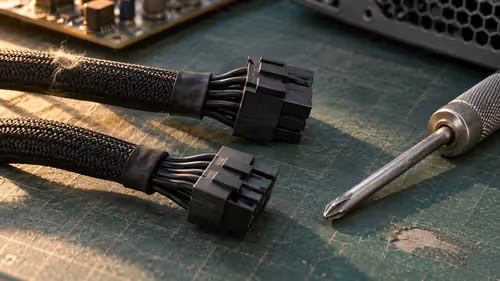
Antenna leads are the fiddly part. They clip on with tiny push-on connectors, often called U.FL or IPEX, and they pop off if you pull the wire rather than the connector. A fine plastic spudger or even a clean fingernail works better than metal tweezers, which can slip and scratch the board.
Watch for BIOS whitelists
A few older business laptops refuse any wireless card that is not on an approved list, and they show an error at boot. Newer consumer machines are mostly relaxed about this, but a short search for your model plus "wifi card whitelist" on a user forum will tell you if yours is one of the strict ones.
📶 Step Three: Pick the Right Wi-Fi Standard
The card only helps up to the level of the router it talks to. If your router is Wi-Fi 5, a Wi-Fi 6 card still works and gains better handling of crowded airwaves, but you will not get a speed jump from the standard alone. If your router is Wi-Fi 6, a Wi-Fi 4 card in the laptop is the bottleneck, and a new card is the cheapest upgrade you can buy.
A rough guide to what each standard gives you:
- Wi-Fi 4: fine for email and browsing, struggles with several streams at once.
- Wi-Fi 5: comfortable for HD streaming and video calls on a modest fibre line.
- Wi-Fi 6: better in flats and complexes where many networks overlap, such as Joburg and Pretoria apartment blocks.
- Wi-Fi 6E and 7: add the 6GHz band, but only pay off if your router supports it too.
Your fibre plan caps the ceiling regardless. A 100Mbps line from Vuma or Openserve will not feel faster with a top-end card, so check your plan speed first and match the spend to it. If the router itself is the weak link, a newer wireless router may do more for the whole household than a laptop part.
Bluetooth on the same card
Many combo cards carry Bluetooth as well, and some laptops route their Bluetooth through the same module. Replace it with a Wi-Fi-only card and your headphones or mouse can stop pairing. Look for "Wi-Fi plus Bluetooth" in the listing, and check that the new card's Bluetooth version suits your accessories.
🔌 When a USB Adapter Is the Smarter Choice
A USB adapter suits a laptop that will not open easily, one still under a maker's seal you would rather not break, or a machine you share with someone else. It plugs in, installs a driver, and comes out again in seconds. Browse the wireless adapters range and look for a USB 3 model with Wi-Fi 6 for the best results on a fast line.
Two cautions apply. A tiny nano adapter that sits flush in the port is neat for travel but has weaker aerials than one on a short cable. And USB 2 ports will cap the speed, so use a blue USB 3 port where you have one. On a Gautrain commute or in a lecture hall, the nano type is fine. At a desk, a model on a short cable pulls a stronger signal.
Frequently Asked Questions
Can I replace my laptop's network card?
Usually, when it is a removable M.2 module held by one screw. Thin laptops that solder the wireless chip leave you with nothing to swap, and the service manual for your exact model will say which type you have.
What size and type of card does my laptop use?
The common answer is M.2 2230 with an E key, but older laptops use mini PCIe. Open the base panel and read the printed size on the existing card before you order, rather than trusting a general listing.
Will a new WiFi card improve speed?
It will if the old card is Wi-Fi 4 or 5 and your router is Wi-Fi 6, because the laptop was the slow end of the link. Your fibre plan still sets the top speed, so a modest line gains stability more than raw megabits.
Do all laptops accept any brand of card?
No. Some older business machines only boot with cards on an approved list, while most newer consumer laptops accept any compatible M.2 module. A search for your model name plus the word whitelist usually settles it.
Is Bluetooth included on the card?
On many combo cards, yes, but check the listing. If your laptop uses the old card for Bluetooth, picking a Wi-Fi-only replacement can leave your wireless headphones without a connection.
What if the laptop will not open easily?
Choose a USB adapter instead. It needs no screwdriver, leaves the laptop untouched, and moves to another computer later if you replace the machine.
Ready to fix a slow laptop connection?
Browse the wireless adapters category at Evetech for USB and card options, and pair a faster laptop link with a router that suits your home fibre line.