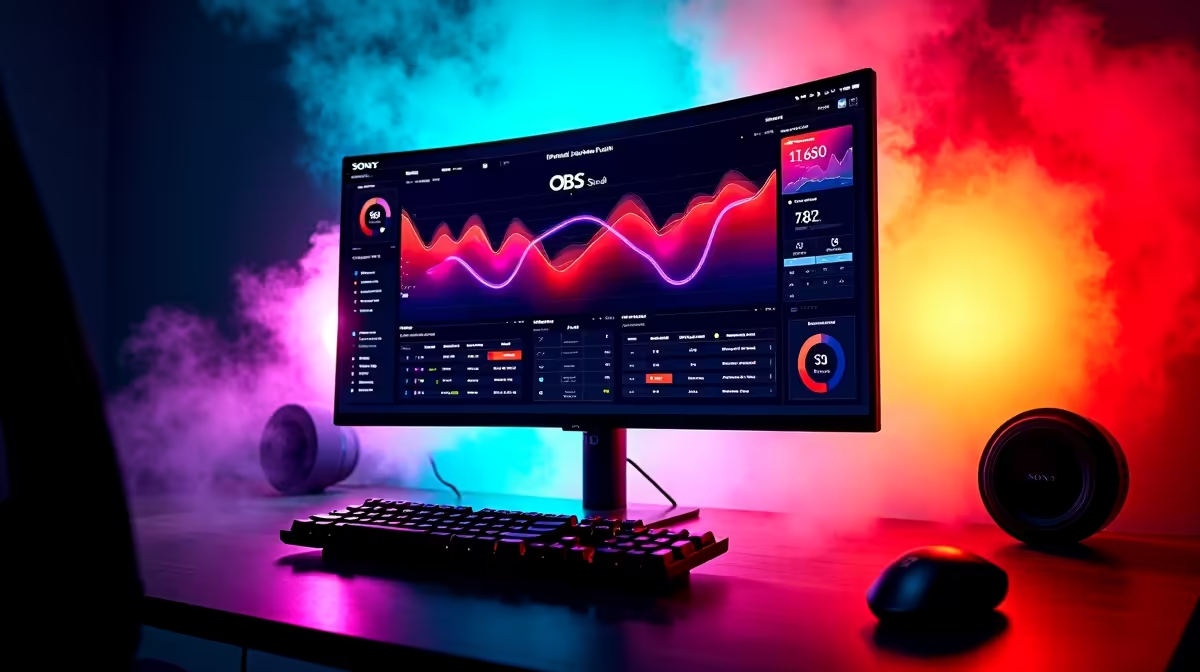
OBS Studio has become the go-to streaming and recording software for South African content creators, gamers, and podcasters - and for good reason. It's completely free, open source, and capable of professional-quality output whether you're going live on Twitch, YouTube, or recording locally for post-production.
Quick Answer
Download OBS Studio from obsproject.com, run the installer, and launch the Auto-Configuration Wizard on first open. This wizard detects your hardware and internet speed, then sets a baseline configuration for streaming or recording. From there, add your sources (game capture, webcam, microphone) and you're ready to go live.
📥 Downloading and Installing OBS Studio
Head to obsproject.com and download the Windows installer - it's free and takes under a minute to install. Run the installer with default settings and launch OBS. The first thing you'll see is the Auto-Configuration Wizard, which you should run before touching anything manually. Select whether you're optimising for streaming or recording, enter your target resolution and frame rate, and let OBS run a bandwidth test if you're streaming. It will output a recommended bitrate and encoder based on your hardware. OBS supports both x264 (CPU encoding) and NVENC/AMF (GPU encoding) - the latter is far preferable if your gaming PC has a dedicated GPU, as it encodes in hardware without impacting game performance.
🎮 Setting Up Scenes and Sources
OBS works with Scenes and Sources. A Scene is a layout - think of it as a camera angle or screen arrangement. Sources are the individual elements within a scene: game footage, webcam, microphone, overlays, and text. Click the + under Sources to add a Game Capture source (for full-screen games), a Video Capture Device (for your webcam), and an Audio Input Capture (for your microphone). Arrange sources by dragging them in the preview window. Set up multiple scenes - for example, one for gameplay, one for a facecam-only intro, and one for a BRB screen - and switch between them during your stream using hotkeys or the scene switcher.
🔴 Going Live or Recording
For streaming, go to Settings > Stream, select your platform (Twitch, YouTube, etc.), and paste your stream key from your platform's dashboard. For recording, go to Settings > Output, set the recording format (MKV is recommended - it's recoverable if OBS crashes), and choose your save folder. A fast SSD prevents dropped frames during local recording at high bitrates. Hit Start Streaming or Start Recording from the main OBS window. Monitor your dropped frames counter at the bottom - anything above 1% means your bitrate is too high for your connection or hardware.
FAQ
Q: Does OBS Studio work on AMD graphics cards?
A: Yes. OBS supports AMD's AMF encoder for GPU-accelerated encoding, similar to NVIDIA's NVENC. Enable it in Settings > Output > Encoder and select the AMD option.
Q: What's a good streaming bitrate for South African internet?
A: For most SA fibre connections, 4000–6000 kbps at 1080p60 is reliable. On LTE or lower-tier ADSL, drop to 2500–3500 kbps at 720p to avoid dropped frames.
Q: Why does my game lag when I start OBS?
A: You're likely using x264 CPU encoding, which competes with your game for processing power. Switch to NVENC or AMF (GPU encoding) in Settings > Output to offload encoding to your graphics card.
Evetech stocks Streaming Gear and Graphics Card Deals — shop online with fast delivery across South Africa.