


Maintain Wired Headset: Tips to Extend Lifespan
Maintain wired headset — Checklist: • inspect cables • clean earpads • store properly 🔧🎧 Practical steps to preserve sound quality and avoid premature replacements.
Read moreTackle OLED monitor dimming issues with expert ASBL fixes. Improve screen brightness & comfort in workspaces. 💻🔧 #TechTips
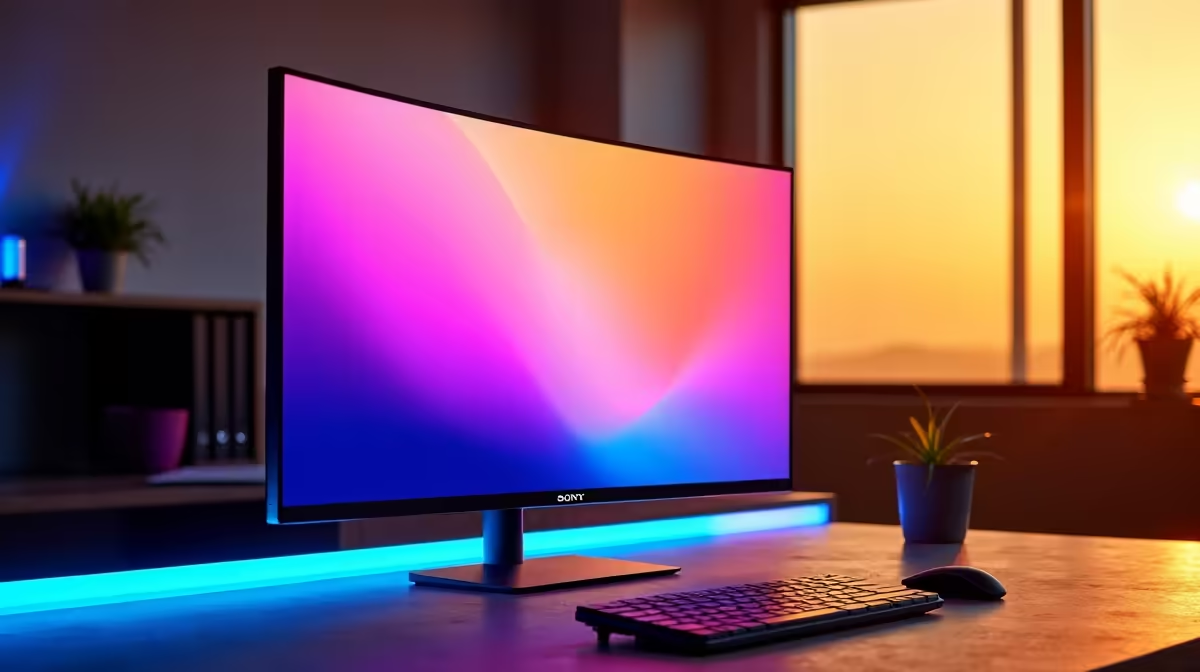
So, you splashed out on a gorgeous OLED monitor. The inky blacks and vibrant colours are incredible for gaming, but when you switch to work... disaster. Your screen keeps dimming while you’re staring at a spreadsheet or document. You’re not alone. This frustrating feature, known as ASBL, is a common headache in office settings. But don't worry, we've got the practical OLED monitor dimming fix you need to reclaim your screen's brightness and focus on your work. ⚡
Before we dive into the fix, let's quickly understand the problem. ASBL stands for Automatic Static Brightness Limiter. It's a protective feature built into most OLED displays, from TVs to the high-end gaming monitors we love, designed to prevent permanent image retention, or "burn-in."
When the monitor detects a static image—like your Windows taskbar, a Word document, or a web browser—for a few minutes, it assumes this could be a burn-in risk. To protect the organic pixels, it automatically and gradually lowers the screen's overall brightness. The irony? A feature designed to save your screen makes it almost unusable for the very productivity tasks many of us use it for. This is the core of the ASBL issue in office settings.
Ready to stop the annoying brightness fluctuations? Let's work through a few solutions, from the simple and safe to the more advanced. Finding the right OLED monitor dimming fix for your setup might take a little trial and error.
The easiest way to trick the ASBL algorithm is to ensure the image on your screen isn't perfectly static.
These small changes can make a big difference, especially on the crisp, high-resolution canvas of today's 5K and 4K monitors, where static text is the primary content.
For a hands-free solution, consider a "mouse jiggler." This can be a simple bit of software or a physical USB device that moves your cursor by one pixel every minute or so. It's just enough movement to prevent the ASBL from kicking in, without being distracting.
Some manufacturers provide options to reduce the aggressiveness of their screen-saving tech. Grab your monitor's remote or use the joystick and navigate to the picture or system settings. Look for options like:
While you're exploring, remember that the world of PC monitors is vast; settings can vary wildly between brands like LG, Alienware, and ASUS.
If the above steps don't solve your ASBL issues, there's often a more permanent solution hidden in the monitor's service menu.
Heads Up: Accessing and changing settings in the service menu can void your warranty. Proceed at your own risk.
To access it, you typically need to follow a specific button combination on your remote while the monitor is off. A quick search for your model number + "service menu" should give you the steps. Once inside, you're looking for a setting often labelled "TPC" (Temporal Peak Luminance Control) or "GSR". Disabling this is usually the most effective OLED monitor dimming fix. After changing it, simply power the monitor off and on again. To get the most out of your newly stable display, consider investing in quality monitor accessories like a proper stand or calibration tool.
While disabling TPC is effective, the ultimate solution is for manufacturers to implement smarter ASBL algorithms that can differentiate between a static HUD in a game and a spreadsheet you're actively working on. Newer models are getting better at this.
If you find yourself constantly fighting with dimming, you might consider a dual-monitor setup. Use your glorious OLED for media and gaming, and a high-quality IPS panel for static work. You could even add a versatile portable monitor to your desk for toolbars and chat windows. For an all-in-one setup, some of the latest curved monitors with Mini-LED technology offer a great compromise, delivering fantastic contrast without the burn-in risk.
Ultimately, you paid for a premium experience, and you deserve to have it whether you're gaming or working.
Find Your Perfect, Flicker-Free Display Tired of fighting with your screen? Explore our massive range of monitors, hand-picked for South African gamers and professionals. Check out the best PC monitor deals at Evetech and enjoy a consistently brilliant view.
Access your OLED's settings menu and increase ASBL/Black Level to reduce dimming.
ASBL sensitivity causes dimming; adjust dynamic contrast or ambient light detection.
Set brightness between 250-350 nits with ASBL optimized to prevent eye strain.
Yes—check Evetech's firmware updates for improved ASBL performance.
Update drivers, disable PWM dimming, and adjust ASBL/Black Levels.
Use 'Office' or 'Standard' mode for balanced brightness and color accuracy.
Extreme ASBL can crush blacks; calibrate to maintain color precision.
Maintain wired headset — Checklist: • inspect cables • clean earpads • store properly 🔧🎧 Practical steps to preserve sound quality and avoid premature replacements.
Read more
Fix crackling headset fast: step-by-step checks for cables, connectors, drivers, and settings to remove static or distorted audio on wired headsets 🎧⚙️
Read more
Stereo vs mono headsets: learn which delivers clearer calls, better spatial music, or simpler mono voice performance — pick the right headset for meetings, music, or gaming 🎧💬
Read more
- Compare gaming headset vs studio headphones; - Assess comfort, mic and sound; - Recommend best daily picks. Gaming headset vs studio headphones: learn which suits work, music and casual gaming. 🎧⚖️
Read more
- Check pressure points - Compare earcup materials - Adjust clamp and fit Best gaming headsets for glasses: quick guide to reduce temple pressure, pick breathable memory foam earcups, and optimize fit for long sessions 🕹️👓
Read more
Gaming microphone noise reduction: Use beamforming mics, AI noise suppression, and hardware filters to cut background noise and boost in-game voice clarity. 🎧⚙️ Learn setups, settings, and top mic features.
Read more
Snapdragon X2 NPU Explained: How 80 TOPS Changes. Plain-English explanation of what it means, why it matters & how it affects your buying decisions in SA.

HBM? High Bandwidth Memory Used in GPUs and AI. Plain-English explanation of what it means, why it matters & how it affects your buying decisions in SA.

How much should you spend on sim racing accessories in South Africa for a realistic setup? We break down budgets by quality tiers, so you buy smart gear and avoid overspending 🎮💸

G-Sync and FreeSync? Variable Refresh Rate. Plain-English explanation of what it means, why it matters & how it affects your buying decisions in SA.

AMD Laptop: Value. SA-focused analysis with local pricing data, real-world insights & actionable buying advice.

How MacBook Neo Handles 30+ Chrome Tabs with Only. SA-focused analysis with local pricing data, real-world insights & actionable buying advice.

Why Apple Put 8GB RAM in MacBook Neo: The A18 Pro. SA-focused analysis with local pricing data, real-world insights & actionable buying advice.

Upgrade your work laptop with a New Motherboard. Step-by-step instructions with SA-specific tips, common pitfalls to avoid & expert recommendations.
Maintain wired headset — Checklist: • inspect cables • clean earpads • store properly 🔧🎧 Practical steps to preserve sound quality and avoid premature replacements.
Fix crackling headset fast: step-by-step checks for cables, connectors, drivers, and settings to remove static or distorted audio on wired headsets 🎧⚙️
Stereo vs mono headsets: learn which delivers clearer calls, better spatial music, or simpler mono voice performance — pick the right headset for meetings, music, or gaming 🎧💬
- Compare gaming headset vs studio headphones; - Assess comfort, mic and sound; - Recommend best daily picks. Gaming headset vs studio headphones: learn which suits work, music and casual gaming. 🎧⚖️