


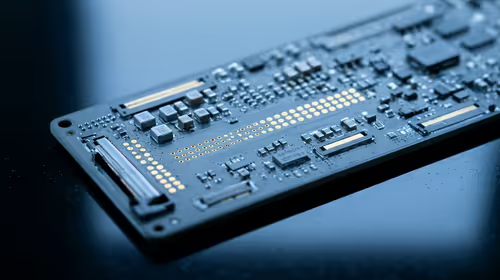
Hot-Swappable PCB Architecture in Modern Keyboards: Guide
Learn hot-swappable PCB architecture in modern keyboards—what it is, how sockets and traces work, and how to pick the right board. Speed up swaps, reduce risk, and upgrade faster 🔧⚡
Read moreIf your PC is still overheating with high airflow fans, you likely have airflow direction or thermal contact issues. Here’s how to diagnose the bottleneck fast and cool your rig 😅🧊
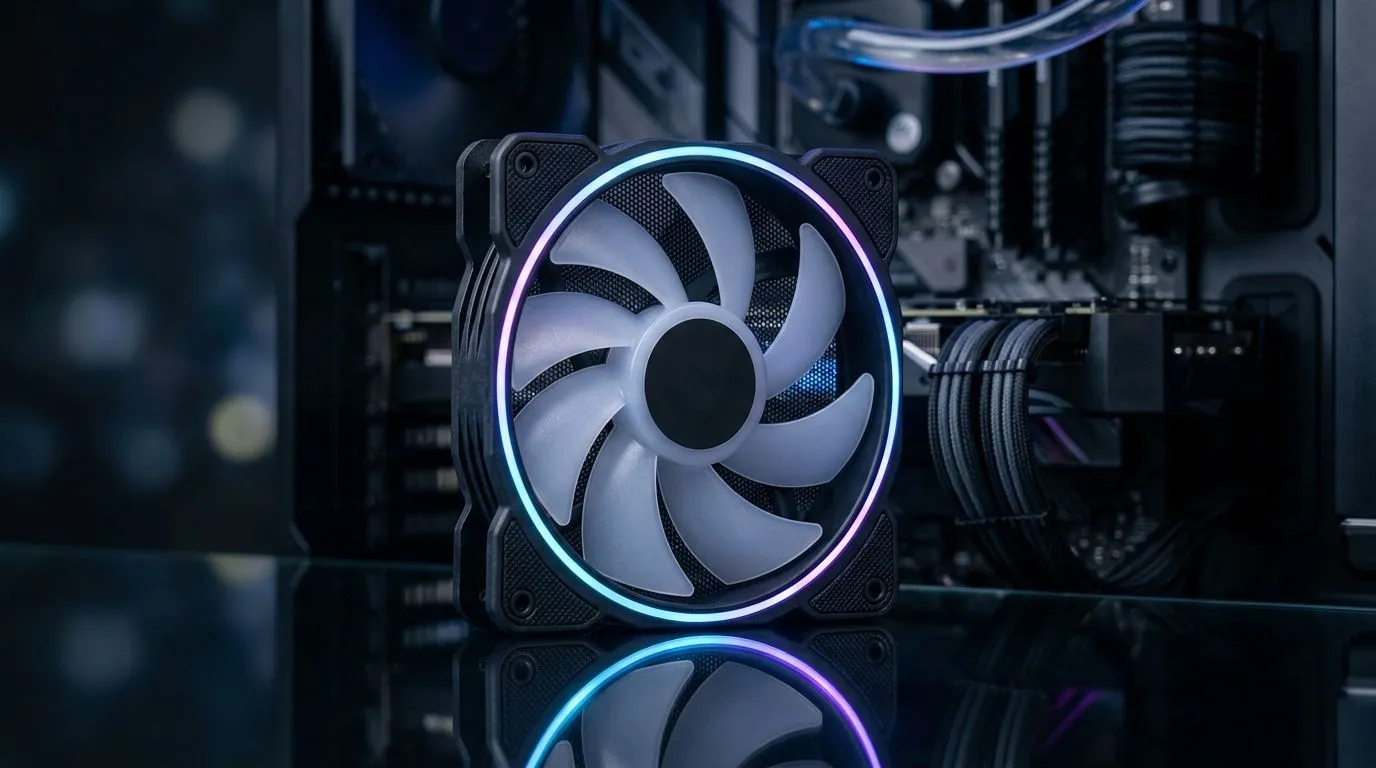
South African load shedding, dusty roads, and packed game nights… all of that stress your PC. If you upgraded to high-airflow case fans but your temperatures didn’t drop, don’t panic. 🔧 The fans are only one part of the cooling system. In many builds, the real culprit is airflow direction, fan curve settings, blocked filters, or poor cable management. Let’s fix it step-by-step and get your temps back under control.
Start with simple evidence. Boot into your game or a CPU/GPU stress test and watch temperatures alongside RPM. If your GPU is hot but CPU is fine, you likely have case exhaust imbalance or a blocked intake.
Check these common issues:
With the PC off, look at the fan arrows on the frame. Then trace the air path:
On your motherboard’s fan control screen, set a custom curve that ramps earlier during gaming. A good starting point is to let fans rise quickly once CPU or GPU package temps pass the low-to-mid 60°C range, instead of waiting for extreme temps. This prevents “fan lag” where heat builds faster than cooling responds.
Even great fans can underperform if they can’t move air efficiently. Your case layout matters because fans create either positive or negative pressure inside the chassis.
If you’re shopping for upgrades, pick fans based on your case mounting options and airflow goals. For example:
Here’s the kind of fan selection that helps when you’re trying to fix persistent overheating:
A common micro-story: a client upgraded to “high RPM” fans after their FPS dipped from thermal throttling. Temps only improved slightly… until we found the front filter was clogged. Cleaning that, then setting a steeper fan curve, dropped CPU temps quickly. 🔥 Another frequent one is cable clutter blocking the GPU’s intake path, especially around 2- and 3-slot graphics cards.
Try this order of operations:
##CALLTOACTION
Ready to Find Your Perfect Match? If your PC is still overheating, the right case fans and a smart setup can make a real difference in everyday gaming. Explore our range of proven cooling options here: shop case fans at Evetech.
High airflow fans can still fail if airflow direction is wrong, dust blocks vents, or thermal contact and fan curves are off. Start by checking CPU/GPU temps and airflow paths.
If intake and exhaust aren’t balanced, hot air can recirculate in the case. Verify intake brings cool air in and exhaust removes it without turbulence.
Yes. Poor mounting pressure, old or dried thermal paste, or uneven cooler contact can trap heat. Reseat the cooler and reapply quality thermal paste if needed.
Check BIOS or software fan curves, ensure fans reach expected RPM under load, and confirm the correct headers are used for CPU and system fans.
Improper radiator orientation can reduce cooling performance, especially for AIO coolers. Ensure proper mounting and avoid blocking radiator intakes.
Compare intake vs exhaust fan count and look for dead zones near the CPU/GPU. If hot air pools, you likely need pressure balance or better fan placement.
GPU heatsinks rely on direct case airflow. If fans push air past the GPU instead of through it, temperatures rise. Recheck fan position, dust, and GPU cooler function.
Confirm fan RPM, test with a known load, check CPU vs GPU temps, inspect dust and vents, verify cooler contact, and validate airflow direction before changing hardware.
Learn hot-swappable PCB architecture in modern keyboards—what it is, how sockets and traces work, and how to pick the right board. Speed up swaps, reduce risk, and upgrade faster 🔧⚡
Read more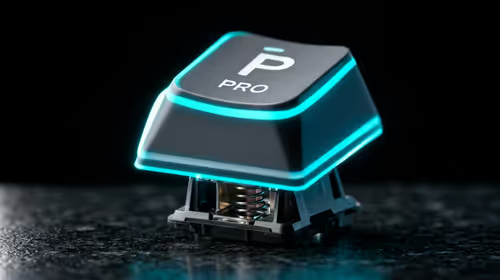
Mechanical switch lifespan explained—what the 50 million keystroke rating really means, plus tips to extend switch life and reduce double-press issues 🔧⌨️
Read more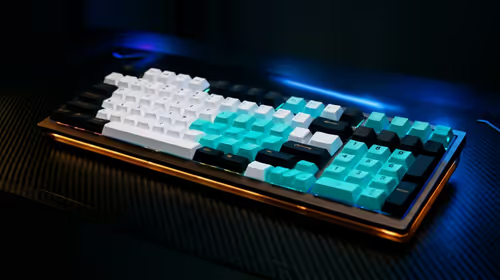
60-percent vs full-size mechanical keyboard layouts—learn what each layout includes, who it suits, and how to choose the right fit 🧩⌨️ for typing, gaming, and productivity.
Read more
Double injection keycaps last far longer than standard printed keycaps in most setups. Learn typical lifespan ranges, what shortens them, and how to maximize durability for smoother daily typing and gaming 😊⌨️
Read more
Full-key anti-ghosting: does it stop missed inputs during fast-paced gaming? We break down latency, polling, and key matrix limits so you can buy smarter 🎮⚡
Read more
Protect mechanical keyboard switches from South African dust and summer humidity with practical cleaning and storage habits. Keep your switches smooth, reduce failures, and extend lifespan. 🌬️💧
Read more
Wondering if a TKL wireless mechanical keyboard is worth it for everyday productivity? We break down latency, battery life, comfort, and workflow gains for real work. ⚡⌨️

Maximise battery life on a fanless 15-inch laptop using efficiency core architecture. Cut idle drain, tune power profiles, and improve thermals for longer runtime. 🔋⚙️

Learn how to reduce desk clutter with a TKL wireless keyboard using fewer cables, smart placement, and tidy essentials. Get a faster, calmer workspace with better ergonomics. ✅🧼

RGB keyboard lighting too distracting? Learn how to manage backlight modes, set brightness, and reduce distraction for focus and productivity 😌🖱️

Are themed gaming keyboards worth the extra cost? Compare build quality, switch options, features, and resale value to find the best fit for your setup 🎮⌨️

Full-Size vs Tenkeyless mechanical keyboards for gaming: find out if a smaller layout truly improves aim, speed, and comfort. We break down layout, desk space, latency-feel, and keybinds 🎮⌨️

Dedicated media rollers vs function key shortcuts: learn which setup gives you better workflow control, faster media access, and fewer mistakes. 🖱️🎧

Best Mechanical Switch Type for Gaming: Clicky vs Linear vs Tactile. Find your feel, speed, and noise balance with practical guidance for FPS, MOBA, and productivity 😄🎮

Direct mouse answer: Mouse not keeping up with your work? Everything that matters about dual-mode 2.4GHz + BT 5.0: DPI behaviour, channel switching, battery curves and per-app button mapping. Covers when 2.4GHz USB wins (low-latency desk) and when BT 5.0 wins (laptop, d

Plain wireless mouse guide: Mouse not keeping up with your work? Everything that matters about wireless productivity mouse: DPI behaviour, channel switching, battery curves and per-app button mapping. Includes DPI tuning tips, channel switch shortcuts, and ZAR-aware fea

Real productivity numbers: Set up your wireless mouse in this order: everything that matters about wireless productivity mouse: DPI behaviour, channel switching, battery curves and per-app button mapping. Includes DPI tuning tips, channel switch shortcuts, and ZAR-aware

Pen not feeling like paper? Stylus lag and skipping usually trace to old drivers, dirty nibs, or display refresh mismatches, not the pen itself. Covers pressure curve tuning, tilt thresholds, nib swap timing, and SA pricing brackets.