

RTX 4060 Ti Throttling Under Load: SA Temperature Guide
RTX 4060 Ti Throttling Under Load: Temperature. Everything you need to know with SA pricing, step-by-step instructions & expert recommendations.
Read moreStruggling with HDMI port failures on refurbished external monitors? Discover quick fixes 💡. Learn to troubleshoot & extend your display lifespan 🔌💥
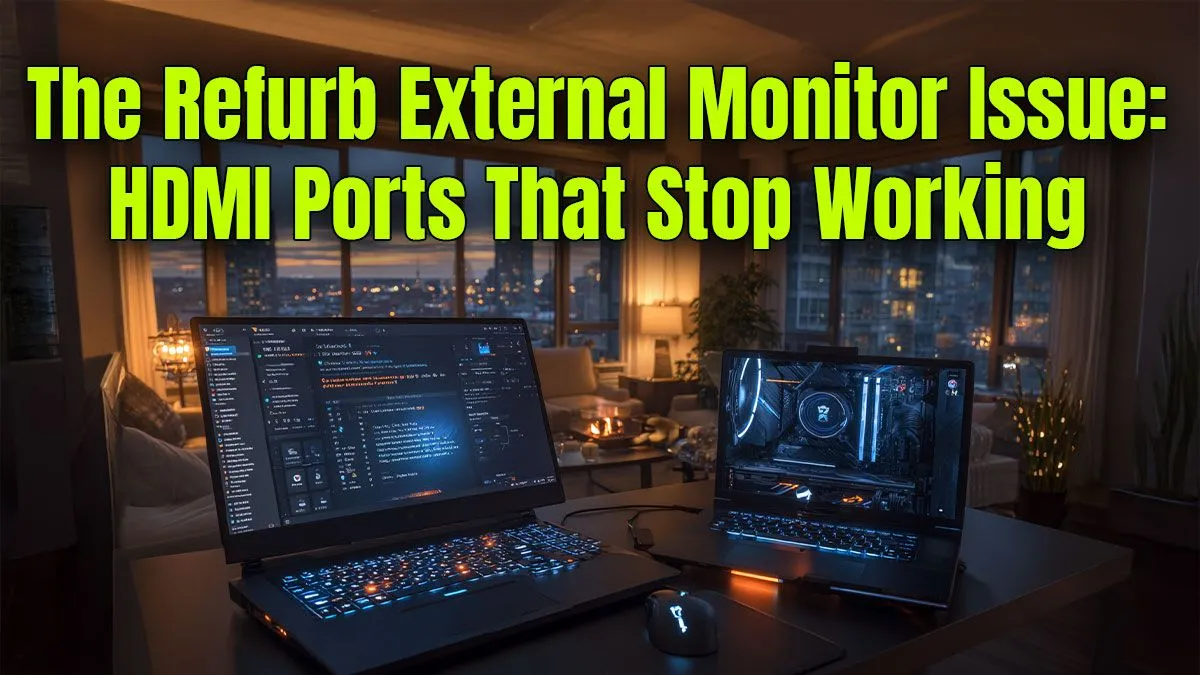
So, you’ve snagged a sweet deal on a refurbished monitor, but your victory lap is cut short. Why? The screen is black. The HDMI port is dead. Don't start drafting that angry email just yet. A dodgy connection is a common pain point, especially with pre-loved tech. But often, the fix for a refurb external monitor's HDMI port is surprisingly simple. Let’s get that display glowing and you back in the game. 🚀
Before you dive into device drivers or panic-buy a new screen, let's cover the basics. These steps solve the problem more often than you'd think.
The most common culprit is... the cable itself. Seriously. An old or damaged HDMI cable can cause flickering, signal loss, or no connection at all.
Sometimes, even the most powerful gaming rig is only as strong as its weakest link. Ensuring your display connection is solid is crucial, especially when you're running one of today's best gaming laptop deals and pushing for every frame.
If a new cable didn't do the trick, the problem might be digital, not physical. Your computer might not be "seeing" the monitor correctly. This is where a good old driver update or a settings tweak comes in handy.
Outdated drivers are a frequent source of display headaches. Head to your manufacturer's website and grab the latest version for your graphics card.
After updating, restart your computer. This simple reboot often forces the system to redetect any connected displays.
If the monitor still isn't detected, right-click your desktop > Display settings > scroll down to 'Advanced display settings' and click 'Detect'. This forces Windows to scan for new displays. It’s a quick fix that can save a lot of frustration.
Okay, the cables are good and the drivers are fresh. It's time to inspect the hardware itself. This is a key step in any guide to refurb external monitor HDMI port fixes. Be gentle here... you're a troubleshooter, not a demolition expert.
If you've tried everything—different cables, updated drivers, and a gentle clean—and the port is still unresponsive, it might be time for a tough call. A physically broken HDMI port requires a delicate soldering job that often costs more in labour than the monitor is worth.
Instead of sinking money into a potentially failing screen, consider it a sign to upgrade. You might be surprised by how affordable a brand-new, reliable display or even a full system can be. If your budget is tight, there are fantastic gaming laptops under R20k that deliver a brilliant experience right out of the box, no troubleshooting required. ✨
Tired of Troubleshooting? Upgrade Your Setup. Sometimes the best fix is a fresh start. Explore our massive range of laptop specials for sale in South Africa and get back to gaming without the hardware headaches.
Wear, loose connections, or damaged circuits in used monitors often cause HDMI failures. Verify cables, inspect ports, and try alternate inputs.
Yes! Check for cable issues, use compressed air for debris clean-up, or test different HDMI inputs if available.
Yes. Refurbished monitors may show signs of prior component wear, contributing to port issues.
Try multiple HDMI cables and devices. If display issues persist, the port or source might be damaged.
Signs include intermittent display, no signal, flickering, or audio/video dropouts linked to the HDMI connection.
Yes, Evetech offers diagnostics and repair solutions for refurb monitor port issues. Contact customer support for details.
Use quality cables, secure connections, and avoid excessive plugging/unplugging to prevent wear on HDMI ports.
RTX 4060 Ti Throttling Under Load: Temperature. Everything you need to know with SA pricing, step-by-step instructions & expert recommendations.
Read more
Apex Legends Max Settings on RTX 4080. Tested & verified settings for best FPS and visual quality on SA hardware budgets.
Read more
GPU Buying Guide. Everything you need to know with SA pricing, step-by-step instructions & expert recommendations.
Read more
GPU Terms Guide. Everything you need to know with SA pricing, step-by-step instructions & expert recommendations.
Read more
AMD Adrenalin Download & Setup Guide: GPU. Clear setup instructions with SA-specific considerations, troubleshooting tips & recommended components.
Read more
Back-to-School GPU Buying Guide. Everything you need to know with SA pricing, step-by-step instructions & expert recommendations.
Read more
Snapdragon X2 NPU Explained: How 80 TOPS Changes. Plain-English explanation of what it means, why it matters & how it affects your buying decisions in SA.

HBM? High Bandwidth Memory Used in GPUs and AI. Plain-English explanation of what it means, why it matters & how it affects your buying decisions in SA.

How much should you spend on sim racing accessories in South Africa for a realistic setup? We break down budgets by quality tiers, so you buy smart gear and avoid overspending 🎮💸

G-Sync and FreeSync? Variable Refresh Rate. Plain-English explanation of what it means, why it matters & how it affects your buying decisions in SA.

AMD Laptop: Value. SA-focused analysis with local pricing data, real-world insights & actionable buying advice.

How MacBook Neo Handles 30+ Chrome Tabs with Only. SA-focused analysis with local pricing data, real-world insights & actionable buying advice.

Why Apple Put 8GB RAM in MacBook Neo: The A18 Pro. SA-focused analysis with local pricing data, real-world insights & actionable buying advice.

Upgrade your work laptop with a New Motherboard. Step-by-step instructions with SA-specific tips, common pitfalls to avoid & expert recommendations.

Maintain wired headset — Checklist: • inspect cables • clean earpads • store properly 🔧🎧 Practical steps to preserve sound quality and avoid premature replacements.

Fix crackling headset fast: step-by-step checks for cables, connectors, drivers, and settings to remove static or distorted audio on wired headsets 🎧⚙️

Stereo vs mono headsets: learn which delivers clearer calls, better spatial music, or simpler mono voice performance — pick the right headset for meetings, music, or gaming 🎧💬

- Compare gaming headset vs studio headphones; - Assess comfort, mic and sound; - Recommend best daily picks. Gaming headset vs studio headphones: learn which suits work, music and casual gaming. 🎧⚖️