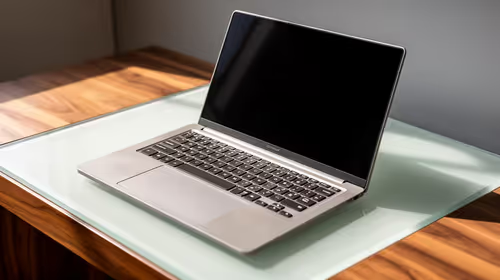
A work laptop on one side, a personal desktop on the other, and a single good monitor stuck serving only one of them. That is the daily friction a KVM switch removes. One keyboard, one monitor, and one mouse, shared cleanly between two or more computers, with a hotkey or a button press to jump between them. For South African home offices running a company machine alongside a gaming or personal rig, it is one of the cheapest upgrades that genuinely changes how the desk feels.
Quick Answer
A KVM switch lets one keyboard, monitor, and mouse control two or more computers, switching between them by hotkey or front-panel button without re-cabling. For a dual setup, budget for a DisplayPort or HDMI KVM that matches your monitor's resolution and refresh rate, and check the USB ports support your keyboard and mouse.
What a KVM Switch Does
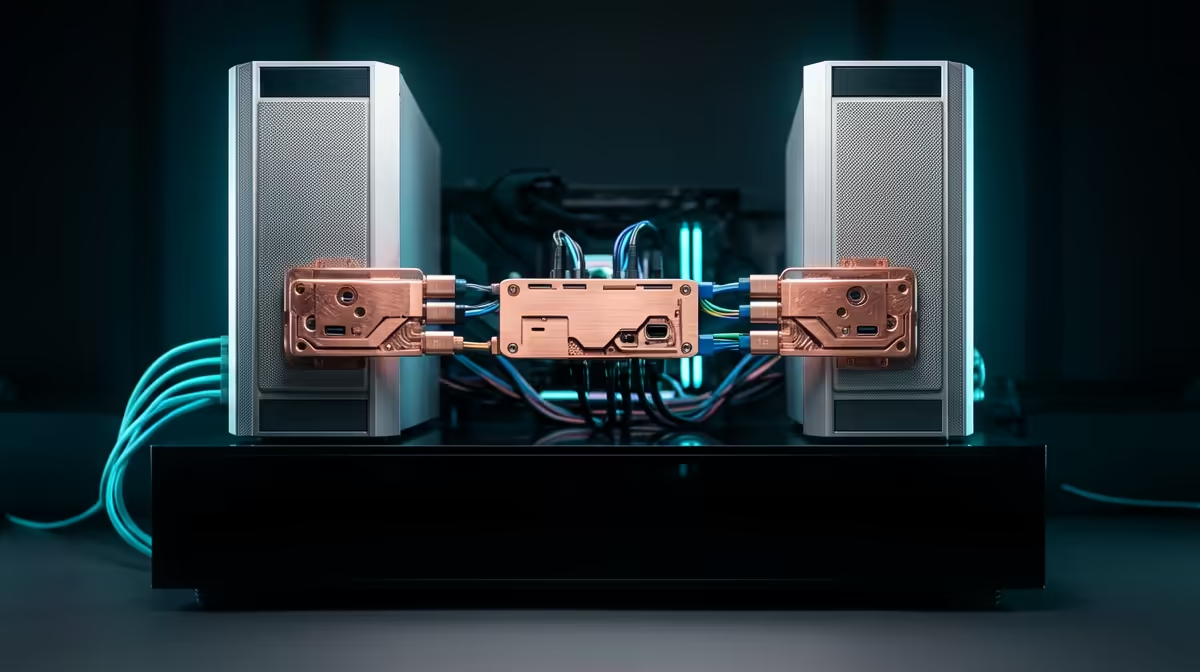
KVM stands for keyboard, video, and mouse. The switch sits between your peripherals and your computers. Your monitor, keyboard, and mouse plug into the KVM, and each computer connects to the KVM with a video cable and a USB cable. Press the button or trigger the hotkey and the whole set instantly points at the other machine.
The win is twofold. You stop owning two keyboards and two mice that crowd the desk, and you stop unplugging cables every time you switch contexts between work and personal. Everything stays connected; only your attention moves.
Choosing the Right Video Standard
DisplayPort vs HDMI KVMs
The single most important spec is the video connection, because it caps your resolution and refresh rate. A DisplayPort KVM is the safer pick for high-resolution or high-refresh monitors, since DisplayPort generally carries more bandwidth. An HDMI KVM is fine for standard office monitors and many 4K-at-60Hz panels, and HDMI cables are easy to find.
Match the KVM to your screen, not the other way around. If you run a 1440p high-refresh gaming monitor, buy a KVM that explicitly supports that resolution and refresh; a cheaper unit may quietly drop you to 60Hz. If your monitor is a standard 1080p or 4K-60 office panel, you have more freedom and can save money.
USB-C KVMs for Laptops
If one of your two machines is a modern laptop, a USB-C KVM is worth a look. A single USB-C cable can carry video, data, and power delivery, so docking the laptop charges it and connects the peripherals in one move. That suits the common pattern of a work laptop that lives on the desk during the day and goes home in a bag at night.
Dual-Monitor KVM Options
Some setups run two screens rather than one. Dual-monitor KVMs are available and carry both display outputs through the switch, but they add complexity and cost. The sub-R5,000 tier of dual-monitor KVMs almost always tops out at 4K-at-60Hz per output, and if you need higher refresh on two screens, the cost climbs steeply. For most home-office setups with a single good monitor, a single-display KVM is cleaner and more affordable.
Setting It Up Cleanly
Plan the cable runs before you buy. Each computer needs one video cable and one USB cable to the KVM, plus your monitor and peripherals plug into the KVM itself. That is more cabling than people expect, so route it tidily down the back of the desk from the start.
For the keyboard and mouse, prefer a KVM with dedicated USB ports rather than relying on a hub passthrough, since some wireless dongles and gaming peripherals are fussy about how they are switched. If you use a specific gaming keyboard or mouse, confirm it survives the switch without needing a re-plug. A clean two-PC desk also benefits from the obvious comfort upgrade, and a well-chosen desk makes the whole setup click; the ergonomic desk range at Evetech is worth browsing when you are building out a dual-machine station.
Hotkey Switching and Compatibility
Most KVMs assign a dedicated keyboard shortcut, typically a double-tap of the Scroll Lock key followed by a number, or a button on the front panel. This is much faster than walking around the desk to switch inputs on the monitor itself. For a laptop-and-desktop combo, confirm that the KVM's hotkey works with the laptop's keyboard layout, since some ultrabooks omit or remap keys the KVM relies on.
Audio passthrough is a feature some users overlook until they need it. If your speakers or headset plug into your monitor, most KVMs handle that automatically. If they plug directly into the PC, you need a KVM with an audio port or a separate audio switch to avoid repluggging headphones every time you swap machines.
Is a KVM Worth It in SA?
For anyone running two machines at one desk, yes. It declutters, it speeds up context switching, and good units are affordable. The main reasons to skip it are if your monitor's resolution or refresh exceeds what an affordable KVM supports, or if you genuinely need both machines visible at once, in which case a dual-monitor layout serves you better than switching. If you are upgrading the whole workspace at the same time, browsing the best-selling desk accessories at Evetech helps you sort the workspace side alongside the tech.
Frequently Asked Questions
Can a KVM switch handle two PCs and one monitor?
Yes, that is the most common use. A two-port KVM connects both computers to a single monitor, keyboard, and mouse, and you switch the active machine with a button or hotkey.
Will a KVM lower my monitor's resolution or refresh rate?
It can if the KVM does not support your monitor's spec. Always match the KVM to your screen: a DisplayPort KVM rated for your resolution and refresh avoids being capped to a lower setting.
Do gaming keyboards and mice work through a KVM?
Most do, but some wireless dongles and specialised peripherals can be temperamental when switched. Choosing a KVM with dedicated USB ports rather than a basic hub reduces the chance of needing a re-plug.
Is a USB-C KVM better for a laptop setup?
Often yes. A USB-C KVM can carry video, data, and charging over one cable, so docking a work laptop powers it and connects all peripherals in a single connection, which suits laptops that move between desk and bag.
How is a KVM different from a USB hub?
A USB hub only shares USB devices. A KVM also switches the video signal and routes keyboard and mouse control between separate computers, which a hub cannot do.
Running two machines at one desk? Sort the workspace first with the ergonomic desk range at Evetech and build a dual-PC setup that is clean, cable-managed and ready to work in.