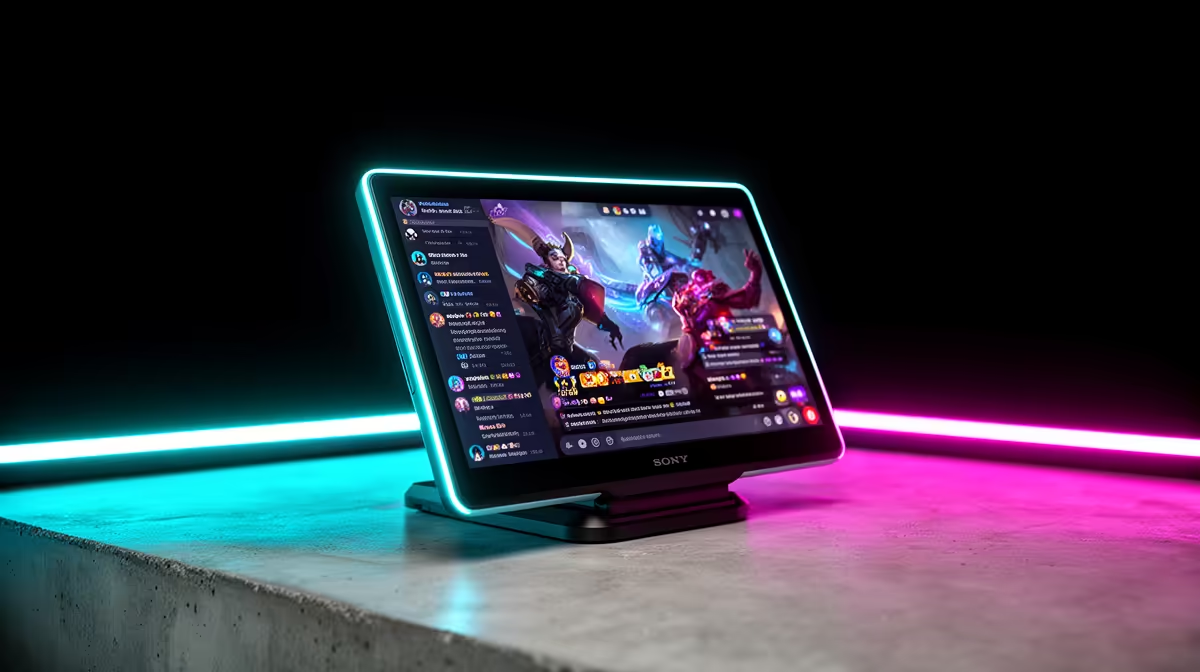
Chat needs visibility rather than premium colour or esports refresh. A cheap second screen for streaming can be small and modest, provided its inputs, stand and resolution fit the messages and controls you keep there.
Quick Answer
Your cheapest second screen may be a phone, tablet, spare television, or old monitor you already own. Use it for chat before buying another display. If the free option is too small, sleeps during streams, or cannot sit near your eyeline, choose a basic monitor that your PC can connect without an adapter chain.
Plan the streaming workflow through the creator essentials range. If chat sits beside a camera preview, compare positions with products in the webcam section so the second display does not push your lens far away from the conversation.
Try the screen you already own
A phone can show chat through the platform app or creator dashboard. Put it on a stable stand below the main display and keep it connected to safe power for long sessions. Increase text size instead of leaning towards it.
A tablet provides more lines and can show moderation tools. Disable auto-lock for the session only when the device and application allow it safely, then restore normal settings afterwards. Avoid leaving a static bright interface at maximum brightness for hours.
An old laptop can run the chat dashboard on the same network. It adds its own power, updates, and desk space, but it removes display-output pressure from the streaming PC. Mute its speakers to prevent alerts entering the microphone.
A spare television works when it accepts the PC output and can sit at a comfortable distance. Check text clarity at its native resolution. A large television placed far to the side may force more head movement than a small display near the main screen.
Buy around chat, not visual matching
A chat monitor does not need to match the main gaming panel's refresh rate, response time, or adaptive-sync support. It needs readable text, a suitable input, enough brightness for the room, and a stand or mount that places it well.
Check the PC's unused outputs and the monitor's inputs before choosing. DisplayPort, HDMI, USB-C video, and older connections are not interchangeable by shape or adapter alone. Confirm the graphics system supports the total display count and intended resolutions.
Use the monitor's native resolution and operating-system scaling that keeps chat readable. A modest 1080p panel can suit this role when its size and viewing distance align. Rotate it vertically only if the stand and monitor support portrait use with stable mounting and ventilation.
Do not assume the lowest current display price is the lowest complete cost. Add the required cable, stand, arm, and any supported adapter. A free old monitor with an awkward legacy input can cost more to integrate than expected.
Place chat where your audience sees your attention
Keep the chat window close to the camera. When you read, your eyes then remain near the lens and viewers feel included. A monitor placed at the far edge of a wide desk makes every message pull your face away.
Try a portrait display beside the main screen, with chat in the upper section. Put moderation controls or stream health below it. Avoid filling the screen with preview video if that encourages you to watch yourself instead of the game and conversation.
Set the top of the display near comfortable eye level and angle it towards the chair. Repeated neck turns during a long broadcast are a setup problem. Move the monitor arm or camera before accepting an uncomfortable position.
If the webcam sits between the screens, make sure neither bezel blocks its field or forces the lens too high. Test the frame with the final chair position and microphone arm in place.
Keep the second display from hurting game performance
A chat page is a light workload, but video previews, animated dashboards, browser sources, and hardware acceleration can add load. Test the full streaming setup in a representative game. Watch frame times rather than assuming the second panel caused every dip.
Set each monitor to an intended refresh rate and use current graphics drivers. Mixed refresh setups work on many systems, yet certain applications, capture paths, and driver versions may behave differently. Reproduce the fault before changing several settings.
Pause unnecessary video playback on the chat display. Use the platform's pop-out chat when it reduces dashboard load. Keep stream health visible through the broadcasting application or platform so you do not lose warning information.
Connect both screens to the discrete graphics card when that is the supported desktop route. Motherboard video outputs may depend on an enabled integrated GPU and can complicate troubleshooting.
Use software layouts when there is no desk space
An overlay can place chat on the main display for the streamer without showing it to viewers, depending on the game, platform, and tool. This saves hardware but adds software and may not work well with every full-screen mode.
Alt-tab remains a valid starting route for slower games or a stream with quiet chat. Use a safe scene before leaving a game if the desktop contains private information. Window capture can also keep the game visible while chat occupies a narrow side area on an ultrawide screen.
A control pad or hotkey can show and hide chat, switch dashboard windows, or move to a conversation scene. Test the workflow offline. Extra automation is worthwhile only when it reduces missed messages without adding a fragile plugin chain.
Cable and mount the display safely
Use the cable type supported for the target resolution and refresh rate. Keep power and video leads away from microphone joints and chair wheels. Leave slack for an adjustable arm, and secure cables so movement does not pull at the port.
For an arm, confirm the monitor's VESA pattern, weight without its original stand, and desk structure. Tightening a clamp cannot make a hollow desk stronger. A freestanding riser may be the safer route on uncertain furniture.
Check that the screen's original stand fits the desk depth and does not collide with the main monitor feet. Measure before ordering. The cheapest panel is poor value if it needs a new desk to sit correctly.
FAQ
Do I need a second monitor to read stream chat?
No. A phone, tablet, spare laptop, overlay, or occasional alt-tab can work. Add a monitor when those options cause missed messages, poor ergonomics, or an unreliable dashboard.
Must the chat monitor match my gaming display?
No. Match the connection, readable resolution, size, stand, and room. High gaming refresh and adaptive sync are not essential for a mostly static chat window.
Can a second monitor reduce game performance?
A simple chat page adds little load on most suitable systems, while video, browser animation, previews, and mixed software paths can add more. Test the complete stream and inspect frame times before blaming the display itself.
Test chat on a screen you already own, then choose a second display only when its connection and placement solve a real streaming problem.