Mastering Your StS 2 Cloud Saves: How to Move from PC to Laptop
There is nothing worse than finishing a legendary run on your desktop only to find your progress missing when you head to a coffee shop. If you are wondering about StS 2 Cloud Saves: How to Move from PC to Laptop, you are in the right place. South African gamers deserve a seamless transition between their home rigs and portable machines. 🔧
Syncing StS 2 Progress via Steam Cloud
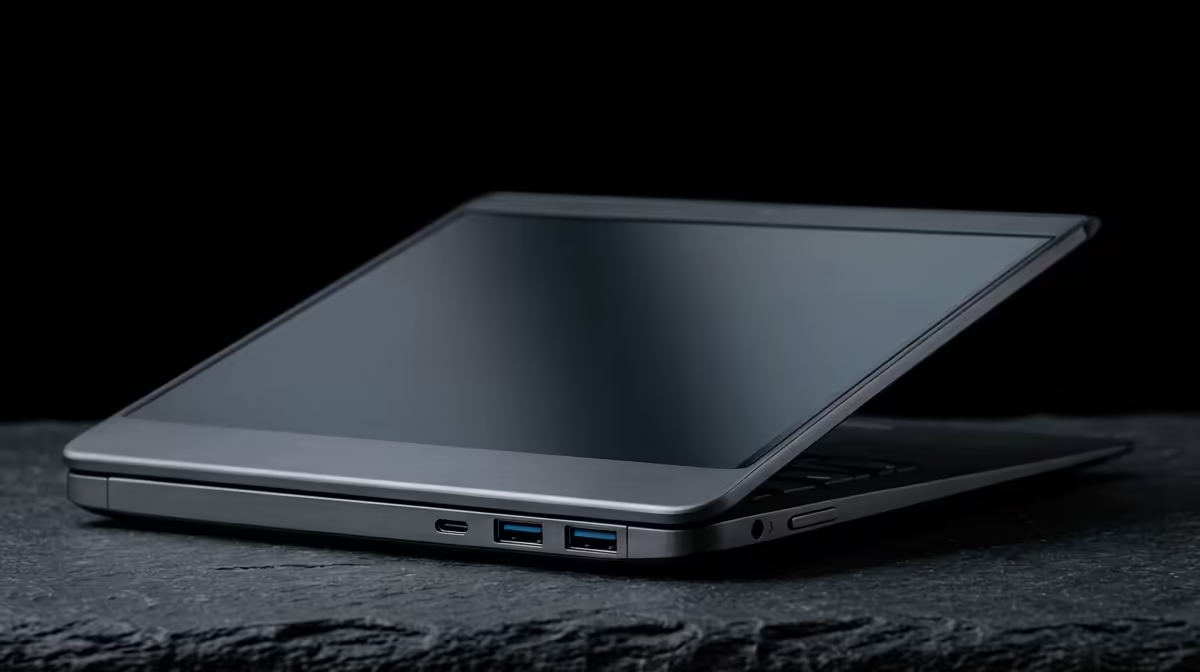
The most efficient way to manage your progress is through Steam’s built-in synchronisation. Steam Cloud usually handles the heavy lifting automatically. You must ensure the feature is active on both devices. Right-click the game in your library and select properties. Under the general tab... verify that cloud saves are toggled on. This ensures your latest deck builds and unlocks follow you everywhere. If you are looking for a reliable machine to handle these syncs... you might want to browse these intel laptops on special for consistent performance.
Manual Save Transfers for Offline Play
Sometimes the internet in South Africa can be a bit temperamental. If you are dealing with loadshedding and need to move files manually... you can find the save folder in the game's directory. Usually, this is located within the 'runs' or 'saves' folder in the Steam library path. Copy these files to a USB drive or a cloud service like OneDrive. ⚡
Save File Security ⚡
Always create a backup folder on your desktop before manually moving files. If a sync error occurs during the transfer... you will still have your original progress safe. This is vital for long roguelike runs where one mistake can cost you hours of progress.
When moving to a new device... ensure the file structure matches exactly. For those who prefer AMD hardware... checking out the latest ryzen laptop deals is a smart move for efficiency.
Optimising Your Setup for Portable Gaming
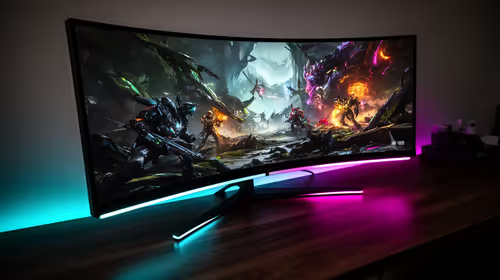
To get the most out of your roguelike experience... your hardware needs to keep up. Moving from a powerful PC to a laptop should not mean a drop in visual clarity. You can find the best gaming laptop deals that offer high-refresh-rate screens for those smooth card animations.
If you are on a budget... there are many ways to buy gaming laptops under R20k that still pack a punch. For the ultimate visual experience... consider the geforce rtx gaming laptops on special to see every detail of the Spire in stunning quality. ✨
Troubleshooting Sync Issues
If your saves are not appearing... check your internet connection first. Sometimes Steam needs a few minutes to upload the data after you close the game. Avoid shutting down your PC immediately after a session. Give the client a moment to finish the upload process. This simple habit will save you a lot of frustration when you open your laptop later. 🚀
Ready to Find Your Perfect Match?
The Mac vs Windows debate is complex, but for maximum power, choice, and value in South Africa, Windows is hard to beat. Explore our massive range of laptop specials and find the perfect machine to conquer your world.