

RTX 4060 Ti Throttling Under Load: SA Temperature Guide
RTX 4060 Ti Throttling Under Load: Temperature. Everything you need to know with SA pricing, step-by-step instructions & expert recommendations.
Read moreLearn how to switch Between 2.4 GHz wireless, Bluetooth, and USB-C on a multi-mode gaming controller—fast, stable, and low-lag. No guesswork 😄🎮
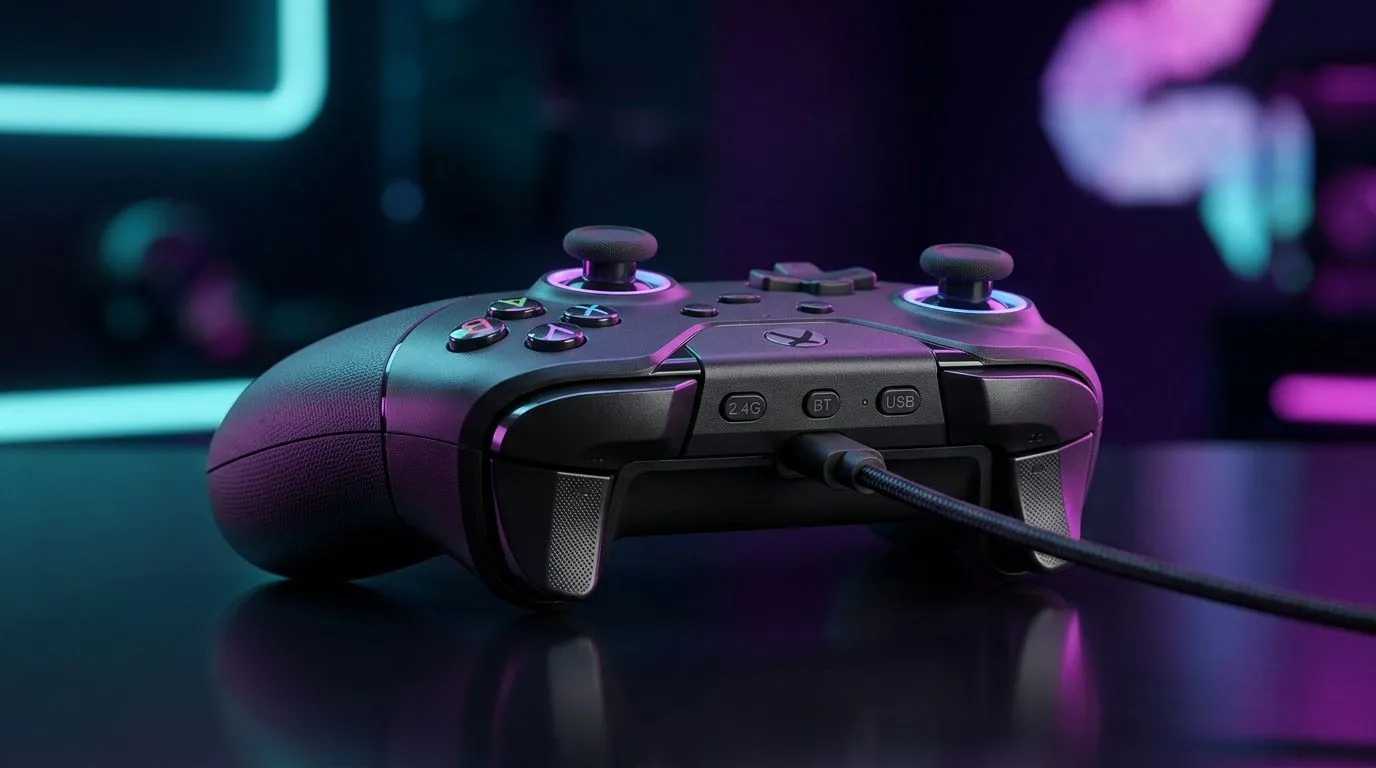
Picture this… you’re in a ranked match, Discord is coming through, and your controller suddenly feels “laggy”. Not your aim. Not your Wi‑Fi. It’s the connection mode. 🔧
If you own a modern controller or headset, you’ll likely switch between 2.4 GHz wireless, Bluetooth, and USB-C at some point. The good news? Once you understand when to use each one, you can squeeze better responsiveness out of your setup, especially on South African load-shedding days and crowded Wi‑Fi evenings.
Here’s the practical difference, explained simply.
Most gaming gear that supports 2.4 GHz uses a small USB dongle. That typically gives you a more consistent link with lower delay than Bluetooth. If you’re playing shooters, fighting games, or anything where every millisecond matters, 2.4 GHz is usually the go-to. ⚡
Bluetooth can be great for casual use and multi-device switching (phone, laptop, handheld). But in busy wireless environments, you may notice more variability. So… if you’re chasing clean timing, 2.4 GHz tends to win.
USB-C is the “no excuses” option. Wired mode generally removes wireless interference completely. It’s also handy for charging and stable play if you’re troubleshooting stutter or dropout.
Before you blame your settings, run this 60-second check:
If you’re using a headset/controller combo, the same thinking applies: choose the cleanest path for the job.
On Windows, use the “Sound” and “Bluetooth & devices” settings to confirm the correct output and connection mode before starting a match. If you switch modes, restart the audio device once so Windows doesn’t keep streaming to the old profile.
In SA, wireless congestion is real. Universities, apartments, and even neighbour routers can clutter 2.4 GHz more than you’d expect. That’s why your “best mode” can change depending on your area.
Also, consider your controller choice:
Use 2.4 GHz for competitive play, Bluetooth for convenience, and USB-C when reliability matters most. Once you build that habit, “random lag” stories become much rarer… and you spend more time fragging. ✨
Before you buy, verify which modes the exact model supports. Not every controller or headset treats modes the same way.
Ready to Find Your Perfect Match? The Mac vs Windows debate is complex, but for maximum power, choice, and value in South Africa, Windows is hard to beat. Explore our massive range of laptop specials and find the perfect machine to conquer your world.
Use the controller’s mode button, confirm pairing for each mode, and reselect the correct input on your device to avoid reconnect loops.
Connect the included USB dongle, then put the controller into 2.4 GHz mode and press the pairing button until the connection is recognized.
Bluetooth often adds more latency due to bandwidth and connection overhead. Use 2.4 GHz for lower-lag performance in competitive play.
Yes. USB-C typically provides stable input and charging simultaneously, depending on your controller’s firmware and device support.
Pair each mode per device, then switch modes using the controller button and select the matching controller profile in your system.
Delete old Bluetooth pairings, re-pair the controller for the active mode, and unplug/replug the 2.4 GHz dongle if needed.
Often yes. USB-C can reduce variability and avoid wireless interference, making it a strong choice for consistent input timing.
RTX 4060 Ti Throttling Under Load: Temperature. Everything you need to know with SA pricing, step-by-step instructions & expert recommendations.
Read more
Apex Legends Max Settings on RTX 4080. Tested & verified settings for best FPS and visual quality on SA hardware budgets.
Read more
GPU Buying Guide. Everything you need to know with SA pricing, step-by-step instructions & expert recommendations.
Read more
GPU Terms Guide. Everything you need to know with SA pricing, step-by-step instructions & expert recommendations.
Read more
AMD Adrenalin Download & Setup Guide: GPU. Clear setup instructions with SA-specific considerations, troubleshooting tips & recommended components.
Read more
Back-to-School GPU Buying Guide. Everything you need to know with SA pricing, step-by-step instructions & expert recommendations.
Read more
Snapdragon X2 NPU Explained: How 80 TOPS Changes. Plain-English explanation of what it means, why it matters & how it affects your buying decisions in SA.

HBM? High Bandwidth Memory Used in GPUs and AI. Plain-English explanation of what it means, why it matters & how it affects your buying decisions in SA.

How much should you spend on sim racing accessories in South Africa for a realistic setup? We break down budgets by quality tiers, so you buy smart gear and avoid overspending 🎮💸

G-Sync and FreeSync? Variable Refresh Rate. Plain-English explanation of what it means, why it matters & how it affects your buying decisions in SA.

AMD Laptop: Value. SA-focused analysis with local pricing data, real-world insights & actionable buying advice.

How MacBook Neo Handles 30+ Chrome Tabs with Only. SA-focused analysis with local pricing data, real-world insights & actionable buying advice.

Why Apple Put 8GB RAM in MacBook Neo: The A18 Pro. SA-focused analysis with local pricing data, real-world insights & actionable buying advice.

Upgrade your work laptop with a New Motherboard. Step-by-step instructions with SA-specific tips, common pitfalls to avoid & expert recommendations.

Maintain wired headset — Checklist: • inspect cables • clean earpads • store properly 🔧🎧 Practical steps to preserve sound quality and avoid premature replacements.

Fix crackling headset fast: step-by-step checks for cables, connectors, drivers, and settings to remove static or distorted audio on wired headsets 🎧⚙️

Stereo vs mono headsets: learn which delivers clearer calls, better spatial music, or simpler mono voice performance — pick the right headset for meetings, music, or gaming 🎧💬

- Compare gaming headset vs studio headphones; - Assess comfort, mic and sound; - Recommend best daily picks. Gaming headset vs studio headphones: learn which suits work, music and casual gaming. 🎧⚖️