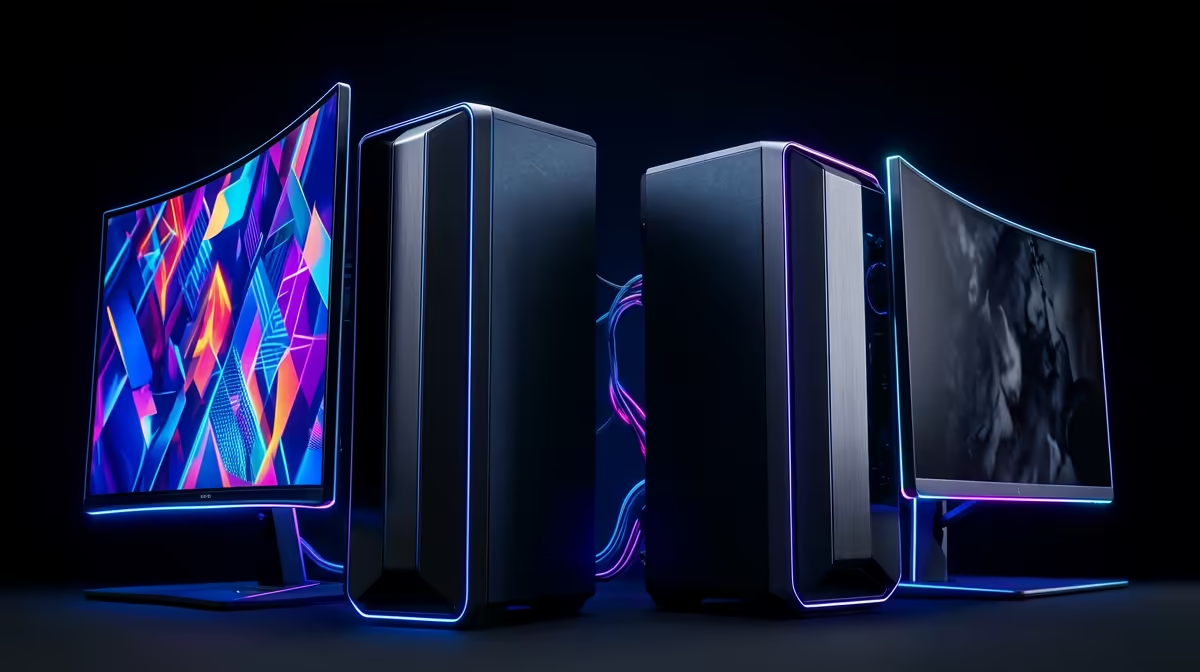
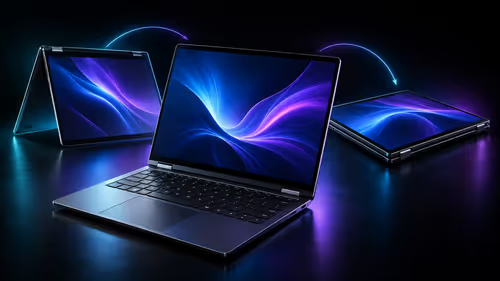
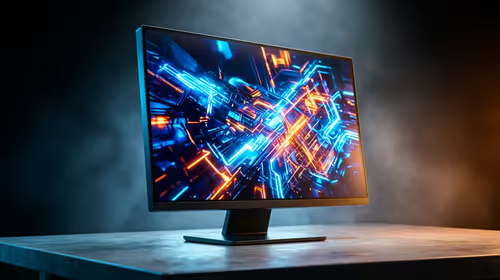
Running a locked-down work machine and a no-compromise gaming rig on the same desk used to mean two keyboards, two mice and a tangle of cables. A proper dual-PC work-and-gaming battlestation ends that by routing both systems through one keyboard, one mouse and one monitor with a KVM switch, while keeping the two computers completely separate. One tap and the same peripherals jump from your corporate laptop to your gaming tower. Done well, it is the cleanest way to keep work and play on one surface without the two ever bleeding into each other.
Quick Answer
A dual-PC battlestation pairs a work machine and a gaming PC behind a single KVM switch so they share a monitor, keyboard and mouse while staying separate systems. Plan for a desk at least 160cm wide, a KVM with four or more USB ports, and tidy cable routing. Budget realistically and build it in stages.
The KVM switch is the heart of the build
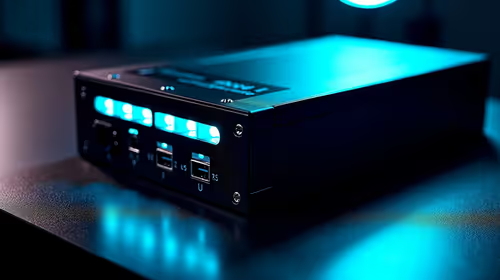
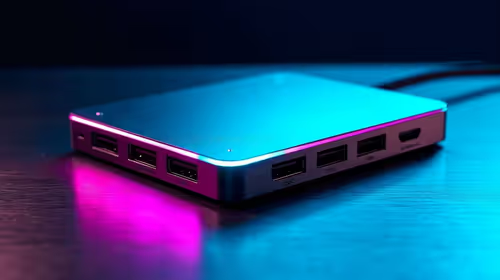
A KVM switch -- keyboard, video and mouse -- sits between your two PCs and your shared peripherals, and a single press, hotkey or desk-mounted remote flips control from one machine to the other. Because the two computers never share a drive or an operating system, your work environment stays isolated from anything you do on the gaming side, which is exactly what most hybrid setups want.
When you choose a KVM, count your devices first. A standard pairing needs ports for the keyboard and mouse, but you will likely also want a webcam, a microphone, an external drive or a stream controller shared too. A switch with four or more USB ports saves you from bolting on a separate hub later. For gaming, check the video spec carefully: a good 2-in, 2-out KVM can carry 4K at high refresh rates, with options supporting 4K at 144Hz and 1080p at 240Hz, so your gaming side does not lose smoothness when it runs through the switch.
Sizing the desk
Two systems need real estate. Aim for a desk of at least 160cm wide so the monitor, keyboard and mouse sit comfortably in the centre with room either side, and the two towers or a tower plus laptop have somewhere to live that is not your knees. Depth matters too: a deeper desk lets you push the monitor back to a healthy viewing distance and keeps the front edge clear for your hands and wrists.
Where the second machine goes shapes the whole layout. A full tower usually sits on the floor on a stand or in a dedicated bay, while a work laptop can dock on the desk surface or on a riser. Plan the cable runs before you commit, because two PCs plus a KVM plus peripherals is a lot of cabling, and routing it from the start beats untangling it later.
Switching methods and ergonomics
KVMs offer a few ways to flip between machines. A front-panel button is reliable but means reaching for the unit. A wired desk remote puts the switch within thumb's reach, which is the most convenient option for a setup you flip many times a day, at the cost of one more cable. Keyboard hotkeys and mouse-based switching keep the desk clear entirely. Pick whichever matches how often you swap.
The desk itself is not an afterthought on a setup you spend a full work day and a long gaming night at. A properly sized surface carries more of that load than anything else in the build, and the gaming and standing desks at Evetech cover everything from compact L-shapes to wide straight desks built for dual-PC rigs. Set the monitor so the top of the screen is at or just below eye level, and keep the keyboard at a height where your forearms stay roughly level.
Keeping the two systems genuinely separate
The point of the dual-PC approach is separation. Your work machine can stay on its corporate network and security policies while the gaming rig runs whatever you like, and the KVM only ever shares input and display, never storage. If you want files to move between them, do it deliberately through a shared network folder or a NAS rather than blurring the two. That discipline is what makes a battlestation feel like two clean machines rather than one messy compromise.
Cable management and peripheral strategy
With two PCs flowing through one switch, cable discipline matters. Label your HDMI or DisplayPort runs at both ends before you route them so you can trace them later. Run each cable from its PC to the KVM first, then work outward to the peripherals. A cable raceway along the back of the desk hides the majority of the run; velcro ties handle the short drops where raceways will not reach.
For peripherals, think in terms of what genuinely needs to be shared and what does not. Your keyboard, mouse and headset are obvious candidates. A webcam and microphone make sense too if you do video calls from the work machine and streaming from the gaming side. A stream controller or capture card, however, may only ever be used from the gaming PC, so it can connect directly there rather than passing through the KVM -- one fewer port used and one fewer device that can mis-register on a switch event.
Display options: single monitor versus dual
A single central monitor through the KVM is the simplest configuration and the cleanest desk. If you have two monitors and a dual-port KVM, both screens can be routed through the switch so both computers see the full display setup. The alternative is to keep a second monitor permanently wired to the gaming rig while the main screen switches with the KVM. That works well if gaming always uses both panels while work only ever needs one.
Building it in stages
You do not need every part at once. Start with the desk and the KVM, since those define the layout, then add the shared monitor, a quality keyboard and mouse, and finally the extras like a webcam or stream controller routed through the switch. Spreading the build lets you buy each piece properly rather than settling. The best-selling desk accessories at Evetech is a solid reference for workspace gear that holds up through both the work hours and the gaming sessions your battlestation is built around.
Frequently Asked Questions
Can a KVM switch handle high-refresh gaming?
Yes, if you choose one rated for it. Better gaming-focused KVMs carry 4K at up to 144Hz and 1080p at 240Hz, so the gaming machine keeps its smoothness when it runs through the switch. Check the spec before buying.
How wide should the desk be for two PCs?
At least 160cm gives the monitor, keyboard and mouse a comfortable centre position with space on either side and room for the second machine. Go wider if you run dual monitors or a full tower on the desk.
Do both PCs stay completely separate with a KVM?
Yes. A KVM only shares the keyboard, video and mouse. The two computers keep their own drives, operating systems and networks, so your work environment stays isolated from the gaming side.
What is the easiest way to switch between the machines?
A wired desk remote is the most convenient for frequent switching because it sits within reach. Keyboard or mouse hotkeys keep the desk clearest, while a front-panel button works but means reaching for the unit.
How many USB ports should the KVM have?
Look for four or more. You need ports for the keyboard and mouse plus headroom for a webcam, microphone, external drive or stream controller, which avoids adding a separate USB hub later.
Building a desk that does work and play without compromise? Start with the right surface from the gaming and standing desks at Evetech and grow your dual-PC battlestation one solid piece at a time.