



PCIe 5.0 vs PCIe 4.0 for Video editing in 4k in SA
PCIe 5.0 vs PCIe 4.0 for video editing in 4k is mainly about fit, features, compatibility, cost, and upgrade path, not one automatic winner. SA buyers should match the choice to the setup.
Read moreHDMI 2.1 and DisplayPort 1.4 can both connect a high-refresh QHD setup, but the source and mode decide the best route. The R23,899 XG27AQDPG includes both interfaces for its 500Hz QD-OLED panel, giving PC builders a practical choice at installation.

HDMI 2.1 and DisplayPort 1.4 are routes between a graphics source and monitor, not guarantees that every cable or port exposes every mode. This complete connection guide for QHD high-refresh gaming uses the R23,899 ASUS XG27AQDPG, which provides both inputs for its QHD 500Hz QD-OLED panel.
Inspect the graphics output, choose a direct suitable HDMI 2.1 or DisplayPort 1.4 cable, connect the XG27AQDPG, select native 2560x1440 and confirm the available refresh. NVIDIA owners should then select G-SYNC Compatible; AMD owners should use FreeSync Premium Pro. Test both inputs separately when troubleshooting. Read active resolution, refresh, colour, HDR and sync after every connection change.
Identify whether the game is rendered by a discrete graphics card or integrated output. Record the exact HDMI and DisplayPort capabilities of that source. A motherboard connector may not carry the discrete GPU's output on every system.
Look for per-port differences and the display modes supported by the graphics hardware. The monitor side can offer HDMI 2.1 and DisplayPort 1.4 while an older source exposes a smaller set of modes.
Connect the GPU directly to the ASUS with a known suitable cable. Select the HDMI input on the display, open advanced settings and choose 2560x1440. Inspect the refresh list and then confirm the selected value in the monitor information screen.
Launch the game and select the same display, resolution and refresh. Record HDR, colour output and adaptive-sync recognition. This becomes the HDMI baseline before adding a receiver, switch, dock or capture device.
Repeat the entire process through DisplayPort 1.4. Use a direct route and preserve the game preset. Note which modes, graphics-control options and sync labels appear. Do not rely on memory from the HDMI test.
If one input exposes fewer refresh options, inspect source support, cable and selected mode. Avoid creating custom timings before the standard configuration has been verified.
The XG27AQDPG is a 2560x1440 monitor. A source can output Full HD and let the display scale it, which may make a 500Hz test easier for the PC but invalidates a native-QHD comparison. Check the active signal, not only the desktop size.
Evetech's gaming monitor catalogue helps compare input and native-resolution specifications across products.
Check the operating-system advanced display page, the game's display menu and the monitor information screen. A title can use a separate full-screen refresh, while a driver update can return the desktop to a lower default.
A game frame counter does not report monitor refresh. The PC can render 300fps while the screen is set to 500Hz, or render 500fps while the screen remains incorrectly set lower.
The monitor covers both graphics ecosystems. After changing cable or source, open the relevant graphics control panel and confirm the ASUS remains enabled for the platform's sync route.
Test a repeatable camera sweep where frame rate changes. Adaptive sync coordinates display timing; neither HDMI nor DisplayPort creates game frames or increases the 500Hz maximum.
The panel carries DisplayHDR 500 True Black and 99% DCI-P3. Confirm system HDR state and output handling on each connection. A range mismatch can make black appear grey or crush shadow detail even when the resolution and refresh are correct.
Use an SDR greyscale and an HDR scene after motion works. Record the output mode instead of assuming both inputs retained identical driver settings.
Docks, KVM switches, capture cards and adapters add negotiation points. Establish the direct route first, then add one device and retest resolution, refresh, sync and HDR. If a mode disappears, remove the latest link and compare.
The OLED monitor selection provides panel context. The curved display range frames screen shape independently from cable standards.
Write source GPU, driver, physical port, cable, monitor input, resolution, refresh, sync standard, HDR state and game display mode. Label the cable when several high-bandwidth routes share a desk. This makes a later fault a comparison against a known working configuration.
Review the card after firmware, driver, GPU or multi-monitor changes. A premium display is easier to maintain when the active signal can be reconstructed without guessing.
If the screen returns at a lower refresh or shows no signal after sleep, avoid swapping every component. Wake the source, confirm the selected input, reseat one cable end and reopen advanced display settings. Power-cycle the monitor only after the simple state checks. Record which action restores the mode.
When the fault repeats, test the other direct input with its verified cable. If HDMI 2.1 remains stable while the DisplayPort 1.4 route fails, inspect that path's port, cable and driver settings. If both routes fail after the same software event, the source or driver becomes the stronger lead.
Recreate QHD 500Hz, platform sync and HDR in that order. Starting with several colour or frame-cap changes can hide a basic signal negotiation problem. Once the active mode returns, run the short game benchmark and confirm frame output separately.
Add the recovery steps to the route card and test them after an ordinary sleep-and-wake cycle. A connection guide is complete when it covers both first setup and restoration, because high-refresh reliability includes how predictably the system returns to the verified mode.
A missing 500Hz mode, intermittent black screen or unavailable HDR state points toward the signal route and negotiation. A normal QHD 500Hz readout paired with low fps points toward the game and PC. Write these observations in separate columns before replacing hardware.
Use the monitor information screen to confirm the incoming signal, then capture game frame times. If the signal remains stable while frame delivery stutters, investigate CPU, GPU or software load. If the signal itself renegotiates, return to the direct cable, source port and driver.
This distinction prevents a stronger graphics card from being bought to solve a cable-mode problem and prevents a cable swap from being credited for a game optimisation. HDMI 2.1 and DisplayPort 1.4 are transport paths; performance evidence belongs to the rendering chain that feeds them.
Keep the signal and rendering columns separate during every later comparison.
It provides HDMI 2.1 and DisplayPort 1.4.
Source implementation, cable, adapters, output mode and driver negotiation can expose different lists.
Check for 2560x1440 in the operating system, game and monitor information.
No. The complete source, cable and display mode must support the target.
No. The PC renders frames; the connection transports the signal.
It is R23,899.
Ready to make every cable route prove QHD, refresh and sync? Explore Evetech's high-refresh monitors and save a verified input card before adding adapters or switches.
It provides HDMI 2.1 and DisplayPort 1.4.
Source implementation, cable, adapters, output mode and driver negotiation can expose different lists.
Check for 2560x1440 in the operating system, game and monitor information.
No. The complete source, cable and display mode must support the target.
No. The PC renders frames; the connection transports the signal.
It is R23,899.
PCIe 5.0 vs PCIe 4.0 for video editing in 4k is mainly about fit, features, compatibility, cost, and upgrade path, not one automatic winner. SA buyers should match the choice to the setup.
Read more
Wi-Fi 7 vs Wi-Fi 6e for competitive esports comes down to router support, latency goals, device compatibility, and coverage. SA buyers should match the choice to the real network setup.
Read more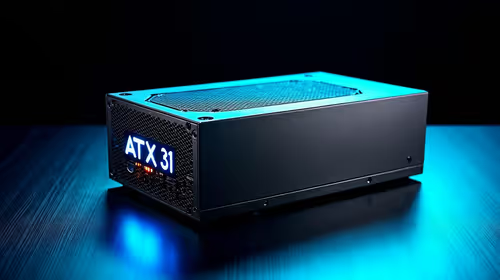
ATX 3.1 vs ATX 3.0 for mMO and live-service games buyers - what changes is mostly about compatibility, budget, upgrade path, and setup fit. SA buyers should check device support and real needs before expecting a clear win from either option.
Read more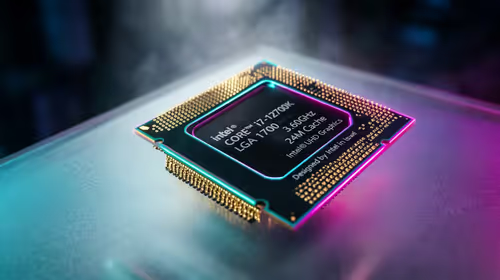
LGA 1851 vs LGA 1700 can affect Twitch and YouTube streaming when gaming and encoding share CPU resources. For SA creators, the real-world difference depends on encoder choice, memory support, motherboard cost, thermals, and upgrade plans.
Read more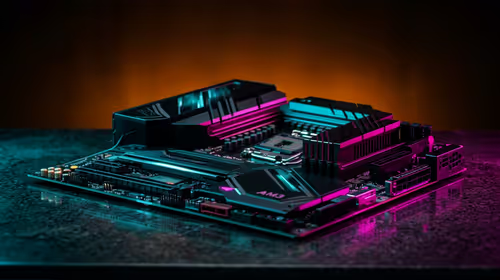
X870E vs X670E for aaa single-player gaming is mainly about fit, features, compatibility, cost, and upgrade path, not one automatic winner. SA buyers should match the choice to the setup.
Read more
Hall Effect switches vs Mechanical switches for mMO and live-service games is mostly about compatibility, budget, upgrade path, and setup fit. SA buyers should check device support and real needs before expecting a clear win from either option.
Read more
A fake 113GB GTA VI ISO reportedly used empty padding around a small malware payload. SA gamers should delete unofficial builds, keep Windows security active and wait for official channels.

Wi-Fi 6E vs Wi-Fi 6 matters for 4K video editing when files move across a network. The real-world difference between Wi-Fi 6E and Wi-Fi 6 for video editing in 4K depends on NAS access, cloud uploads, router range, and SA creator workflows.

The difference between PCIe 5.0 and PCIe 4.0 for SA gamers is mostly bandwidth headroom. Compare GPU slot needs, NVMe speed, motherboard support, and upgrade timing before paying extra for a newer platform.

Gaming PC stuck pixel checks in South Africa should confirm the monitor fault first. Use colour tests, screenshot comparison, cable swaps, display menu checks, and clear photos before deciding on support.

Shokz OpenFit Air 2 earbuds weigh 7.2g each and use a redesigned dual-driver open-ear layout. SA buyers should choose them for comfort and awareness, not maximum isolation.

AMD's current driver now lists a Radeon RX 9050 4GB, while product coverage details a narrowed memory system. SA buyers should weigh the low VRAM ceiling against current local Radeon options.

Samsung Display has demonstrated a 16-inch 2.5K OLED laptop panel running at 300Hz. SA buyers should wait for a named notebook, full panel specifications and a local price before planning an upgrade.

Microsoft says some Windows 11 game crashes after recent updates are linked to RGB-related drivers. Affected SA gamers should confirm the update and driver before using the published registry workaround.

RTX 5090 on a 650W PSU is a tight pairing with very limited headroom. For SA gaming PCs, focus on total system draw, PSU quality, connector support, CPU choice, and avoid OC plans unless the full build is carefully power-limited.
PCIe 5.0 vs PCIe 4.0 for video editing in 4k is mainly about fit, features, compatibility, cost, and upgrade path, not one automatic winner. SA buyers should match the choice to the setup.

850W PSU safety for RTX 5090 is plausible with a quality unit and balanced parts. In SA, confirm connector support, CPU power draw, case airflow, PSU age, and spare capacity before building around 850W.
Wi-Fi 7 vs Wi-Fi 6e for competitive esports comes down to router support, latency goals, device compatibility, and coverage. SA buyers should match the choice to the real network setup.