



PCIe 5.0 vs PCIe 4.0 for Video editing in 4k in SA
PCIe 5.0 vs PCIe 4.0 for video editing in 4k is mainly about fit, features, compatibility, cost, and upgrade path, not one automatic winner. SA buyers should match the choice to the setup.
Read moreA reliable multi-monitor setup starts with suitable video outputs, enough bandwidth and power. Choose a hub after mapping display modes, storage and peripherals. USB-C varies by port, so its connector alone cannot promise video, charging or a particular monitor count.
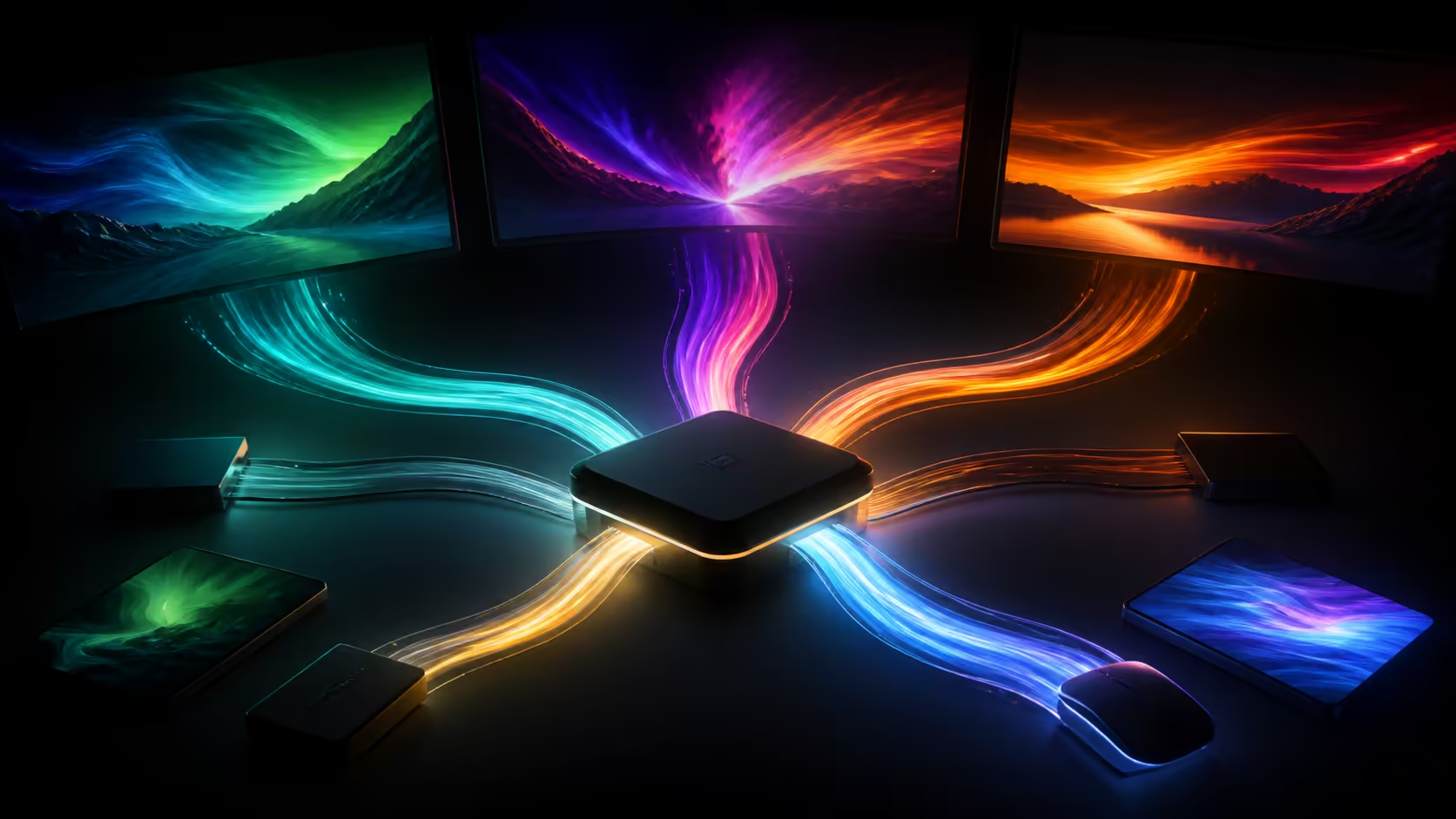
A multi-monitor desk is only as reliable as its narrowest cable, output and shared link. USB-C hubs, external displays and laptop multi-monitor setups become manageable when video, power and data are designed as separate routes before they are combined for convenience.
List each monitor's target resolution and refresh rate, map the available display outputs, and choose a hub or dock with enough combined bandwidth. Prove one screen directly before adding the dock, second display and peripherals. MSI's Modern 14S AI+ G3MG costs R29,199 and provides a compact computer-side reference. It has Core Ultra 7 355 processing, 32GB RAM and a 1TB SSD.
Draw the laptop, each connector, cable, adaptor, dock and monitor input. Write the intended resolution and refresh rate beside every display. This diagram exposes hidden conversions, such as USB-C to HDMI through a hub, and prevents a connector shape from being mistaken for a complete capability.
USB-C can carry combinations of data, video and charging. HDMI provides a direct display path, but its version and cable still influence supported modes. DisplayPort can travel through suitable USB-C implementations or docks. The entire route operates at the common capability of all parts.
Start with one monitor on the simplest direct connection. Select a common resolution and 60Hz, then test sleep and wake. Raise the mode only after stability is established. Repeat with the second display before asking a dock to handle both simultaneously.
Windows can extend, duplicate or use one screen exclusively. Extend is the normal productivity mode, but screen placement and scaling need manual attention. Arrange the virtual monitors to match their physical positions so the pointer crosses boundaries naturally.
Resolution, refresh rate and colour format all consume link bandwidth. Two 1080p 60Hz displays are a different load from two high-resolution high-refresh panels. A dock may advertise several outputs while sharing one upstream connection, so the combined mode matters more than the number of sockets.
If the setup fails at maximum settings, lower refresh rate first, then resolution or colour depth according to the work. A document screen may be comfortable at 60Hz while the primary panel keeps a smoother mode. Asymmetric settings are often the cleanest solution.
Some docks use native display streams, while others rely on compressed or software-assisted display technology. The latter can expand screen count for office applications but may add latency or CPU activity. Choose according to content rather than assuming every multi-monitor method suits gaming or colour-critical media.
Cable length and quality also matter. Long or marginal cables may produce flicker, black screens or failure after wake even when the theoretical mode fits. Keep known-good cables labelled and avoid unnecessary adaptors.
Use Evetech's AI laptop finder to compare mobile computers around the primary workload. The Intel laptop category helps place processor and memory options within complete systems.
A powered dock can charge the computer while connecting displays and peripherals, but it consumes some of the supply itself. The power adaptor must cover dock overhead and the computer's expected load. Inadequate delivery can create slow charging, performance changes or repeated disconnects.
Data devices compete for the upstream link too. External SSDs, capture hardware, network adaptors and high-resolution cameras can generate sustained traffic. Put low-speed keyboard and mouse connections on the hub, then reserve direct or separate high-speed routes for storage and demanding media devices.
Physical cable management contributes to reliability. Support the dock on the desk instead of letting it hang from the laptop. Leave enough slack for a raised stand and route power away from ports that need frequent access. A one-cable desk should still be mechanically calm.
The R29,199 MSI reference supports heavy application multitasking with 32GB RAM. Core Ultra 7 355 sits inside the 14-inch class and the SSD supplies 1TB of local space. Monitor count still depends on the display paths and dock selected for any system.
When a monitor disappears, remove the dock and restore the last known direct connection. Power-cycle the monitor and select its input manually. If the direct path works, reconnect the dock with only that screen. Then add power, the second monitor and peripherals in sequence.
For flicker, reduce refresh rate or resolution and replace the cable with a known-good alternative. For wake failures, update graphics, USB and dock software, then test several sleep cycles. For wrong scaling, set each monitor individually because different pixel densities may need different percentages.
If storage disconnects during display activity, move it to another route. If charging drops under load, test the normal charger directly. If the second screen only works when the first is reduced, the combined display mode likely exceeds a link or dock limit.
Document the working topology once stable. Note which cable serves each monitor, which port feeds the dock and which power supply belongs at the desk. This small record makes future diagnosis far quicker after a move or equipment change.
A productivity layout should assign purpose to each panel. Put communication or reference material on a secondary screen, keep colour-sensitive work on the trusted display and place the primary task directly ahead. This reduces pointer travel and keeps the ergonomic benefit aligned with the technical setup.
Mixed pixel densities may create different apparent text sizes. Configure scaling per monitor and move a familiar application across them to inspect behaviour. Some older software may need a restart after crossing between substantially different scale factors.
Finally, include recovery in the desk design. Keep one direct display cable and a direct charging path accessible. A sophisticated dock is convenient, while simple fallbacks keep a deadline moving and make diagnosis far faster.
It can when the computer, dock and link support the combined display mode. Resolution and refresh requirements determine the actual load.
Both displays share finite upstream bandwidth. Lower refresh or resolution reduces the amount of data that must cross the connection.
It is often convenient, but the desired mode must fit the output, cable and monitor input. A capable USB-C display route may be equally direct.
Not necessarily. Different sizes and resolutions can need different scaling percentages for comfortable text and consistent physical element size.
The drive may share upstream data capacity with network, video or other devices. A separate high-speed connection can restore throughput.
RAM supports the applications spread across the displays, but output count and modes depend on graphics and connection capability. The two constraints are related only through workload.
It provides a compact performance reference with Core Ultra 7 355. Memory capacity is 32GB and the internal SSD is 1TB. The external desk should be designed around the selected system's connection paths.
Ready to turn a pile of display cables into a dependable multi-screen workspace? Compare Evetech laptops for the core workload, then map every video, power and data path before choosing the hub that brings them together.
It can when the computer, dock and link support the combined display mode. Resolution and refresh requirements determine the actual load.
Both displays share finite upstream bandwidth. Lower refresh or resolution reduces the amount of data that must cross the connection.
It is often convenient, but the desired mode must fit the output, cable and monitor input. A capable USB-C display route may be equally direct.
Not necessarily. Different sizes and resolutions can need different scaling percentages for comfortable text and consistent physical element size.
The drive may share upstream data capacity with network, video or other devices. A separate high-speed connection can restore throughput.
RAM supports the applications spread across the displays, but output count and modes depend on graphics and connection capability. The two constraints are related only through workload.
It provides a compact performance reference with Core Ultra 7 355. Memory capacity is 32GB and the internal SSD is 1TB. The external desk should be designed around the selected system's connection paths.
PCIe 5.0 vs PCIe 4.0 for video editing in 4k is mainly about fit, features, compatibility, cost, and upgrade path, not one automatic winner. SA buyers should match the choice to the setup.
Read more
Wi-Fi 7 vs Wi-Fi 6e for competitive esports comes down to router support, latency goals, device compatibility, and coverage. SA buyers should match the choice to the real network setup.
Read more
ATX 3.1 vs ATX 3.0 for mMO and live-service games buyers - what changes is mostly about compatibility, budget, upgrade path, and setup fit. SA buyers should check device support and real needs before expecting a clear win from either option.
Read more
LGA 1851 vs LGA 1700 can affect Twitch and YouTube streaming when gaming and encoding share CPU resources. For SA creators, the real-world difference depends on encoder choice, memory support, motherboard cost, thermals, and upgrade plans.
Read more
X870E vs X670E for aaa single-player gaming is mainly about fit, features, compatibility, cost, and upgrade path, not one automatic winner. SA buyers should match the choice to the setup.
Read more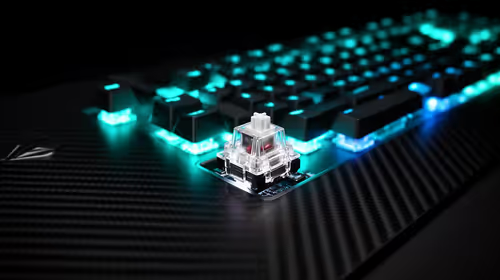
Hall Effect switches vs Mechanical switches for mMO and live-service games is mostly about compatibility, budget, upgrade path, and setup fit. SA buyers should check device support and real needs before expecting a clear win from either option.
Read more
A fake 113GB GTA VI ISO reportedly used empty padding around a small malware payload. SA gamers should delete unofficial builds, keep Windows security active and wait for official channels.

Wi-Fi 6E vs Wi-Fi 6 matters for 4K video editing when files move across a network. The real-world difference between Wi-Fi 6E and Wi-Fi 6 for video editing in 4K depends on NAS access, cloud uploads, router range, and SA creator workflows.

The difference between PCIe 5.0 and PCIe 4.0 for SA gamers is mostly bandwidth headroom. Compare GPU slot needs, NVMe speed, motherboard support, and upgrade timing before paying extra for a newer platform.

Gaming PC stuck pixel checks in South Africa should confirm the monitor fault first. Use colour tests, screenshot comparison, cable swaps, display menu checks, and clear photos before deciding on support.

Shokz OpenFit Air 2 earbuds weigh 7.2g each and use a redesigned dual-driver open-ear layout. SA buyers should choose them for comfort and awareness, not maximum isolation.

AMD's current driver now lists a Radeon RX 9050 4GB, while product coverage details a narrowed memory system. SA buyers should weigh the low VRAM ceiling against current local Radeon options.

Samsung Display has demonstrated a 16-inch 2.5K OLED laptop panel running at 300Hz. SA buyers should wait for a named notebook, full panel specifications and a local price before planning an upgrade.

Microsoft says some Windows 11 game crashes after recent updates are linked to RGB-related drivers. Affected SA gamers should confirm the update and driver before using the published registry workaround.

RTX 5090 on a 650W PSU is a tight pairing with very limited headroom. For SA gaming PCs, focus on total system draw, PSU quality, connector support, CPU choice, and avoid OC plans unless the full build is carefully power-limited.
PCIe 5.0 vs PCIe 4.0 for video editing in 4k is mainly about fit, features, compatibility, cost, and upgrade path, not one automatic winner. SA buyers should match the choice to the setup.

850W PSU safety for RTX 5090 is plausible with a quality unit and balanced parts. In SA, confirm connector support, CPU power draw, case airflow, PSU age, and spare capacity before building around 850W.
Wi-Fi 7 vs Wi-Fi 6e for competitive esports comes down to router support, latency goals, device compatibility, and coverage. SA buyers should match the choice to the real network setup.