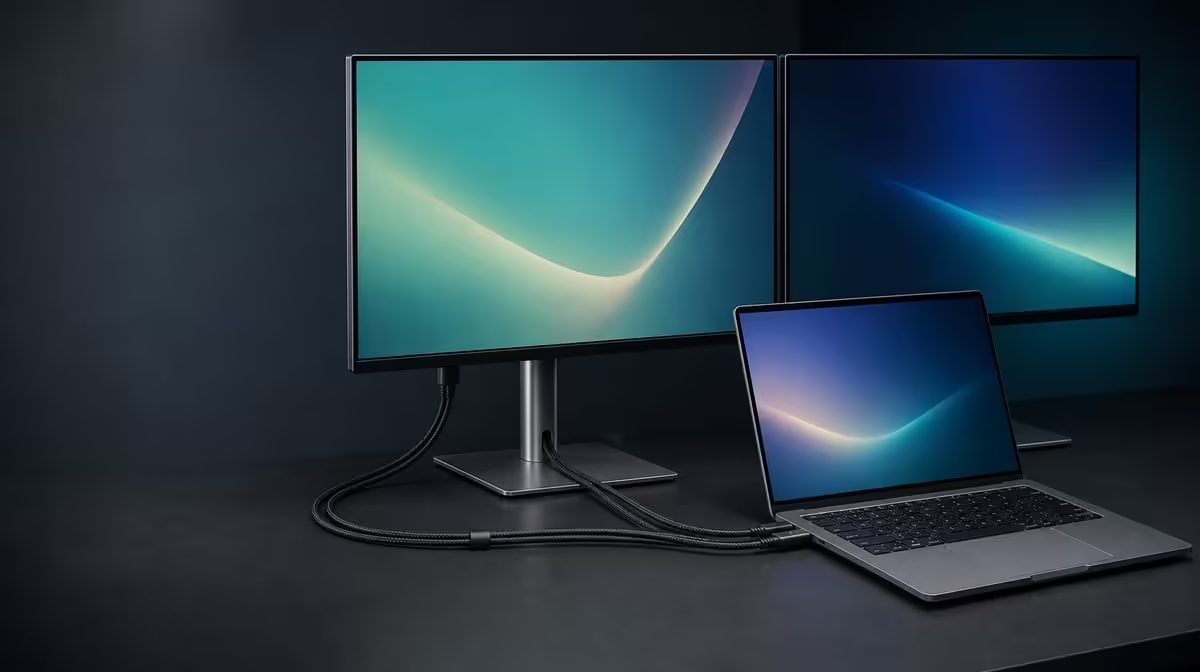
Two connector names on a specification sheet do not describe everything that happens between a computer and two displays. Connecting Windows and Mac laptops over Type-C or HDMI should be evaluated as a complete route that includes the output, cable, screen mode and physical fold.
Quick Answer
The R6,899 UPERFECT Delta Mega lets Windows and Mac laptops use either Type-C or HDMI. These routes can feed its two 23.8-inch Full HD IPS panels, but connector shape and platform compatibility do not guarantee that every port, cable or computer exposes identical dual-screen and 100Hz behaviour.
🔌 Distinguish the routes from their capabilities
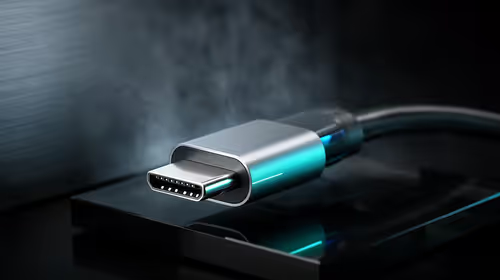
Type-C is a compact reversible connector used for several kinds of data and power. Its presence on a laptop does not by itself prove that the port supplies display video. The computer's actual port capability must be checked before relying on it for a monitor.
HDMI is a dedicated and familiar display route on many computers and related devices. It can be a practical alternative when the intended laptop exposes it. The connector still forms only part of the chain: cable capability, source output and selected settings influence the result.
The Delta Mega's Windows and Mac compatibility means it is designed to work with both platforms. It should not be interpreted as a promise that every machine presents the same number of external displays, refresh modes or menu labels. Hardware and operating-system behaviour vary.
Avoid assuming universal one-cable operation. The confirmed facts here are support for Type-C and HDMI, not an identical power-and-video arrangement for every source. A buying checklist should state what the laptop can actually output rather than filling unknown gaps with a convenient expectation.
Use Evetech's portable monitor category to compare notebook-oriented display choices once the computer's ports have been identified.
🧪 Prove one screen before building two
Begin with the laptop, a chosen route and one Delta Mega panel. Confirm that a stable picture appears, choose 1920 x 1080 and open a labelled test window. This gives troubleshooting a known reference instead of starting with every screen and setting in motion.
Add the second panel and select an extended desktop where the workflow calls for separate work areas. Identify the screens in Windows or macOS and arrange the rectangles to match their physical positions. Move the pointer through every shared edge and drag the labelled window to each display.
Set scaling from the normal viewing distance. Matched scaling is a clear starting point for two equal 23.8-inch panels, although a vertical arrangement may justify another choice if the upper screen sits farther away. Verify that application controls remain usable when windows move.
Only after detection and mapping are reliable should 100Hz be selected. Inspect each panel's setting individually. The source route needs to support the intended mode; platform compatibility alone cannot guarantee dual 100Hz output.
If the result fails, isolate the variable. Does the issue follow the port, cable, panel, orientation or computer? Return to the known-good single-screen baseline after each test. This controlled method produces an answer instead of a pile of simultaneous changes.
Evetech's broader monitor department can frame the choice when a permanent desktop display has simpler connection demands.
🪟 Account for Windows and Mac differences
Both operating systems let users arrange external displays, select resolution and choose supported modes, but their menu paths and remembered layouts can differ. Write a separate setup card for each laptop rather than expecting one set of screenshots or instructions to fit both.
Record the computer name, physical port, cable, panel order, primary display, orientation, scaling and refresh. Add the audio output if the Delta Mega's built-in speakers are used. A short card makes a shared desk faster to recover after someone connects a different machine.
Add a visible-screen test to the card. Open a numbered document on each external panel and another on the laptop, then take a picture of the physical order. This simple reference prevents "display 1" or "display 2" from being mistaken for a permanent physical identity after the operating system changes numbering.
Test common transitions: restart, sleep and wake, disconnect and reconnect, then change between horizontal and vertical positions. Confirm that windows remain reachable and pointer direction still matches the desk. If the operating system forgets a layout, the written map provides a quick restoration sequence.
When the laptop screen stays open, include it in the rectangle map. Decide whether it carries meeting controls, communication or another supporting role. If it has no job, leaving it active may create an accidental third boundary that catches the pointer and scatters application windows.
The 14ms response time does not change when a Type-C route is exchanged for HDMI; it remains a panel motion specification. Likewise, the Full HD pixel grid remains fixed. Connection testing is about reaching stable supported modes, not rewriting the display's stated characteristics.
🔄 Keep cables clear of folding movement
The two panels move through a 360-degree folding range for horizontal, vertical and sharing layouts. A cable that works in one pose may become taut in another. Place the screens near the intended working position before finalising the route.
Leave a relaxed bend near the port, keep the lead outside the moving joint and observe it throughout the change. Support the screen structure rather than using cable tension as a movement limit. Check connectors after the move before turning to software settings.
For a sharing arrangement, consider which screen faces the second viewer and which stays with the laptop operator. The software map and primary display may need to change. A vertical stack requires its rectangles to be placed one above the other, while a wide layout needs the correct left-right order.
At R6,899, connection flexibility creates value when it helps the actual Windows and Mac computers used by the buyer. It does not need to behave identically on every possible machine; it needs a proven, repeatable path for the systems in the room.
Check Evetech's popular monitor page after recording those computer-specific requirements.
The best connection choice is the route that repeatedly produces the required two-screen layout on the owner's machine. Connector elegance matters less than a stable result that survives ordinary folding, sleep and reconnection without improvised fixes.
Frequently Asked Questions
Which connection routes does the monitor support?
The available Type-C and HDMI paths are designed for Windows and Mac systems.
Does every Type-C port send display output?
No. The connector shape alone does not confirm display video, so the laptop port's capability needs to be established.
What makes HDMI a practical alternative?
It is a familiar supported display route when the source computer provides the appropriate output and cable path.
Can either route guarantee dual 100Hz output?
No universal guarantee follows from the connector name. The laptop, output, cable and selected screen mode all matter.
How should a connection fault be isolated?
Return to one known-good panel, change one component or setting at a time, and observe whether the problem follows that variable.
Why can Windows and Mac settings differ?
They use different display interfaces and may remember arrangements differently even though the monitor supports both platforms.
What physical detail matters when folding?
The cable needs slack, a clear route outside the joint and enough freedom for every working position.
Prove the route your own laptop will use.
Start with one Delta Mega screen, add the second methodically, then save the port, cable and display map that recreate the result.