



PCIe 5.0 vs PCIe 4.0 for Video editing in 4k in SA
PCIe 5.0 vs PCIe 4.0 for video editing in 4k is mainly about fit, features, compatibility, cost, and upgrade path, not one automatic winner. SA buyers should match the choice to the setup.
Read moreAdaptive sync varies display refresh timing so it can follow the computer's changing frame completion. FreeSync Premium is the AMD route and G-Sync Compatible is the NVIDIA route; the R10,999 XG27AQDMG supports both on its 240Hz WOLED panel.

A variable-refresh display changes its timing to meet a frame when it is ready. That simple idea sits behind FreeSync Premium and G-Sync Compatible, two routes designed around different graphics ecosystems. The R10,999 ASUS XG27AQDMG supports both on a QHD 240Hz WOLED panel, giving owners a choice that follows the connected computer.
Adaptive sync reduces tearing by varying the monitor's refresh timing around completed frames. FreeSync Premium is the XG27AQDMG's AMD route and G-Sync Compatible is its NVIDIA route; at R10,999, the monitor provides both alternatives alongside 240Hz and 0.03ms response.
A fixed-refresh monitor scans on a regular schedule. A game does not always complete frames at matching intervals because scene complexity, processor work and graphics load change. If the source switches frames during a scan, the screen can show sections from two different moments, producing a visible tear.
Adaptive refresh allows the monitor to wait within its supported behaviour and begin a scan around a completed frame. This coordinates presentation rather than rendering. The graphics card still creates the image, and the display cannot make a slow frame complete sooner.
Frame pacing matters alongside average rate. Two tests can average 120fps while one delivers each frame evenly and the other contains several long pauses. Adaptive sync can present variation more cleanly, but a processing stall remains visible because no fresh frame exists during the delay.
The gaming monitor category lets buyers compare variable-refresh support with resolution and maximum rate.
FreeSync Premium is the specified adaptive route for a compatible AMD system. Enable variable refresh on the monitor input, open the graphics controls and select the XG27AQDMG for FreeSync operation. Confirm the game uses the same QHD display.
Test a scene that moves from light to heavy rendering. A constant menu animation does not exercise the variable range. Watch for tearing during a camera pan and use a frame-time display if the motion still feels interrupted.
Avoid stacking several caps and synchronisation controls on the first attempt. Begin with FreeSync Premium, the intended 240Hz desktop mode and one deliberate game configuration. Add a frame cap only if testing shows it improves behaviour near the upper boundary.
G-Sync Compatible is the corresponding option for supported NVIDIA graphics. Select the monitor in the graphics software, enable the compatible mode and choose whether the setup should apply it to the screen mode used by the game.
Multi-monitor systems require care because a control can be applied to another display. Make the XG27AQDMG primary during diagnosis if necessary, restart the title and retest the same route.
Dual support does not mean the AMD and NVIDIA modes run together. They are alternative paths, which gives the monitor flexibility across future graphics changes. Owners can retain adaptive refresh after moving from one supported platform to the other.
The OLED monitor selection shows how sync flexibility can be paired with per-pixel black control and rapid transitions.
Start from native 2560x1440 at 240Hz. Adaptive sync remains useful when the game sits below 240fps because it follows variable completion rather than requiring a constant maximum. A frame cap can help keep output away from a problematic ceiling, but the best value depends on the game and system.
Do not confuse the 0.03ms response with adaptive timing. Response describes how quickly WOLED pixels change state; adaptive sync determines when the next scan begins. Both can improve motion, but they solve different problems.
ROG Gaming A.I and picture controls should be evaluated only after timing is stable. A visual enhancement cannot remove tearing caused by frame presentation. Likewise, adaptive refresh does not calibrate HDR or alter the DisplayHDR 400 True Black tonal range.
If screen shape is also under consideration, Evetech's curved monitor range provides a separate ergonomic comparison.
When tearing returns, confirm 240Hz, the chosen game mode and the graphics-control setting in that order. Driver updates and display changes can reset one of them. Test without intermediate adapters and note whether the fault affects every title or only one.
Then review frame times. If large stalls coincide with the visual problem, adjust the game's workload rather than repeatedly toggling the monitor. A saved known-good profile makes this distinction much easier.
A fixed-refresh display updates on its own schedule, while a GPU finishes frames according to the changing game workload. When a new frame arrives during a scan, parts of two frames can appear in one update, creating a horizontal tear. Adaptive sync varies the monitor's timing so supported frame delivery and display refresh coordinate more closely.
This mechanism does not increase frame rate. A slow scene remains slow, and a background process can still create a frame-time spike. Adaptive sync addresses presentation timing within its supported operation, while graphics settings and system performance determine how frames are produced. That distinction prevents tearing, low fps and stutter from being treated as one fault.
For an AMD system, use the monitor's FreeSync Premium path. Supported NVIDIA graphics can use its G-Sync Compatible route. Enable the display option and matching graphics control, select native QHD at the intended refresh and test a game whose output varies naturally. Dual support offers ownership flexibility; it is not a command to activate both brand names on one GPU.
If tearing returns, confirm the game opened on the correct monitor and mode. Check refresh after a driver change, remove an unnecessary adapter, and repeat the same camera pan through a direct connection. A frame cap or vertical-sync choice can interact with the wider setup, so change one control at a time and record the stable configuration.
At R10,999, the XG27AQDMG pairs variable-refresh flexibility with a 240Hz ceiling and extremely quick WOLED transitions. High refresh reduces the interval between update opportunities, pixel response keeps moving edges clear, and adaptive sync coordinates irregular frame completion. These technologies complement one another, but each solves a different part of motion presentation.
It addresses the timing mismatch between completed frames and display scans, reducing visible tearing during variable output.
A fixed mode follows a regular scan schedule, while variable refresh adjusts timing to align with the source within supported behaviour.
It is the XG27AQDMG's AMD adaptive-sync route for an appropriate supported graphics system.
It provides an NVIDIA-compatible variable-refresh path when the monitor is used with supported NVIDIA graphics.
Dual support preserves adaptive refresh across either major graphics ecosystem and makes later platform changes more flexible.
No. It presents changing output more coherently, but it cannot create frames or eliminate processing stalls.
The change may reset the display mode, move output near a timing boundary or disable the selected adaptive-sync path.
Ready to make variable refresh a tested path rather than a logo in a settings menu? Compare Evetech's adaptive-sync monitors, configure the route for your graphics platform and verify it across both light and demanding scenes.
It addresses the timing mismatch between completed frames and display scans, reducing visible tearing during variable output.
A fixed mode follows a regular scan schedule, while variable refresh adjusts timing to align with the source within supported behaviour.
It is the XG27AQDMG's AMD adaptive-sync route for an appropriate supported graphics system.
It provides an NVIDIA-compatible variable-refresh path when the monitor is used with supported NVIDIA graphics.
Dual support preserves adaptive refresh across either major graphics ecosystem and makes later platform changes more flexible.
No. It presents changing output more coherently, but it cannot create frames or eliminate processing stalls.
The change may reset the display mode, move output near a timing boundary or disable the selected adaptive-sync path.
PCIe 5.0 vs PCIe 4.0 for video editing in 4k is mainly about fit, features, compatibility, cost, and upgrade path, not one automatic winner. SA buyers should match the choice to the setup.
Read more
Wi-Fi 7 vs Wi-Fi 6e for competitive esports comes down to router support, latency goals, device compatibility, and coverage. SA buyers should match the choice to the real network setup.
Read more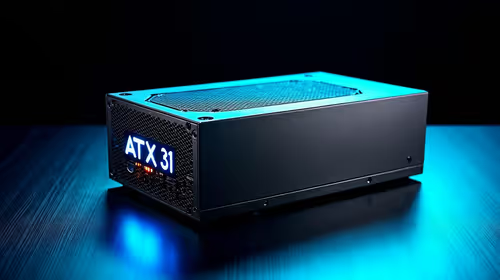
ATX 3.1 vs ATX 3.0 for mMO and live-service games buyers - what changes is mostly about compatibility, budget, upgrade path, and setup fit. SA buyers should check device support and real needs before expecting a clear win from either option.
Read more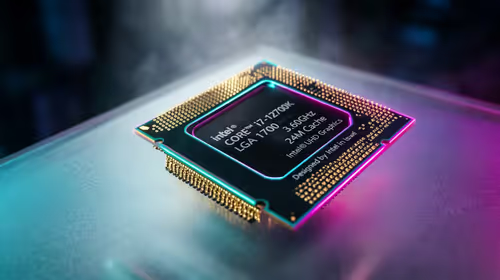
LGA 1851 vs LGA 1700 can affect Twitch and YouTube streaming when gaming and encoding share CPU resources. For SA creators, the real-world difference depends on encoder choice, memory support, motherboard cost, thermals, and upgrade plans.
Read more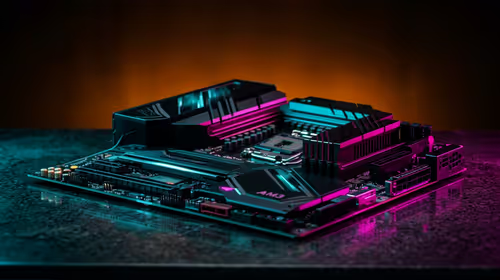
X870E vs X670E for aaa single-player gaming is mainly about fit, features, compatibility, cost, and upgrade path, not one automatic winner. SA buyers should match the choice to the setup.
Read more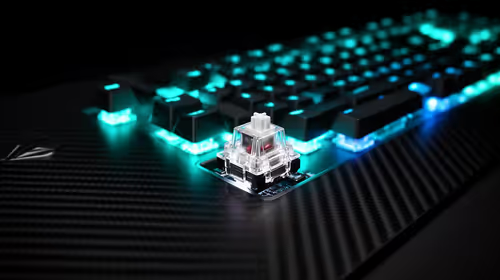
Hall Effect switches vs Mechanical switches for mMO and live-service games is mostly about compatibility, budget, upgrade path, and setup fit. SA buyers should check device support and real needs before expecting a clear win from either option.
Read more
A fake 113GB GTA VI ISO reportedly used empty padding around a small malware payload. SA gamers should delete unofficial builds, keep Windows security active and wait for official channels.

Wi-Fi 6E vs Wi-Fi 6 matters for 4K video editing when files move across a network. The real-world difference between Wi-Fi 6E and Wi-Fi 6 for video editing in 4K depends on NAS access, cloud uploads, router range, and SA creator workflows.

The difference between PCIe 5.0 and PCIe 4.0 for SA gamers is mostly bandwidth headroom. Compare GPU slot needs, NVMe speed, motherboard support, and upgrade timing before paying extra for a newer platform.

Gaming PC stuck pixel checks in South Africa should confirm the monitor fault first. Use colour tests, screenshot comparison, cable swaps, display menu checks, and clear photos before deciding on support.

Shokz OpenFit Air 2 earbuds weigh 7.2g each and use a redesigned dual-driver open-ear layout. SA buyers should choose them for comfort and awareness, not maximum isolation.

AMD's current driver now lists a Radeon RX 9050 4GB, while product coverage details a narrowed memory system. SA buyers should weigh the low VRAM ceiling against current local Radeon options.

Samsung Display has demonstrated a 16-inch 2.5K OLED laptop panel running at 300Hz. SA buyers should wait for a named notebook, full panel specifications and a local price before planning an upgrade.

Microsoft says some Windows 11 game crashes after recent updates are linked to RGB-related drivers. Affected SA gamers should confirm the update and driver before using the published registry workaround.

RTX 5090 on a 650W PSU is a tight pairing with very limited headroom. For SA gaming PCs, focus on total system draw, PSU quality, connector support, CPU choice, and avoid OC plans unless the full build is carefully power-limited.
PCIe 5.0 vs PCIe 4.0 for video editing in 4k is mainly about fit, features, compatibility, cost, and upgrade path, not one automatic winner. SA buyers should match the choice to the setup.

850W PSU safety for RTX 5090 is plausible with a quality unit and balanced parts. In SA, confirm connector support, CPU power draw, case airflow, PSU age, and spare capacity before building around 850W.
Wi-Fi 7 vs Wi-Fi 6e for competitive esports comes down to router support, latency goals, device compatibility, and coverage. SA buyers should match the choice to the real network setup.