Plenty of PCs that Windows 11 flatly refuses to install on can run it free after a single trip into the BIOS. The two requirements that block most machines, TPM 2.0 and Secure Boot, are usually present on the hardware but switched off by default, which makes a PC look ineligible when it is one toggle away from qualifying. Before you spend R8,000 or more replacing a working machine, it is worth knowing whether your Windows 11 block is a firmware setting or a genuine hardware wall.
Quick Answer
Many PCs flagged as Windows 11 incompatible can upgrade free by enabling TPM 2.0 and Secure Boot in the BIOS, since both are commonly present but disabled. If your processor is on Microsoft's supported list, try that free firmware fix first. Only when the CPU itself is unsupported does replacing the PC, from around R8,000, become the real answer.
The two blockers are usually just switched off
Windows 11 requires TPM 2.0, a security feature, and Secure Boot, alongside UEFI firmware. The catch most people miss: on most machines from the last several years, the hardware to satisfy these requirements already exists, but the manufacturer ships it disabled. So the compatibility checker reports a fail, the owner assumes the PC is too old, and a perfectly capable machine gets written off over a default setting.
TPM 2.0 in particular is often built into the processor rather than a separate chip. Intel calls its version Platform Trust Technology (PTT) and AMD calls its version fTPM, and from Windows's point of view either one satisfies the requirement. If your machine reports no TPM, there is a strong chance it is one of these firmware features waiting to be turned on, not a missing piece of hardware.
Enabling TPM and Secure Boot, step by step
The fix lives in the BIOS or UEFI, reached by tapping a key during startup, commonly Del, F2, F10 or Esc depending on the machine.
- Restart and enter the BIOS using the key your PC shows briefly at power-on.
- Find the TPM setting. It may be listed as Security Device, TPM State, Intel PTT, Intel Platform Trust Technology, AMD fTPM or AMD PSP fTPM, usually under a Security or Advanced menu. Enable it.
- Find Secure Boot, typically under a Boot or Security menu, and set it to Enabled. This usually requires the firmware to be in UEFI mode rather than legacy.
- Save and exit, then let the machine restart.
- Back in Windows, run Microsoft's PC Health Check to confirm the machine now passes.
If you cannot find the right label, the motherboard or laptop manual, or the manufacturer's support page, names the exact setting for your model. This is the whole free fix, and for a large share of supposedly ineligible PCs it is all that is needed.
Why this matters before you spend money
Replacing a PC that only needed a BIOS toggle is the most avoidable spend in this whole decision. The firmware change costs nothing, takes a few minutes, and in many cases moves a machine straight from ineligible to upgrade-ready. Always exhaust this step before treating a Windows 11 block as a reason to buy new hardware.
The one block a setting cannot fix
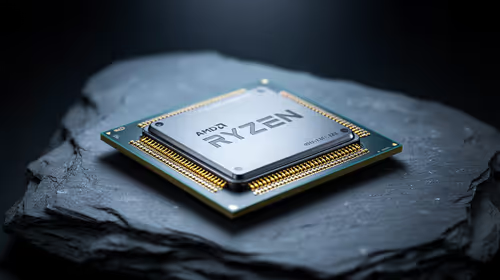
There is a genuine wall, and it is the CPU. Microsoft maintains a list of supported processors, and a chip that predates that list will fail the check even with TPM 2.0 and Secure Boot enabled. No firmware setting changes that, because it is a policy decision about which processors Microsoft supports, not a switch on your board.
So the decision tree is simple. If PC Health Check, after you enable TPM and Secure Boot, still fails and names the processor as the blocker, you are looking at a hardware replacement rather than a fix. If it names TPM or Secure Boot, you have a free path. Knowing which message you are seeing is what separates a five-minute job from a buying decision.
When replacing is the right call
If your CPU is genuinely unsupported, a new machine is the clean route, and it need not be a big tower. A compact desktop is a tidy, capable option for home or office work, and the mini PCs at Evetech arrive with Windows 11 already installed and the security features in place, so the compatibility question never arises. Pricing for a capable machine in South Africa starts well above the bargain-bin myths, and matching the spec to your actual workload matters more than chasing the lowest number. To see which current models SA buyers are actually running Windows 11 on, browse the best-selling PCs at Evetech.
Upgrade versus replace: a clear decision path
Work through it in order and the answer usually reveals itself. First, run the compatibility check and read which requirement fails. If it is TPM or Secure Boot, enable them in the BIOS and you are done at no cost. If the only failure is RAM or storage below the minimum, a modest component upgrade often fixes it on a desktop or many laptops, which is far cheaper than a new machine. It is only when the processor itself is unsupported that replacement becomes the genuine answer, because that block cannot be cleared by any setting or affordable upgrade.
That sequence keeps you from overspending. The instinct when a PC is flagged ineligible is to assume the whole machine is finished, but in practice most blocks are either a free toggle or a small upgrade. Treating replacement as the last resort, reached only after the firmware and component checks come up short, is how SA buyers avoid spending R8,000 to solve a problem a BIOS switch would have fixed.
What replacing buys you beyond compatibility
When replacement is justified, it is worth seeing it as more than ticking the Windows 11 box. A machine new enough to be unsupported by Windows 11 is also likely old enough that a newer one brings a real performance jump: faster storage, more memory headroom and a quicker processor that make everyday tasks noticeably snappier. So while the trigger may be compatibility, the practical benefit is a machine that simply works better, which softens the cost of having to replace rather than upgrade. Choosing a unit that arrives Windows 11 ready also means you skip the entire BIOS and compatibility exercise on day one.
Frequently Asked Questions
Can I upgrade to Windows 11 for free?
Yes, if your PC meets the requirements. Many machines flagged as ineligible only need TPM 2.0 and Secure Boot enabled in the BIOS to qualify, and that fix costs nothing. A supported CPU is the remaining condition.
My PC says it has no TPM. Is that final?
Often not. TPM 2.0 is frequently built into the CPU as Intel PTT or AMD fTPM and simply disabled by default. Enabling it in the BIOS usually makes the TPM appear, so check the firmware before concluding it is absent.
What is the difference between fTPM and PTT?
They are the same idea from different makers: firmware-based TPM 2.0 built into the processor. AMD calls it fTPM and Intel calls it PTT. Windows accepts either as meeting the TPM 2.0 requirement.
When do I actually need a new PC?
When your processor is not on Microsoft's supported list. That block cannot be fixed by any setting, so an unsupported CPU is the genuine reason to replace the machine. TPM and Secure Boot failures, by contrast, are usually free to fix.
How much should I budget for a replacement in South Africa?
A capable Windows 11 ready machine starts from around R8,000, with the right figure depending on your workload. Spend to match what you do rather than chasing the cheapest option, since an underpowered machine is a poor saving.
Before replacing a working PC, enable TPM 2.0 and Secure Boot in the BIOS and rerun the check, it is free and often all you need. If the processor is the genuine blocker, the mini PCs at Evetech arrive Windows 11 ready so you skip the compatibility hassle entirely.