An SSD upgrade can give an ageing laptop another useful life when storage is the problem and the rest of the machine still serves you. Replacing a hard drive transforms responsiveness. Replacing a small or failing SSD adds capacity and reliability. It cannot fix a slow CPU, worn battery or broken hinge.
Quick Answer
Upgrade the drive when the laptop accepts a standard 2.5-inch SATA or M.2 SSD, its screen and battery remain usable, and storage is full, failing or mechanical. Replace the laptop when several major parts need work or the processor and memory cannot handle your software.
Compare solid-state drives across laptop form factors with popular SSD models. For a dated replacement reference, the HP 15-fc0003ni 8GB/512GB Ryzen 5 laptop is R9,499 in the July 2026 price snapshot.
Work Out What Feels Slow
Open Task Manager during the delay. A hard drive pinned at 100 percent active time while opening apps is a clear storage clue. Long boots, constant grinding and pauses during updates also point toward mechanical storage.
An SSD already showing low activity while the CPU is full needs a different fix. Eight gigabytes of RAM can cause paging, while a weak processor may struggle with current software regardless of drive speed.
Check drive health through the maker's tool or a reputable SMART reader. Back up at once if it reports media errors, critical warnings or a rising fault count. A speed test is secondary when data is at risk.
Identify the Exact Storage Interface
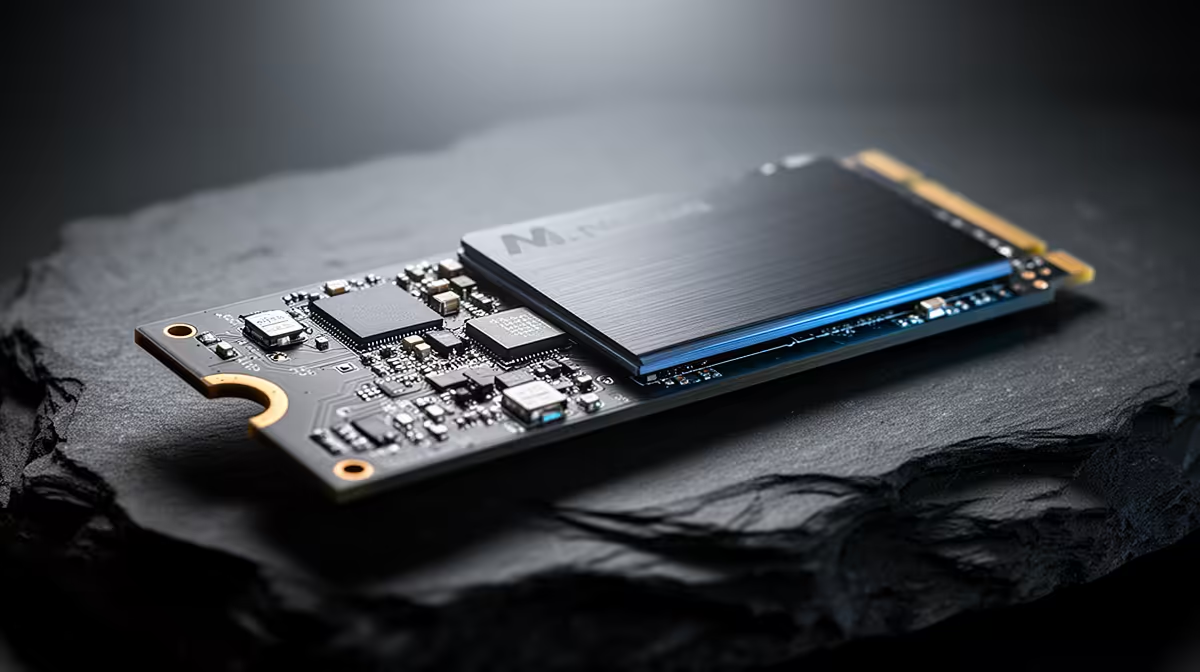
Read the service manual for the complete laptop model. A 2.5-inch bay may need a proprietary ribbon cable and caddy. An M.2 socket can support SATA, NVMe or both, and the accepted drive length can vary.
The slot shape is not enough. M.2 SATA and M.2 NVMe drives can look similar and use different protocols. Check keying, PCIe generation, lane count and whether the laptop accepts a double-sided module.
Some laptops have soldered storage or no user-accessible bay. Others use a compact format that standard retail drives cannot replace. Stop before ordering when the documentation is unclear.
Choose Capacity From the Next Two Years
Add Windows, applications, games, project files and the free space needed for updates. A 512GB drive is comfortable for general use and a small game set. One terabyte gives more room for current games and media.
The formatted capacity shown by Windows is lower than the decimal label. Leave headroom for controller housekeeping and large updates. A drive run nearly full can lose write performance and becomes awkward to maintain.
Buy quality before peak sequential speed. An older laptop with a Gen3 link cannot use a Gen4 flagship's full bandwidth. NAND type, controller, warranty and sustained behaviour matter more than the largest number on the box.
Decide Between Clone and Fresh Install
Cloning preserves applications, settings and files. Remove unneeded data first, confirm the used space fits the new drive and use migration software that supports the source and destination. Connect the new SSD through a suitable enclosure or second slot.
Keep the original drive untouched until the clone boots, Windows sees the full partition and important files open. A recovery image and separate personal-file backup give you another way back.
A fresh installation can clear years of startup tools, broken drivers and vendor clutter. Download network and storage drivers before the change, record the activation state and make installation media from the official source. Restore files after the clean system passes testing.
Opening the Laptop Has Risks
Check current service and warranty terms before removing the cover. Follow the maker's procedure, shut down, disconnect power and disable or unplug the internal battery where instructed.
Use the correct screwdriver and anti-static handling. Plastic clips can break when forced, and a battery can be damaged by a slipped tool. If the drive sits under other components, professional installation may be the safer cost.
Thermal pads and shields should return to their original positions. A fast NVMe drive can throttle in a cramped bay when its cooling path is missing.
Test the Upgrade Before Calling It Done
After installation, check firmware through the SSD maker's official utility, confirm TRIM and read the health data. Run a long file copy while watching temperature and errors.
Boot several times, use sleep and resume, and open the applications that were slow before. If the laptop still struggles, review memory and CPU load with the storage bottleneck removed.
Keep the old drive for a short recovery window in safe anti-static packaging. Erase it only after every important file and application has been verified. Use an approved secure-erase method before selling or recycling it.
Compare the Rest of the Laptop
An SSD is worthwhile when the display, keyboard, ports and charger are sound. Battery replacement may still be reasonable if the model has parts support. Add these known jobs to the upgrade total.
A low-resolution damaged screen, soldered 8GB memory and unsupported operating system can make storage the smallest problem. Compare the full repair with a named replacement laptop, not a bare category minimum.
Also check the software's current requirements. A new SSD cannot add instruction-set support, graphics features or enough memory for an application that has moved beyond the platform.
The Largest Gain Comes From HDD to SSD
Moving from a mechanical drive to any sound SATA SSD cuts access latency enough to change daily use. Moving from one healthy NVMe SSD to a faster model is less dramatic unless capacity or sustained transfers are the issue.
Set the expectation from the starting point. A hard-drive laptop can feel revived. A small NVMe laptop becomes roomier. Neither becomes a new processor generation.
Measure the old boot and application times before opening the chassis. Repeat them after the move so the upgrade is judged by the delay you wanted to remove.
FAQ
Can every laptop SSD be upgraded?
No. Storage can be soldered, proprietary or limited by the slot. Use the exact model's service manual.
Is cloning better than reinstalling Windows?
Cloning preserves the setup; a fresh install removes old software and driver residue. Back up before either route.
Will an SSD make an old laptop fast?
It transforms a hard-drive bottleneck and improves storage tasks. CPU, RAM, graphics and battery limits remain.
Check the laptop service manual and drive health, then compare one compatible SSD upgrade with every other repair the machine needs.