Master Your USB-C Firmware & Cable Testing Setup ⚡
By the end of this guide, you’ll have a clear, step-by-step process to test USB-C cables and firmware confidently. No more guesswork on connection issues or compatibility hassles — you'll know exactly how to verify your USB-C gear is working optimally.
Prerequisites Checklist
- A USB-C device (laptop, smartphone, or monitor with USB-C input)
- USB-C cables to test (preferably different brands or qualities)
- Firmware update tool or software for your device (check manufacturer’s website)
- Access to a compatible display like a curved or portable monitor: curved monitors, portable monitors
- Monitor accessories, if needed: monitor accessories
How to Test Your USB-C Firmware & Cables in 6 Clear Steps 🔧🚀
1. Inspect Your USB-C Cable and Ports
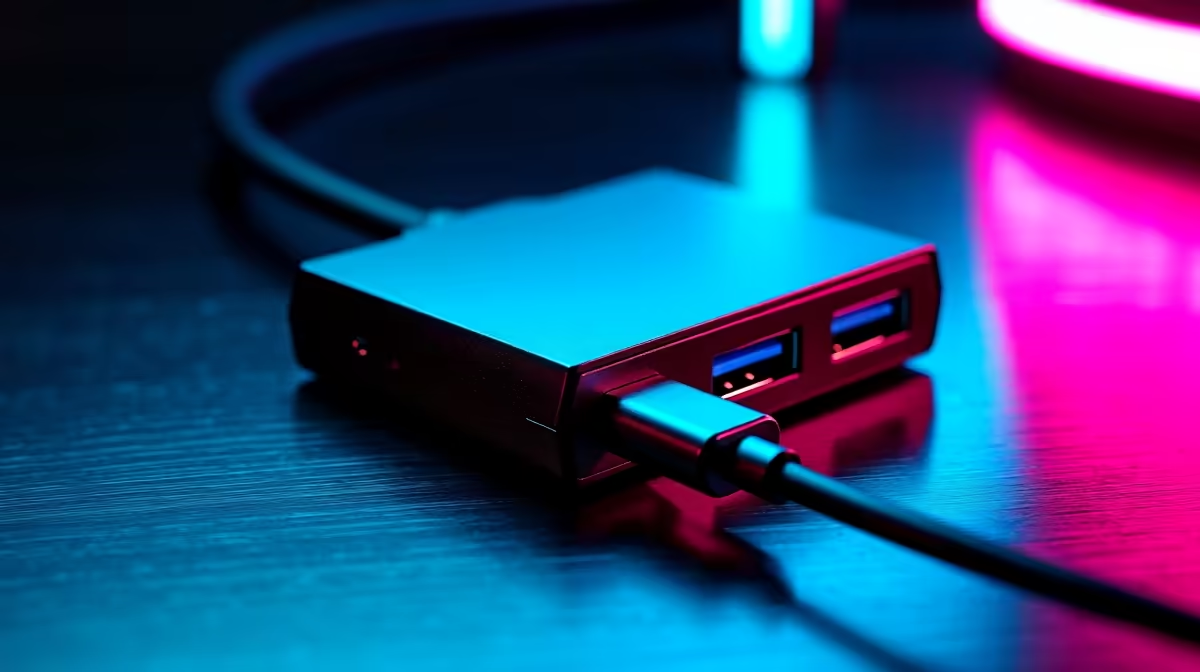
Visual inspection is simple but critical. Look for bent pins, frayed cable ends, or debris inside the port. Always use cables rated for your device’s power and data needs; cheap cables can cause intermittent failures. Quality can vary significantly, so start here before deeper tests.
2. Connect to a Known Compatible Monitor
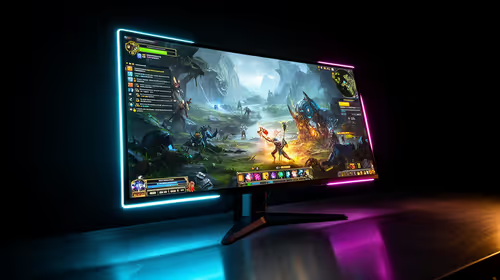
Use a reliable USB-C monitor or display, such as those from Evetech’s collection of gaming monitors or 4K monitors. This eliminates screen compatibility issues from the testing process. Confirm your device detects the display and transmits audio and video properly.
Troubleshooting Connection Issues
Check for loose connections and try different USB-C ports on your device. If the monitor doesn’t detect the signal, test with a different cable or port to isolate the problem.
3. Run Firmware Updates on Your Device
Outdated USB-C firmware can cause incompatibility or reduced performance. Visit your device manufacturer’s website to download and install the latest firmware updates. Always back up data before updating. Firmware updates improve USB power delivery and data protocols, crucial for stability.
4. Use Diagnostic Software to Test USB-C Speed and Power
Many devices come with built-in tools to check USB-C link speed (e.g., USB 3.1 Gen 2 at up to 10Gbps) and power delivery status. Third-party apps or manufacturer-provided tools can report voltage and data transfer rates. Confirm these match your device’s specs.
Ensuring Accurate Measurements
Run tests with no high-power peripherals attached. Cross-check readings by swapping cables or testing on another system to rule out software glitches.
5. Trial Different USB-C Cables & Compare Results
Test multiple USB-C cables by connecting the same device and monitor combination. Take note of any flickering, dropped connections, or slow data transfers. High-quality cables that include e-marker chips often perform more reliably, especially for monitors needing higher bandwidth.
6. Verify Full USB-C Monitor Features Function
Ensure the USB-C connection supports extra features such as touch input on portable monitors or charging power delivery. For example, your portable monitor should both display crisp visuals and charge your laptop via the same cable. Evetech’s range of PC monitors includes many with advanced USB-C support.
Quick-Reference FAQ
Q: Can I use any USB-C cable for monitor output?
A: Not all USB-C cables support video or high data rates. Check the cable’s rating, especially for DisplayPort Alt Mode support.
Q: How often should I update USB-C firmware?
A: Check every few months or before connecting new devices. Updates fix bugs and improve compatibility.
Q: What causes flickering or disconnects on USB-C monitors?
A: Usually poor-quality cables, dirty ports, or outdated firmware. Try swapping cables and cleaning connections.
Q: Are curved or portable monitors more sensitive to cable quality?
A: Yes. Their advanced displays often require stable data and power delivery, so using top-notch USB-C cables helps maintain quality.
Upgrade Your USB-C Setup Today
Test and upgrade your cables or monitors from Evetech’s premium collection — from best PC monitor deals to versatile displays. Shop now at Evetech to ensure flawless USB-C performance for your gaming or workstation rig.