Stacking one display above another changes the geometry of a workstation rather than simply rotating a side-by-side setup. Vertical dual-monitor stacks can save desk width and reduce lateral viewing, but height, task placement and stable support decide whether they feel comfortable.
Quick Answer
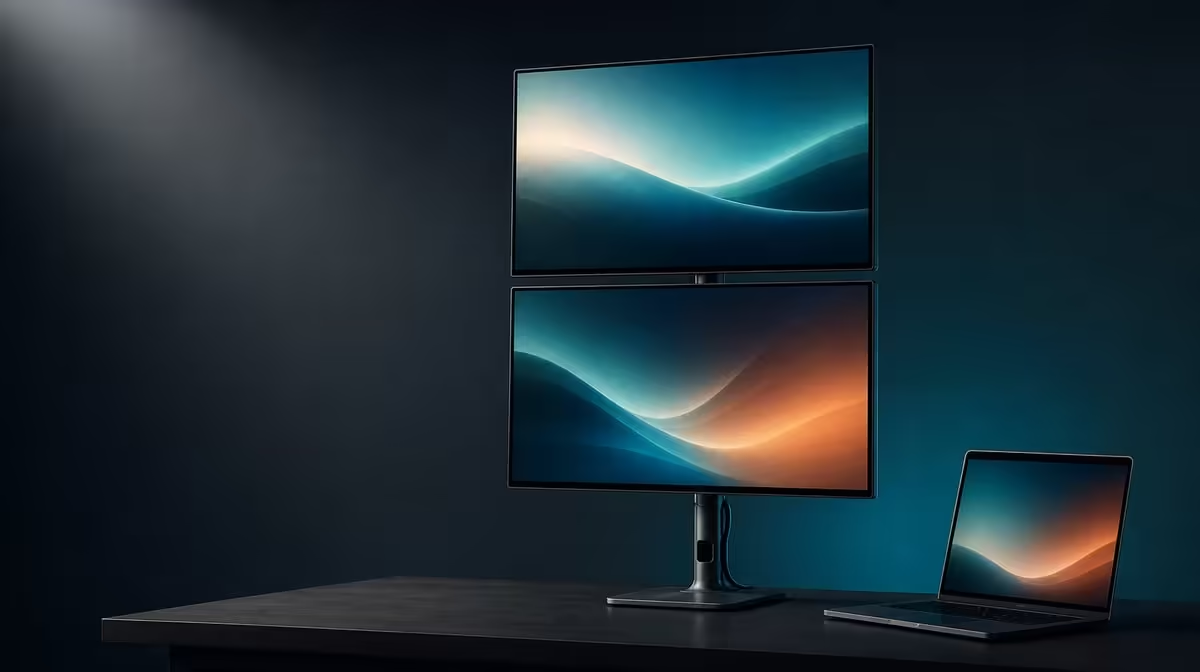
The R6,899 UPERFECT Delta Mega can stack two 23.8-inch Full HD IPS panels vertically using its 360-degree folding range. The layout may reduce side-to-side neck movement, while the laptop, main application, upper-screen angle, viewing distance and stand balance still need to be arranged for the individual user.
📚 Understand what a vertical stack changes
A stacked layout places the external screens on the same general centre line, one above the other. Unlike a wide pair, it uses less horizontal spread. This can help a narrow home-office surface or a workstation where the user wants reference material close to the primary task.
The saved width does not make the whole setup small. Two 23.8-inch panels still require vertical clearance and an adequate viewing distance. Include the companion laptop, keyboard and mouse when measuring. Check nearby shelves, wall units, lights and the full arc used to fold the Delta Mega into position.
Stacking can reduce repeated left-right head turns because both external work areas remain closer to the front. It is intended to reduce neck strain, not guaranteed to eliminate it. A screen placed too high can replace side turning with frequent upward movement, so the task map matters as much as the hardware.
The laptop can sit below or beside the stack as the source. Keep it open only if it earns a defined third role, such as call controls or a compact communications window. Otherwise, an unused laptop display can pull the visual layout away from the centred benefit.
Evetech's portable monitor section helps compare other screen arrangements intended to travel with or extend a notebook.
👀 Put frequent work at the easier height
List every application used during a normal day and mark how long each remains in view. Place the longest, most detailed or most interactive task on the lower Delta Mega panel near the natural gaze. The upper screen is often better for reference, dashboards, a preview or information checked at intervals.
This is not an absolute rule. A user may position the stack differently because of chair height, desk construction or the laptop location. The test is whether text stays readable without leaning and whether repeated transitions between panels require uncomfortable head movement.
Set both screens to native 1920 x 1080, then establish scaling from the actual seating position. Start with the same percentage. If the upper panel is farther away, a different value may help, but move representative windows between displays and check whether controls change size too abruptly.
Use the 360-degree folding range to refine the upper viewing angle. Small changes can improve sightlines and reflections. Do not chase a visually symmetrical pose if a slightly different angle is more comfortable.
Low blue light provides another viewing option for extended reading, but it does not solve an excessively high panel, glare or small text. Built-in speakers can handle routine meeting audio without adding a separate object to the narrower layout.
Compare the stacked workstation with alternatives in Evetech's PC monitor category.
🧱 Prove stability and cable freedom
Vertical space raises the importance of a firm base. Place the structure on a flat, solid part of the desk and adjust it with both panels supported. Once positioned, type, move the chair and perform an ordinary cable adjustment while watching for unwanted movement.
The cable route should remain relaxed. A Windows or Mac laptop can feed the Delta Mega through either Type-C or HDMI, but that connector still needs room to move without pulling against the folded structure. Guide the cable away from hinges and check both the setup pose and any position used while changing the stack.
Laptop output capability must also be confirmed. A Type-C socket is not proof that display video is available, and the intended dual-screen or 100Hz operation depends on the complete source route. HDMI supplies another supported option. Establish two stable images before diagnosing any ergonomic issue.
The two IPS panels support 100Hz, which can smooth compatible scrolling and pointer movement. Their 14ms response describes pixel transitions separately. Neither specification corrects a mismatched software map, so configure the physical order first and verify the refresh selection afterwards.
If the structure does not feel steady in the intended position, choose another angle. The existence of a 360-degree range is permission to find a suitable working pose, not a reason to use the most extended one.
🗺️ Make the digital desktop follow the stack
Windows and macOS need to know which panel is above. Arrange the display rectangles vertically and align the shared edge with the real screens. A careless offset can make the pointer disappear into an unexpected corner when moving between task zones.
Choose the primary display based on work, not habit. Open the main application there, place supporting material above and decide whether the laptop belongs to the side or below. Test window movement, notifications and full-screen behaviour.
Save a short restart checklist: connect the laptop, identify displays, confirm extended mode, inspect orientation, check scaling, select 100Hz where supported and open the standard application set. A repeatable sequence makes the stack useful after travel, room changes or a different computer.
Include instructions for returning to a wide pair if the desk uses both shapes. Note where the laptop sits, how the lead moves and which application becomes primary. A flexible workstation should not require the owner to reconstruct every detail from memory whenever the task changes.
At R6,899, value should be linked to saved width, clearer task separation and reduced lateral movement. If the user regularly needs two full-size views but lacks room for a wide pair, those benefits make a stronger case than the mere novelty of stacking.
Review Evetech's best-selling monitor page after measuring height and assigning the upper panel a specific job.
Revisit the decision after several full work blocks. A tidy stack can reveal an overused upper panel later, while a thoughtful task split may become easier with habit. Keep the angle adjustable and change the application map before accepting recurring discomfort as unavoidable.
Frequently Asked Questions
What defines a vertical monitor stack?
It places one external display above the other on a broadly shared centre line.
How can stacking save desk width?
The screens use height instead of extending as far to the left and right as a horizontal pair.
Which task belongs near eye level?
Usually the application used most often or for the longest continuous period should occupy the more comfortable lower position.
Can a stack reduce neck movement?
It can reduce broad side-to-side movement, although an upper panel positioned badly may introduce excessive upward viewing.
How should the software layout match?
Arrange the operating-system display rectangles one above the other, align their boundary and test pointer travel across it.
Why does folding help stack setup?
The 360-degree range allows the two screens to be moved into a vertical arrangement and their viewing angles refined.
What stability check is essential?
Confirm that the stand stays settled during typing, chair movement and gentle cable handling on the actual desk.
Build upward only when the task map supports it.
Centre the Delta Mega, keep sustained work at the calmer height, and test the laptop, cables and upper viewing angle as one complete stack.