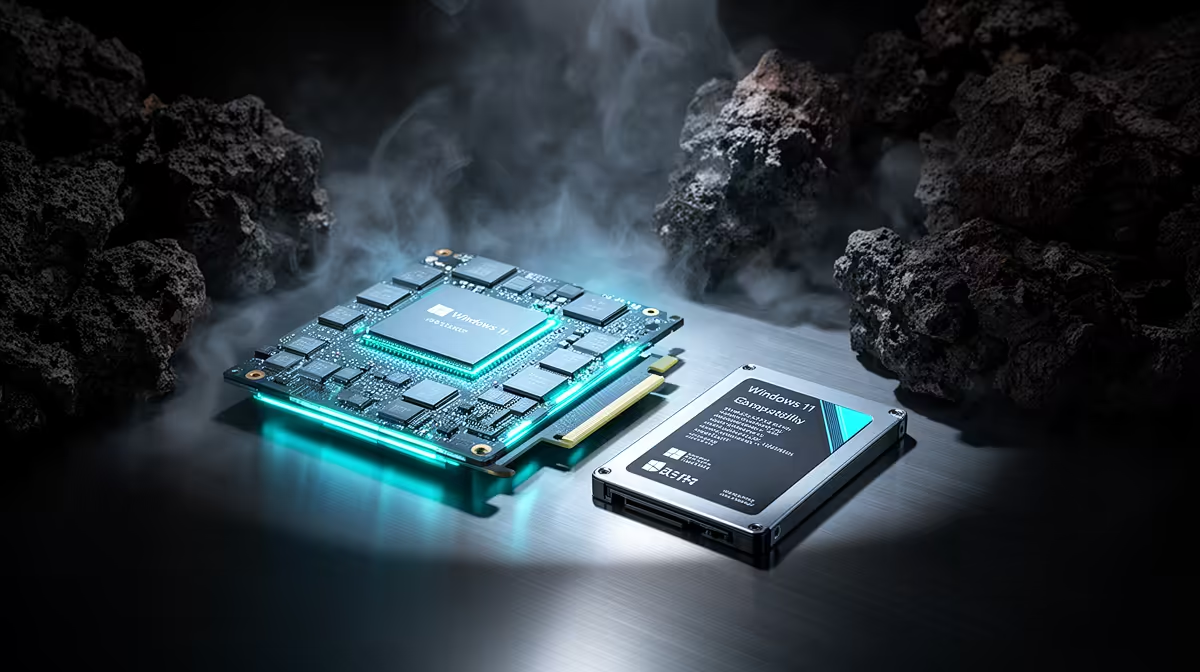
Plenty of perfectly capable desktops get written off as too old for Windows 11 when they fail a single check that takes two minutes to flip in the BIOS. Upgrading an old PC to Windows 11 comes down to five hard requirements, and most machines that stall are tripped up by firmware toggles rather than genuinely outdated hardware. Knowing exactly which of the five your PC fails tells you whether it is a quick fix or a real blocker.
Quick Answer
Windows 11 needs five things: TPM 2.0, UEFI with Secure Boot, a CPU on Microsoft's supported list (roughly Intel 8th-gen or AMD Ryzen 2000-series and newer), at least 4GB RAM, and 64GB of storage. Run the free PC Health Check tool first; it names the exact requirement you fail. TPM and Secure Boot are usually just BIOS switches, while an unsupported CPU is the one blocker that hardware cannot fix.
The five checks, and which ones are easy
Three of the five requirements are trivial on almost any machine from the last decade. You need 4GB of RAM minimum, though 8GB makes for a far better experience, and 64GB of storage, which any modern drive clears. The interesting checks are the other three.
TPM 2.0, almost always present but switched off
TPM 2.0 is a security module that Windows 11 treats as a building block for features like BitLocker drive encryption and Virtualization-based Security. Most PCs from the last five years include it, but many retail motherboards ship with it disabled. In the BIOS it hides under names like Security Device Support, TPM State, AMD fTPM, AMD PSP fTPM, Intel PTT, or Intel Platform Trust Technology. Enabling it is a supported, safe change, but back up your data first and follow your board maker's specific instructions, since the exact path varies by manufacturer.
UEFI and Secure Boot
Windows 11 requires UEFI firmware with Secure Boot capability rather than legacy BIOS mode. If your drive is still partitioned for legacy boot you may need to convert it to GPT partitioning before Secure Boot will activate. Secure Boot itself is then a setting you enable in the firmware menu. Like TPM, this is a configuration step rather than a hardware wall, though it does require a bit more care if the disk was originally set up in legacy MBR mode.
The supported CPU list, the one that can stop you
This is the real gatekeeper. Microsoft maintains a processor whitelist updated per vendor, and it is about hardware-backed security capabilities, not just clock speed. Many Intel 7th-gen and older chips are excluded even when they have TPM 2.0 and Secure Boot working. If your CPU is not on the list, there is no firmware toggle that changes it.
How to find out where you stand
Microsoft's PC Health Check is the official tool and the fastest way to get a definitive answer. It scans the machine and explicitly lists every blocker, whether that is TPM, Secure Boot, the CPU, or storage. Download it from Microsoft, run it once, and you will know immediately whether you are looking at a BIOS tweak or a hardware limit.
What to do if the CPU is the blocker
If the only thing standing between you and Windows 11 is an unsupported processor, the honest path is new hardware. A compact desktop is often the most sensible replacement for an ageing tower, and the mini PC range at Evetech covers small, current machines that ship Windows 11 ready. Bypassing the CPU requirement is technically possible but leaves you on an unsupported configuration that may miss security updates, which is a poor trade for a machine you rely on daily.
What Windows 11 gains you over Windows 10
Beyond the requirements themselves, it is worth knowing what you are upgrading toward. Windows 11 introduces hardware-enforced security defaults including mandatory TPM 2.0 and VBS, which Microsoft sees as raising the baseline protection of every machine in the install base. On modern hardware, Windows 11 boots measurably faster and wakes from sleep quicker than Windows 10 on the same machine. DirectStorage, which cuts load times in compatible games by reducing CPU involvement in asset decompression, also requires Windows 11.
Windows 11 24H2 and the PCR7 requirement
Microsoft has been tightening requirements incrementally. The 25H2 update introduced a PCR7 binding check as a prerequisite for in-place upgrades, which is tied to Secure Boot state being verified by the TPM. This makes the Secure Boot and TPM configuration steps not just a one-time hoop but a prerequisite for keeping the upgrade path open in future. Getting these right now means your machine stays eligible for major updates going forward, not just the initial install.
Understanding what the PC Health Check result means
The tool gives one of three outcomes per requirement: pass, fail, or not currently enabled. A fail on storage or RAM means hardware purchase. A fail on Secure Boot, UEFI, or TPM with a status of "not enabled" means a BIOS visit. A fail on the CPU means a decision about whether the machine is worth replacing. The useful detail is that it never just says "your PC cannot run Windows 11" without telling you which check triggered it, so you always know the exact lever to pull or the exact limit you have hit.
Frequently Asked Questions
Which Windows 11 requirement do old PCs fail most often?
Either Secure Boot or TPM being switched off in the BIOS, both of which are quick to enable, or an unsupported CPU, which cannot be fixed. PC Health Check tells you which one applies to your specific machine.
Is enabling TPM and Secure Boot risky?
It is generally safe and supported, but back up your data first and follow your motherboard maker's instructions. On some systems you may also need to convert the drive to UEFI-style partitioning before Secure Boot will work.
What is the minimum CPU for Windows 11?
As a rule of thumb, roughly Intel 8th-generation and AMD Ryzen 2000-series chips and newer are supported, but the official list is what counts. A chip can meet every other requirement and still be excluded on the CPU check alone.
Can I install Windows 11 on an unsupported PC anyway?
There are methods to bypass the checks, but they leave you on an unsupported configuration that Microsoft may not update reliably. For a daily-driver machine, current hardware is the safer choice.
How long does the whole compatibility check take?
A few minutes. Download and run PC Health Check, read the list of blockers, then either flip the relevant BIOS settings or plan a hardware upgrade based on what it reports.