Open a new MacBook, reach for your old USB stick or try to plug into the office monitor, and you hit the same wall every buyer hits: there is nowhere to plug it in. A modern MacBook dock stops being a nice-to-have and becomes a day-one purchase, because Apple ships these laptops with USB-C and Thunderbolt ports only. Every USB-A drive, HDMI screen and SD card you already own needs an adapter from the moment you unbox it.
Quick Answer
Yes, plan to buy a dock or hub with your MacBook, not later. MacBooks have only USB-C and Thunderbolt ports, so legacy USB-A devices, HDMI monitors and SD cards all need an adapter. A single dock restores those connections and adds charging through one cable, which is why most buyers regret leaving it for a second order.
The ports Apple left off
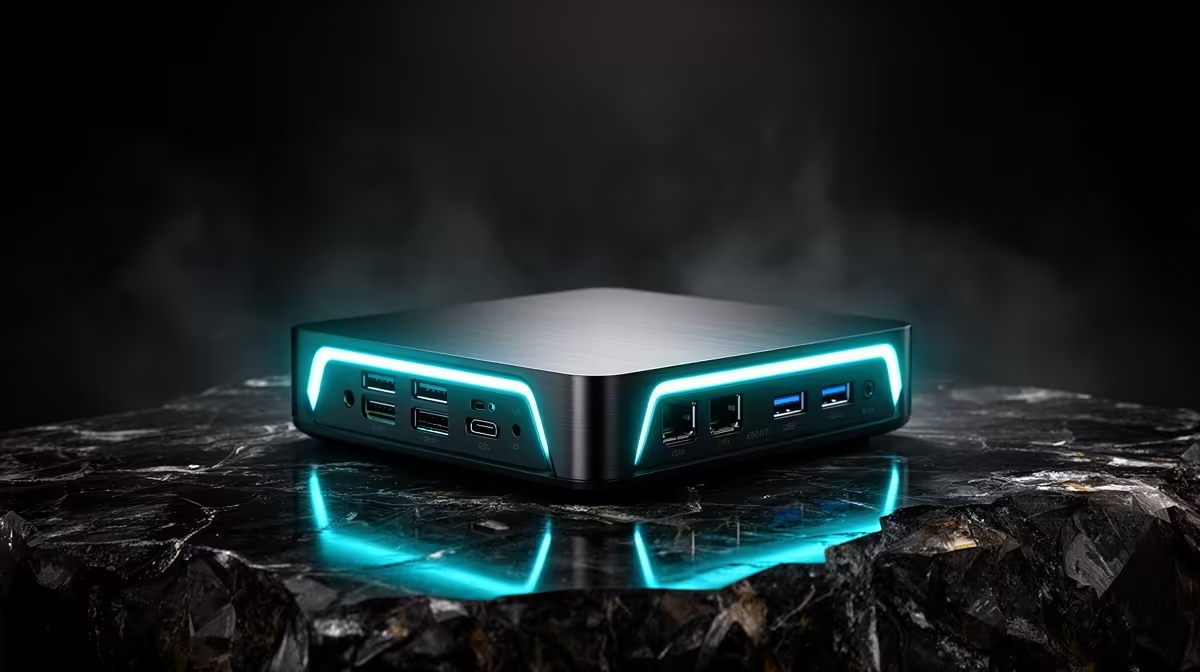
Walk through what you actually connect daily and the gap becomes obvious. The full-size USB-A connector that has lived on every drive, mouse dongle and printer for two decades is gone. There is no HDMI on most models, so plugging into a meeting-room screen or a home monitor needs a converter. There is no SD or microSD slot on the lighter MacBooks, which catches photographers and anyone pulling footage off a camera. Wired Ethernet, common in offices and useful for stable video calls, is absent too.
What remains is a small number of USB-C or Thunderbolt ports. They are fast and flexible, but flexible only helps if you have the adapters to translate them into the connectors your gear actually uses.
Why a dock beats a drawer full of adapters
You can solve each gap with a separate dongle: one for USB-A, one for HDMI, one for the card reader. The problem is you end up carrying three or four loose adapters, and the more ports your MacBook has occupied by dongles, the fewer you have left for charging.
A dock consolidates all of that into one connection. Plug a single USB-C or Thunderbolt cable into the MacBook and you get USB-A ports, HDMI output, an SD card slot and often Ethernet, all at once. The better docks also pass power through, so the same cable that adds your ports also charges the laptop. That is the real day-one argument: one cable on, one cable off, and your whole desk is connected.
Hub versus full dock
A compact hub is the travel-friendly option: small, bus-powered, enough to add an HDMI screen and a couple of USB-A ports when you are out. A full Thunderbolt dock is the desk anchor, with more ports, higher power delivery and often support for dual monitors. Many MacBook owners end up with both, a small hub in the bag and a larger dock at the desk, but if you buy only one, match it to where you work most.
Matching the dock to your MacBook
Two specs decide whether a dock fits your machine. The first is power delivery: a dock that supplies enough wattage will charge your MacBook through the same cable, while an underpowered one leaves the laptop slowly draining even while plugged in. Larger MacBook Pro models draw more, so check the dock can supply enough for your specific model. Mid-range Thunderbolt docks commonly deliver 85W to 96W of charging, while the premium tier reaches 140W, which is the number the larger Pro models want under sustained load.
The second is display support. A Thunderbolt dock can typically drive a high-resolution external screen, and some support two, but the number and resolution of monitors a dock can run varies, so confirm it matches your setup before you buy. If you are still choosing the laptop itself, the MacBook lineup at Evetech lays out which models carry Thunderbolt and how many ports each has, which directly affects the dock you should pair with it.
What to check before you buy
Not every dock is created equal, and a few details separate a dock that earns its place from one that creates new frustrations.
Video output rating
The HDMI or DisplayPort spec on the dock decides what you can actually display. A dock that only supports 4K at 30Hz looks noticeably sluggish compared to 60Hz on the same screen. Confirm the dock lists 4K at 60Hz, or whatever resolution and refresh rate your monitor requires, before committing.
USB speed tiers
Not every USB-A port on a dock is the same speed. A port labelled USB 3.2 Gen 2 runs at 10Gbps; older USB 3.0 ports top out at 5Gbps. If you move large files to external drives, the USB tier on the dock's ports is worth checking alongside its headline Thunderbolt bandwidth.
Bus power versus mains power
Compact hubs draw power entirely from the MacBook, which limits how many devices they can run before the bus becomes unstable. A dock with its own power brick handles more devices simultaneously, delivers proper charging wattage, and keeps everything stable when every port is occupied.
For a sense of which models and accessories SA buyers are pairing together right now, it is worth scanning what tops the laptop best sellers before settling on your final combination.
Frequently Asked Questions
Do all MacBooks need a dock?
Effectively yes if you use older peripherals or external screens. Every current MacBook ships with USB-C or Thunderbolt only, so USB-A devices, HDMI monitors and SD cards all need an adapter or dock from day one.
What is the difference between a USB-C hub and a Thunderbolt dock?
A hub is compact and travel-friendly with a handful of ports, while a Thunderbolt dock stays at your desk with more ports, higher charging power and often dual-monitor support. Many people use a small hub on the go and a full dock at home.
Will a dock charge my MacBook too?
A dock with enough power delivery will charge the MacBook through the same cable that adds your ports. Check the dock supplies enough wattage for your specific model, as larger Pro models need more.
Can one dock run two external monitors?
Some Thunderbolt docks support dual displays, but it depends on the dock and your MacBook model. Confirm the dock lists the number and resolution of screens you want before buying.
Should I buy the dock at the same time as the MacBook?
Yes. Without it you cannot connect older drives, external screens or camera cards on the first day, so most buyers treat the dock as part of the initial purchase rather than an afterthought.
Buying a new MacBook? Add the right dock from the start. Browse the MacBook range at Evetech and pair it with a hub or Thunderbolt dock so every drive, screen and card you own works the moment you open the box.