



PCIe 5.0 vs PCIe 4.0 for Video editing in 4k in SA
PCIe 5.0 vs PCIe 4.0 for video editing in 4k is mainly about fit, features, compatibility, cost, and upgrade path, not one automatic winner. SA buyers should match the choice to the setup.
Read moreA study-and-gaming combo benefits from Windows 11 when one machine must handle class work, Microsoft apps and lighter play without licence shortcuts. The input only confirms Microsoft 365 prices of R39, R159, and R199, so treat those as separate software costs.
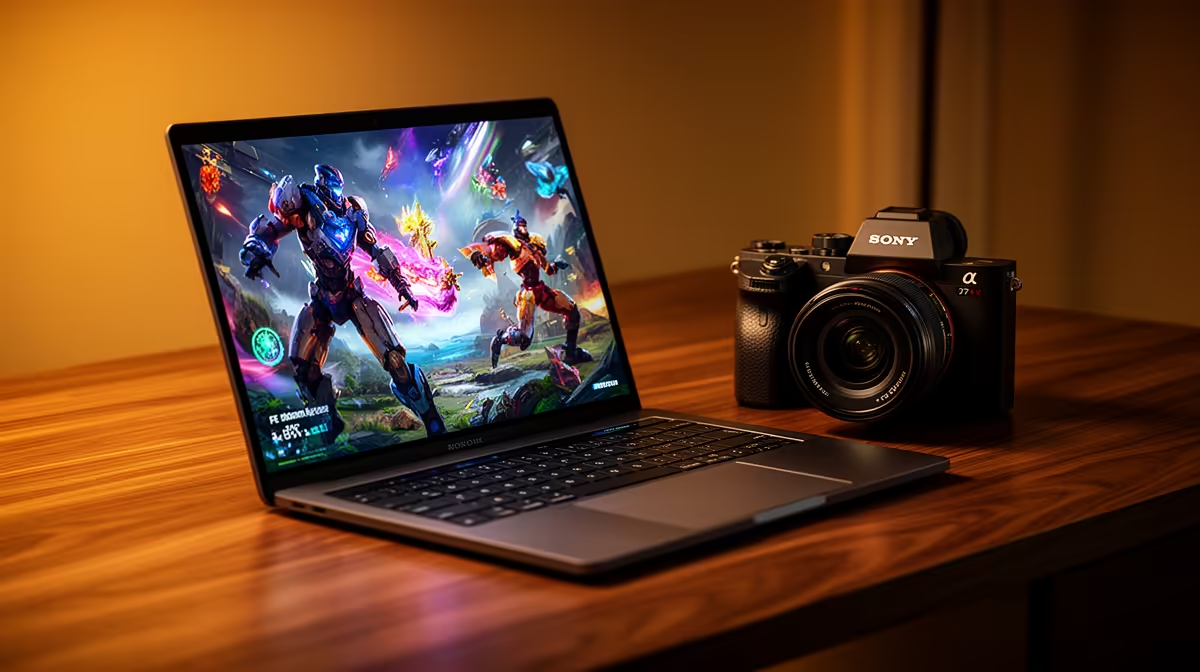
A Windows 11 upgrade is worthwhile for a study-and-gaming PC when the hardware is officially supported, required course applications work and games or security updates need the newer platform. It is not worth forcing onto an incompatible computer or installing just before deadlines.
Record the processor, motherboard, firmware mode, memory, storage and graphics card. Run official compatibility checks and list required course software, games, peripherals and anti-cheat tools. Back up files, verify encryption recovery keys and confirm driver support before scheduling any migration.
The ASUS ExpertBook P1503 with Core i5-13420H, 8GB, 512GB and Windows 11 Pro is verified at R9,858 as a separate supported-laptop reference. It does not prove an older PC can upgrade. Use Microsoft and manufacturer documentation for processor, TPM, firmware and drivers.
Keep assignments, saves and personal files in two independent backups. Use official media, preserve license information and test video calls, campus portals, games and controllers after migration. Never clear security hardware without recovery keys.
Upgrade when support and rollback are ready. Replace or retain hardware through supported paths rather than bypassing requirements and risking study stability.
Create a bootable recovery drive and print the support checklist before migration, then confirm every course portal and game launcher works before deleting the old installation.
Preparing a supported dual-purpose PC? > Compare Evetech Windows laptops and components after auditing the current system.
For study and gaming, the upgrade should support school files, browser work and the games already used on that PC.
Pick the setup around daily switching between assignments and play, with a genuine licence at the centre.
Keep existing peripherals in mind because the same desk may need to serve notes, calls and gaming sessions.
Software spend is easier to justify when it helps both study tasks and downtime, not only one side.
Antivirus, backup basics and a clean licence matter more than a cheap grey-market install for student use.
If the machine struggles under study apps and games now, the upgrade should not be treated as a hardware fix.
PCIe 5.0 vs PCIe 4.0 for video editing in 4k is mainly about fit, features, compatibility, cost, and upgrade path, not one automatic winner. SA buyers should match the choice to the setup.
Read more
Wi-Fi 7 vs Wi-Fi 6e for competitive esports comes down to router support, latency goals, device compatibility, and coverage. SA buyers should match the choice to the real network setup.
Read more
ATX 3.1 vs ATX 3.0 for mMO and live-service games buyers - what changes is mostly about compatibility, budget, upgrade path, and setup fit. SA buyers should check device support and real needs before expecting a clear win from either option.
Read more
LGA 1851 vs LGA 1700 can affect Twitch and YouTube streaming when gaming and encoding share CPU resources. For SA creators, the real-world difference depends on encoder choice, memory support, motherboard cost, thermals, and upgrade plans.
Read more
X870E vs X670E for aaa single-player gaming is mainly about fit, features, compatibility, cost, and upgrade path, not one automatic winner. SA buyers should match the choice to the setup.
Read more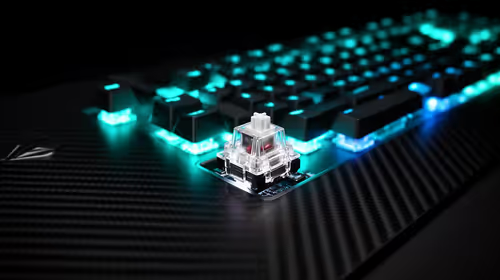
Hall Effect switches vs Mechanical switches for mMO and live-service games is mostly about compatibility, budget, upgrade path, and setup fit. SA buyers should check device support and real needs before expecting a clear win from either option.
Read more
A fake 113GB GTA VI ISO reportedly used empty padding around a small malware payload. SA gamers should delete unofficial builds, keep Windows security active and wait for official channels.

Wi-Fi 6E vs Wi-Fi 6 matters for 4K video editing when files move across a network. The real-world difference between Wi-Fi 6E and Wi-Fi 6 for video editing in 4K depends on NAS access, cloud uploads, router range, and SA creator workflows.

The difference between PCIe 5.0 and PCIe 4.0 for SA gamers is mostly bandwidth headroom. Compare GPU slot needs, NVMe speed, motherboard support, and upgrade timing before paying extra for a newer platform.

Gaming PC stuck pixel checks in South Africa should confirm the monitor fault first. Use colour tests, screenshot comparison, cable swaps, display menu checks, and clear photos before deciding on support.

Shokz OpenFit Air 2 earbuds weigh 7.2g each and use a redesigned dual-driver open-ear layout. SA buyers should choose them for comfort and awareness, not maximum isolation.

AMD's current driver now lists a Radeon RX 9050 4GB, while product coverage details a narrowed memory system. SA buyers should weigh the low VRAM ceiling against current local Radeon options.

Samsung Display has demonstrated a 16-inch 2.5K OLED laptop panel running at 300Hz. SA buyers should wait for a named notebook, full panel specifications and a local price before planning an upgrade.

Microsoft says some Windows 11 game crashes after recent updates are linked to RGB-related drivers. Affected SA gamers should confirm the update and driver before using the published registry workaround.

RTX 5090 on a 650W PSU is a tight pairing with very limited headroom. For SA gaming PCs, focus on total system draw, PSU quality, connector support, CPU choice, and avoid OC plans unless the full build is carefully power-limited.
PCIe 5.0 vs PCIe 4.0 for video editing in 4k is mainly about fit, features, compatibility, cost, and upgrade path, not one automatic winner. SA buyers should match the choice to the setup.

850W PSU safety for RTX 5090 is plausible with a quality unit and balanced parts. In SA, confirm connector support, CPU power draw, case airflow, PSU age, and spare capacity before building around 850W.
Wi-Fi 7 vs Wi-Fi 6e for competitive esports comes down to router support, latency goals, device compatibility, and coverage. SA buyers should match the choice to the real network setup.