


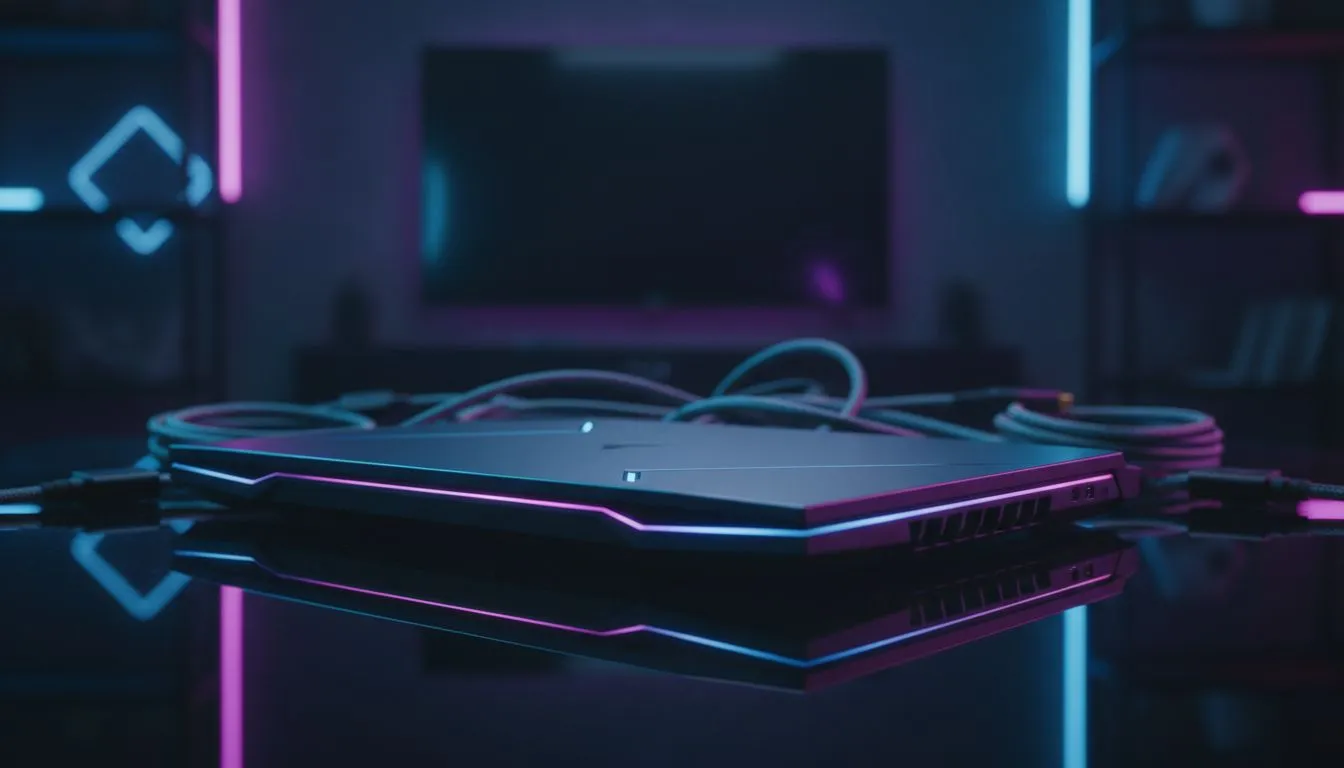
Why You Should Connect Your Gaming Laptop to a TV
Ever felt like your laptop screen is just a bit too cramped for an epic session of Call of Duty or Elden Ring? We have all been there. You have a massive 4K TV sitting in your lounge while you are hunched over a 15-inch panel. It is time to level up your experience. Learning how to connect gaming laptop to TV for big screen gaming is the easiest way to transform your bedroom setup into a home cinema powerhouse 🎮.
Choosing the Right Connection for Your Setup
If you want to push high frame rates at 4K resolution, you need the right hardware. Most modern Intel laptops on special come equipped with HDMI 2.1 ports. This is crucial for 120Hz gaming on a compatible OLED or LED TV. If you prefer Team Red, checking out Ryzen laptop deals will often net you a machine with versatile USB-C DisplayPort Alt Mode... which can be adapted to HDMI easily with a high-quality dongle.
The Game Mode Secret ⚡
Always check your TV settings for a "Game Mode" or "PC Mode" toggle. Modern TVs often apply heavy post-processing that adds significant input lag. Turning on Game Mode bypasses these filters, ensuring that when you click your mouse, the action happens instantly on the big screen. It makes a massive difference in competitive titles.
Optimising Performance for the Big Screen
Running a game at native 4K on a 65-inch screen can be demanding on your hardware. This is where Geforce RTX gaming laptops on special really shine. Using DLSS technology, you can upscale lower resolutions to look crisp on a 4K panel without killing your frame rate. If you are shopping on a budget, you can still find great gaming laptops under R20k that handle 1080p high-refresh gaming perfectly for those fast-paced FIFA sessions with mates 📺.
Software Tweaks for a Smooth Experience
Once you are physically connected, press Win + P on your keyboard. Select "Second screen only" to ensure your GPU is not wasting resources powering two displays at once. This simple trick can provide a noticeable boost in stability and thermals. For those looking for the ultimate performance, browsing the best gaming laptop deals ensures you have the thermal headroom to keep the action smooth during those long South African summer nights 🚀.
Remember to check your Windows Display settings to match the refresh rate of your TV. Sometimes Windows defaults to 30Hz or 60Hz... even if your TV supports 120Hz. A quick manual adjustment ensures your big screen gaming feels as fluid as it looks.
Ready to Find Your Perfect Match? Connecting your laptop to a TV is the best way to enjoy cinematic gaming in South Africa. Whether you need raw RTX power or a budget-friendly beast, we have you covered. Explore our massive range of laptop specials and find the perfect machine to conquer your world.











