Why Choose a Hybrid Dorm Setup?
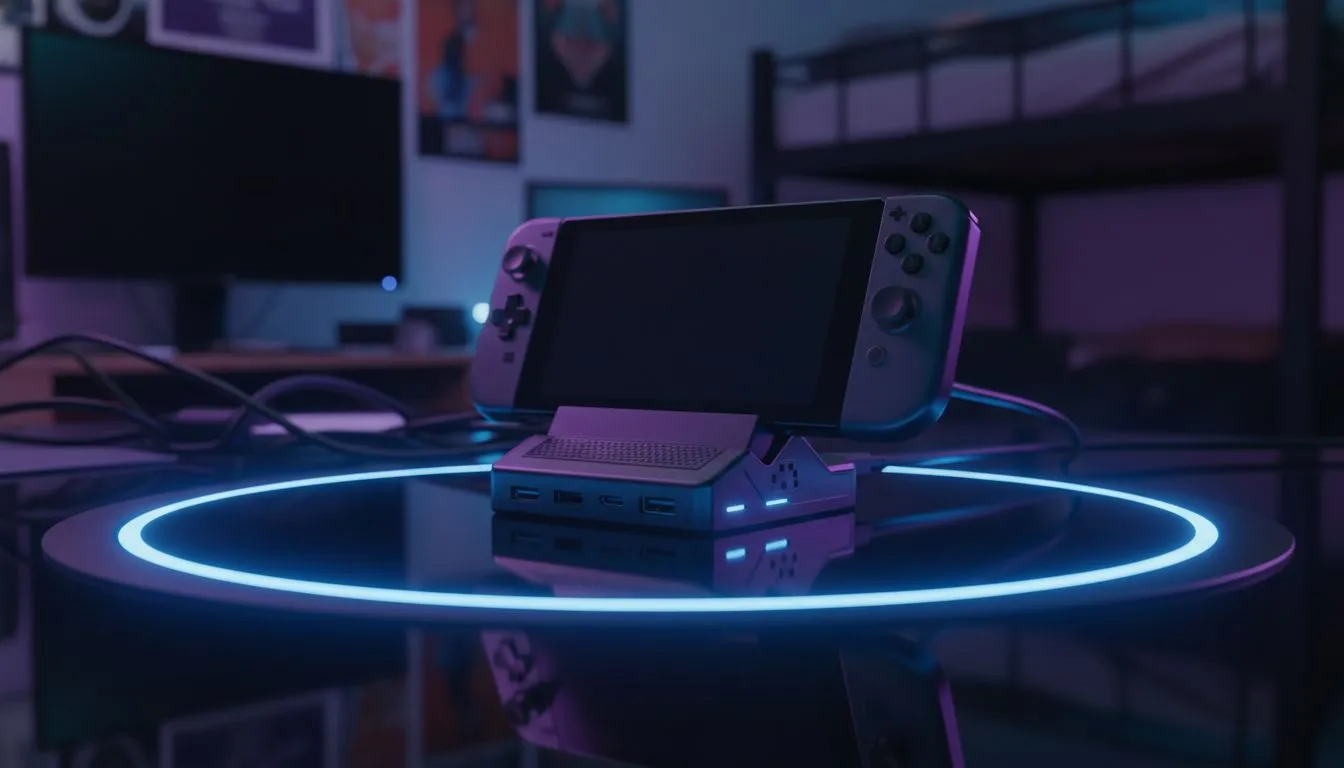
Living in a university res or a compact flat often means space is the ultimate luxury. You barely have room for a bed and a desk, let alone a full tower PC setup. This is where the magic happens: when you connect a handheld console to monitor, you effectively bridge the gap between portable freedom and desktop productivity.
In 2025, devices are powerful enough to handle your engineering assignments by day and your Call of Duty grind by night. By investing in one of the latest handheld gaming consoles, you save thousands of Rands by not needing a separate laptop and gaming rig. It is the ultimate efficiency hack for the modern student.
The Essentials: What You Need
To transform your portable device into a "battlestation," you need three things: the console, a USB-C dock (or hub), and a monitor.
1. The Console
The market has exploded with options. If you prioritise screen real estate and detachable controllers for FPS games, the Lenovo Legion Go is a heavyweight contender. Its larger screen makes Windows navigation easier even before you dock it.
On the other hand, for a highly refined software experience and ergonomic design, the ASUS ROG Ally series remains a favourite among South African gamers for its balance of power and portability.
For those looking to leverage Intel’s latest architecture, the MSI Claw offers a distinct alternative with impressive thunderbolt capabilities for high-speed connectivity.
2. The Docking Station
You don't necessarily need a proprietary dock. Any high-quality USB-C hub with HDMI 2.0 or DisplayPort out will work. However, ensure the hub supports Power Delivery (PD) of at least 65W (preferably 100W). This ensures your console stays charged while outputting video and powering your mouse and keyboard. ⚡
3. The Monitor
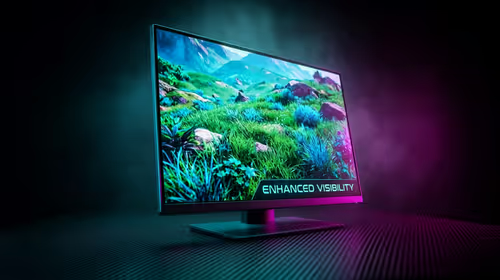
Since most handhelds target 1080p gaming, a 24-inch or 27-inch 1080p monitor with a high refresh rate (144Hz+) is the sweet spot. Trying to push 4K native gaming from a handheld might result in a slideshow, so stick to Full HD for the best performance-to-visual ratio.
Performance Pro Tip 🚀
When connected to a monitor, always check your display settings in Windows. Ensure you are set to 'Second screen only' to dedicate all GPU resources to your monitor, rather than wasting power mirroring the handheld's built-in screen.
Optimising Your Settings for the Big Screen
Once you connect your handheld console to the monitor, the work isn't quite done. To get that smooth 60FPS+ experience, you need to tweak a few things:
- Upscaling is Your Friend: Use FSR (FidelityFX Super Resolution) or RSR (Radeon Super Resolution). Set your game resolution to 720p or 900p and let the software upscale it to 1080p. It looks surprisingly crisp and saves massive performance overhead.
- Thermal Management: Docking your device usually improves airflow compared to holding it, but ensure the intake vents aren't blocked by the dock's cradle.
- Peripherals: A mechanical keyboard and a lightweight gaming mouse complete the illusion. You will forget you are running off a device smaller than a textbook.
Building a dorm setup in 2025 is about working smarter, not harder. With the right handheld and a decent monitor, you have a rig that fits in your backpack when you head home for the holidays... and dominates the desk when you are back at the grind.