Living in a digs, a flat, or just sharing your workspace? Don't let a cramped desk kill your competitive edge. A massive screen is great, but not if it leaves you with zero room for your mouse. This is where a smart LG UltraGear 27GS75Q setup shines. It delivers that crisp 1440p resolution and buttery-smooth 180Hz refresh rate you crave, all in a footprint that respects your personal space. Let's get it dialled in. ✨
Why the 27GS75Q is Perfect for Compact Desks
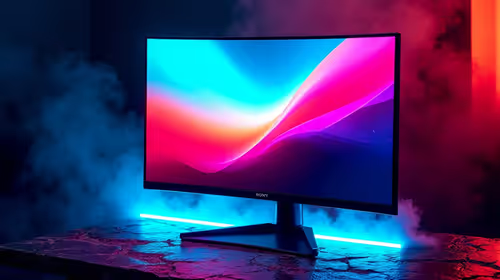
Before we get into the setup, let's look at why this specific LG UltraGear is a top pick for smaller battle stations. The 27-inch screen size is the sweet spot for 1440p gaming—big enough for immersion, but not so large it overwhelms your desk or your field of view. The virtually borderless design on three sides also makes it feel sleek and modern, reducing visual clutter.
The stand is stable without having a massive, sprawling footprint, leaving you more real estate for your keyboard and mousepad. It’s a thoughtful design that understands not everyone has a giant L-shaped desk. It's one of the most versatile options in LG's lineup of monitors for this very reason.
Your Ultimate LG UltraGear 27GS75Q Setup Guide
Getting your new monitor out of the box is just the start. Optimising your LG UltraGear 27GS75Q setup for a small space involves a few key steps to maximise both comfort and performance.
Position is Everything: Finding the Sweet Spot
In a tight space, ergonomics are crucial. You don't have the luxury of pushing your monitor way back.
- Height: Adjust the stand so the top edge of the screen is at or slightly below eye level. This prevents you from craning your neck up or slouching down.
- Distance: Aim for an arm's length away from the screen. For a 27-inch QHD display, this is ideal for seeing all the detail without causing eye strain.
- Angle: Tilt the screen slightly upwards to face you directly. This ensures you're getting the best colour and contrast from the IPS panel.
Taming the Cable Monster кабел
Cables are the enemy of a clean, small-desk setup. Use the monitor's built-in cable management clips to route the DisplayPort and power cables down the stand. A few extra cable ties or a fabric sleeve can bundle them together neatly behind your desk, freeing up precious visual and physical space. This small effort makes a huge difference.
Dialling in the Gamer Settings
This monitor isn't just about looks; it's a performance beast. To get the most out of it, ensure you've enabled its best features. Dive into the on-screen display (OSD) and:
- Set Refresh Rate: Confirm Windows is running at the full 180Hz.
- Enable Adaptive Sync: This monitor is NVIDIA® G-SYNC® Compatible and also supports AMD FreeSync™ Premium. Enable it in your GPU's control panel to eliminate screen tearing. This core Adaptive-Sync technology is what provides that incredibly smooth motion, a massive upgrade over older standard refresh rate monitors.
Space-Saving Pro Tip 🔧
For the ultimate space-saving setup, consider a VESA monitor arm. It clamps to the back of your desk and lets the monitor "float," freeing up 100% of the space underneath the screen. It's perfect for tucking your keyboard away or just achieving that ultra-clean, minimalist look. Plus, it offers way more positioning flexibility than a standard stand.
A well-planned setup transforms a good monitor into a great one. By taking a few minutes to position it correctly and manage your cables, you create a more comfortable and immersive gaming environment, proving that you don't need a massive room to have a pro-level experience.
Ready to Maximise Your Space? A smart setup makes all the difference. The LG UltraGear 27GS75Q proves you don't need a massive desk to get a massive gaming advantage. Explore our complete collection of PC monitors and find the perfect screen to conquer your corner of the world.