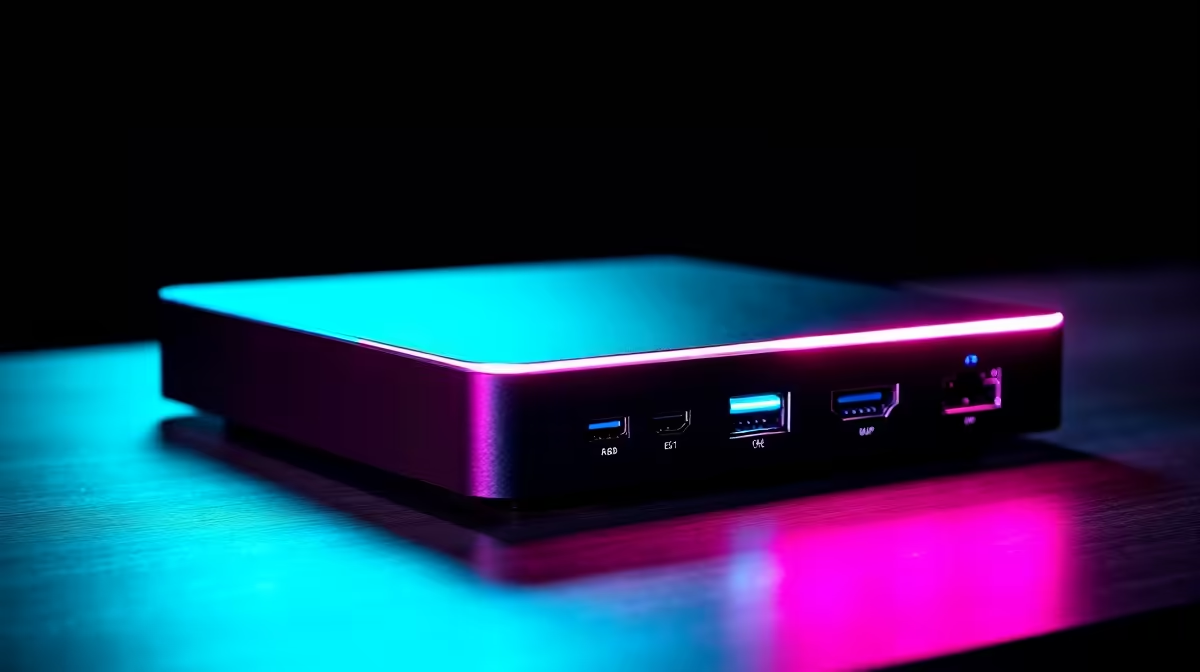
The Steam Deck and ROG Ally are excellent handheld gaming PCs, but connecting them to a dock transforms them into genuine desktop gaming setups. The right dock unlocks multi-monitor output, wired networking, USB hubs for peripherals, and full-speed charging - turning your handheld into a sit-down gaming station when you're at your desk.
Quick Answer
What is the best dock for Steam Deck and ROG Ally in 2026? The JSAUX ModCase Hub, Valve's official Steam Deck Dock, and the ASUS ROG Gaming Charger Dock are the top options depending on your device and budget. For universal compatibility with both devices, a quality third-party USB-C hub dock with DisplayPort 1.4, 100W PD charging, and Gigabit Ethernet is the most flexible choice.
🔧 Top Dock Options for Steam Deck and ROG Ally
1. Valve Official Steam Deck Dock (Steam Deck only)
- Ports: 3× USB-A 3.1, 1× DisplayPort 1.4, 1× HDMI 2.0, 1× Gigabit Ethernet, 1× USB-C (45W PD)
- Display output: 4K@120Hz via DisplayPort, 4K@60Hz via HDMI
- Best for: Steam Deck owners who want guaranteed compatibility and official support
- Limitation: Designed specifically for Steam Deck form factor - ROG Ally fits but is not the intended device
2. JSAUX ModCase Hub (Universal)
- Ports: USB-C PD 100W, USB-A 3.0 ×2, HDMI 2.0, Gigabit Ethernet, microSD slot
- Works with: Steam Deck, ROG Ally, any USB-C device
- Best for: Budget-conscious buyers who want solid universal compatibility
3. ASUS ROG Gaming Charger Dock (ROG Ally optimised)
- Ports: USB-C 90W PD, USB-A ×3, HDMI 2.0, Gigabit Ethernet
- Best for: ROG Ally owners who want ASUS-designed compatibility and the 90W charging that maximises Ally performance
- Note: Also works with Steam Deck and other USB-C handhelds
4. Anker USB-C Hub (Universal - best value)
- Multiple configurations available with DisplayPort, HDMI, Gigabit Ethernet, USB-A/C hubs, and 85–100W PD
- Best for: Users who already have a monitor with multiple input options and just need reliable hub functionality
📊 Desktop Mode Performance: What to Expect
Connecting your handheld to a dock and external monitor changes the gaming experience significantly:
Steam Deck in Desktop Mode:
- Outputs to external monitors at up to 4K@60Hz (DisplayPort 1.4 dock) or 4K@60Hz (HDMI 2.0)
- Keyboard and mouse input works natively in Desktop Mode (KDE Plasma)
- External monitor gameplay runs at the same GPU performance as handheld - the Deck's AMD RDNA 2 GPU doesn't magically gain power
- For best results, lower resolution to 1080p or use FSR upscaling on external monitor output
- Running SteamOS in Desktop Mode allows full Arch Linux-based desktop use alongside gaming
ROG Ally in Desktop Mode (Windows 11):
- Native Windows 11 desktop via external monitor - no mode switch needed
- Full keyboard, mouse, and monitor setup works exactly like any Windows laptop or desktop
- ASUS Armoury Crate software allows power mode switching (15W silent to 30W performance)
- At 30W TDP, the ROG Ally's Z1 Extreme handles 1080p gaming reasonably well on an external monitor with FSR
- ROG XG Mobile eGPU support available for users who want genuine desktop GPU performance (significant additional cost)
💡 Desktop Mode Tips for South African Handheld Gamers
- Wired Ethernet matters: South African ISPs including Vumatel fibre connections benefit from wired connectivity during online gaming - the dock's Gigabit Ethernet port is one of its most valuable features for local play
- Monitor resolution: Both devices perform best driving 1080p at high settings rather than native 4K at reduced quality; set your external monitor to 1080p for the smoothest docked experience
- Keyboard and mouse: Any USB-A keyboard and mouse works through the dock's USB ports - or use a wireless combo with a USB receiver plugged into the dock
- Power management: Ensure 100W PD charging (Steam Deck needs 45W+, ROG Ally needs 65W+ for sustained gaming) - underpowered docks will drain the battery during intensive gaming sessions
- Audio output: Most docks pass audio through HDMI/DisplayPort - connect speakers or a headset to your monitor's audio output or use a USB audio adapter
❓ Frequently Asked Questions
Can one dock work with both the Steam Deck and ROG Ally? Yes - any USB-C dock with DisplayPort or HDMI output, 100W PD charging, Gigabit Ethernet, and USB-A ports will work with both devices. Universal docks from Anker, JSAUX, and similar brands are compatible with any USB-C device including both handhelds.
Does docking the Steam Deck improve gaming performance? No - the Steam Deck's APU performance is unchanged whether docked or handheld. Docking provides display output, peripherals, and charging, not increased GPU or CPU power. For improved gaming performance, use FSR upscaling and optimise in-game settings rather than expecting a performance boost from the dock itself.
What HDMI or DisplayPort version do I need for 1080p@144Hz on an external monitor? HDMI 2.0 or DisplayPort 1.4 support 1080p at high refresh rates. Both the Steam Deck and ROG Ally output at typical 60fps limits in most games when docked, so 144Hz refresh rate is less critical than on a dedicated gaming PC - but having a higher-spec dock future-proofs your setup.
Where can I find handheld gaming accessories in South Africa? Evetech stocks handheld gaming devices and compatible accessories. Check the handheld gaming section for current availability on devices and peripherals suited to desktop mode gaming setups.
Compare Handheld Gaming Consoles and Graphics Card Deals at Evetech for the latest specs and SA deals.
Ready to Find Your Perfect Match? Shop at Evetech