Ever been mid-raid, eyes glued to a shadowy corner, only to miss a crucial detail because your screen's too dark or blown out? You're not alone. High Dynamic Range (HDR) can transform your gaming world, adding incredible depth and realism. But it's not always "plug and play." To truly unlock that visual magic, you need to master your monitor's OSD brightness, specifically the often-overlooked HDR Exposure Slider. It’s the secret weapon for perfect visuals.
Unpacking HDR: Why Your Games Deserve It ✨
HDR isn't just a buzzword; it's a monumental leap in display technology. It expands the contrast ratio and colour accuracy far beyond standard dynamic range (SDR), bringing out the brightest highlights and the deepest shadows simultaneously. Imagine a sunrise in Elden Ring, or the neon glow of Night City in Cyberpunk 2077... HDR makes these scenes pop with a realism that's frankly breathtaking. But the magic only happens when your display settings are finely tuned. While many gamers focus on refresh rates and resolution, neglecting your display’s HDR setup means missing out on incredible visual fidelity from your PC monitor.
The Crucial Role of Your HDR Exposure Slider
So, you've got an HDR-capable monitor. You've enabled HDR in Windows and your game. Why does it still look...off? Often, the culprit lies in the initial brightness calibration. This is where the HDR Exposure Slider comes into play. It's usually found within your monitor's On-Screen Display (OSD) menu, distinct from your general brightness control. Think of it as the master key to how your monitor interprets and displays the HDR signal’s peak luminance and darkest blacks. Adjusting this HDR exposure slider correctly ensures that your screen's OSD brightness is perfectly matched to the content, preventing crushed blacks or washed-out whites.
Optimising Your HDR Sweet Spot
Start with your monitor's default HDR settings. Then, in an HDR game or movie, look for scenes with both very bright and very dark elements. Adjust the HDR Exposure Slider until shadows retain detail without appearing murky, and highlights are bright but not completely clipped or overexposed. Aim for a balanced, vibrant image.
Tuning Your Display: Beyond Basic Brightness
Mastering your monitor’s OSD brightness through the HDR Exposure Slider isn't a one-size-fits-all job. Different games and HDR content may benefit from slight adjustments. For instance, a dark, atmospheric horror game might benefit from a subtle bump in exposure to reveal hidden pathways, while a vibrant, open-world title might shine with a slightly lower setting to enhance contrast. Are you enjoying the expansive vistas on a stunning 4K monitor? Or perhaps getting immersed in competitive titles on a high-refresh-rate gaming monitor? Even for those using a sleek portable monitor for on-the-go productivity, understanding these settings can drastically improve visual clarity.
Common Pitfalls and How to Avoid Them 🔧
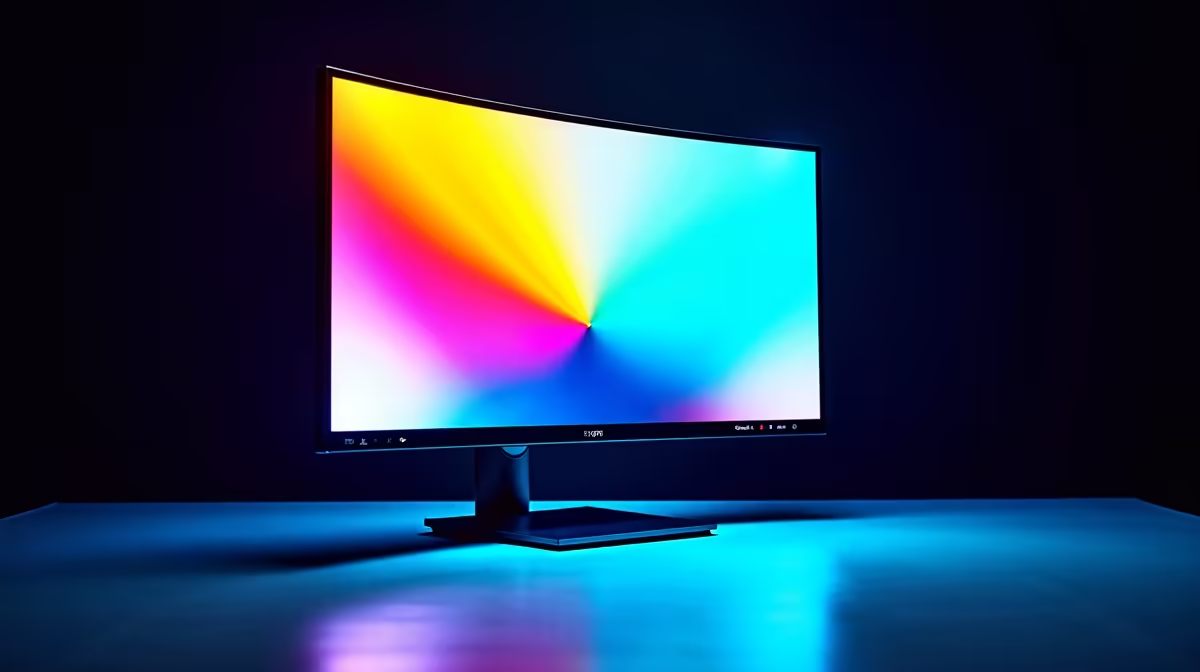
One common mistake is confusing the HDR Exposure Slider with the standard SDR brightness. Changing the latter won't fix HDR issues. Another is over-adjusting, which can lead to unnatural-looking colours or loss of detail. Patience is key. Spend some time in your favourite HDR-enabled game, tinkering with the slider. Remember, what looks good in one game might need minor tweaks in another. Sometimes, even the right monitor accessories, like a monitor arm for optimal viewing angles, can indirectly enhance your perception of these fine-tuned visuals. You can find a range of monitor accessories to perfect your setup. Whether you prefer the immersive wrap-around of a curved monitor or the pinpoint accuracy of a flat panel, the principle remains: the HDR Exposure Slider is your friend.
Maximising Your Visuals, Minimising the Hassle
In the vibrant world of South African gaming, every frame and every pixel counts. Don't let sub-optimal settings hold back your visual experience. Taking a few moments to understand and utilise your monitor's HDR Exposure Slider can elevate your gameplay from merely good to truly spectacular. It’s about taking control of your display’s OSD brightness to unlock the full potential of HDR content, ensuring every explosion, every sunset, and every lurking enemy is rendered with perfect clarity.
Upgrade Your View Today! Ready to experience games in their full, glorious HDR potential? Explore Evetech's incredible range of monitors and snag some of the best PC monitor deals in South Africa.