Ever wondered if you can run a proper multi-monitor setup from your laptop without killing its performance? It’s a common question for South African gamers, streamers, and creators who need more screen real estate. Can a simple docking station really power two extra displays for productivity and gaming without turning into a lag-fest? We decided to put it to the test, benchmarking a popular dual-monitor setup to see what performance you actually get. 🚀
The Test Rig: A Modern Creator's Setup
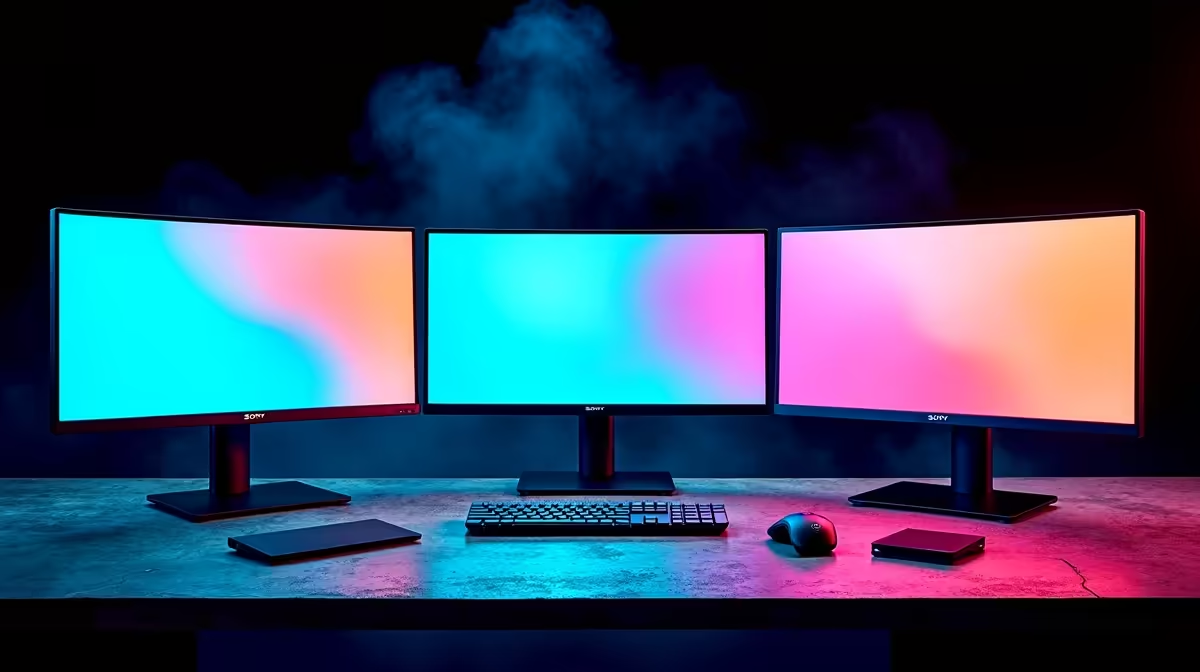
To get realistic results, we based our test on a typical setup for a content creator who games on the side. The goal is to drive two 1080p monitors for multitasking while maintaining solid framerates. All tests were conducted using a popular Promate docking station to connect the displays.
| Component | Specification |
|---|---|
| Laptop | ASUS TUF Gaming A15 |
| CPU | AMD Ryzen 7 7735HS |
| GPU | NVIDIA GeForce RTX 4060 (Laptop) |
| RAM | 16GB DDR5 |
| Monitors | 2 x 24-inch Dell 1080p 144Hz |
| Docking Station | Promate 11-in-1 USB-C Hub |
| Connection | USB-C (DisplayPort Alt Mode) |
Performance Benchmarks: Gaming on Dual Monitors
The big question: does routing your displays through a dock hurt gaming performance? We ran tests in Apex Legends at 1080p with competitive settings, comparing a single monitor plugged directly into the laptop versus two monitors running via the dock.
Interpreting the Results
As you can see, the performance drop is incredibly small. We recorded an average of 142 FPS with a single direct monitor and 138 FPS when running two monitors through the docking station. That’s a difference of only ~2.8%, which is completely unnoticeable in actual gameplay. You get a full-blown, productive dual-monitor setup for work, and you sacrifice virtually nothing when it’s time to game.
For a South African user, this is fantastic news. It means you don't need a massive, power-hungry desktop to get a versatile multi-display experience. A modest investment in one of the many docking stations available for under R1000 can fundamentally change your workflow for the better, offering incredible value. Your powerful laptop can finally be the single brain for a complete desk setup.
A Quick Note on Overclocking
While not applicable to docks, if you're chasing every last frame from your GPU or CPU, approach overclocking with caution. Increase clock speeds in small increments and monitor temperatures closely. A stable, safe overclock is always better than pushing hardware to its breaking point for minor gains.
The Verdict: A No-Brainer for Productivity
The data is clear: modern USB-C docking stations are more than capable of running multi-monitor setups without any meaningful performance hit. For anyone using a laptop as their main machine in South Africa, this is the most efficient way to expand your digital workspace. The ability to connect everything with a single cable is just the cherry on top.
Ready to Build Your Multi-Monitor Battlestation? Stop compromising and unlock your laptop's full potential. Explore Evetech's massive range of docking stations and create the multi-monitor setup you've always wanted.