

RTX 5060 Ti vs RX 9070: Gaming Performance Compared in South Africa 2026
Head-to-head comparison of RTX 5060 Ti vs RX 9070: Gaming Performance for SA gamers. Performance benchmarks, Rand pricing & which delivers better value.
Read moreWondering about cloud gaming on an old PC? You can absolutely transform your aging hardware into a capable cloud gaming machine! This guide reveals essential tips to optimize your system, reduce input lag, and achieve smooth gameplay on services like GeForce Now and Xbox Cloud Gaming. 💻⚡️ Stop stuttering and start playing!
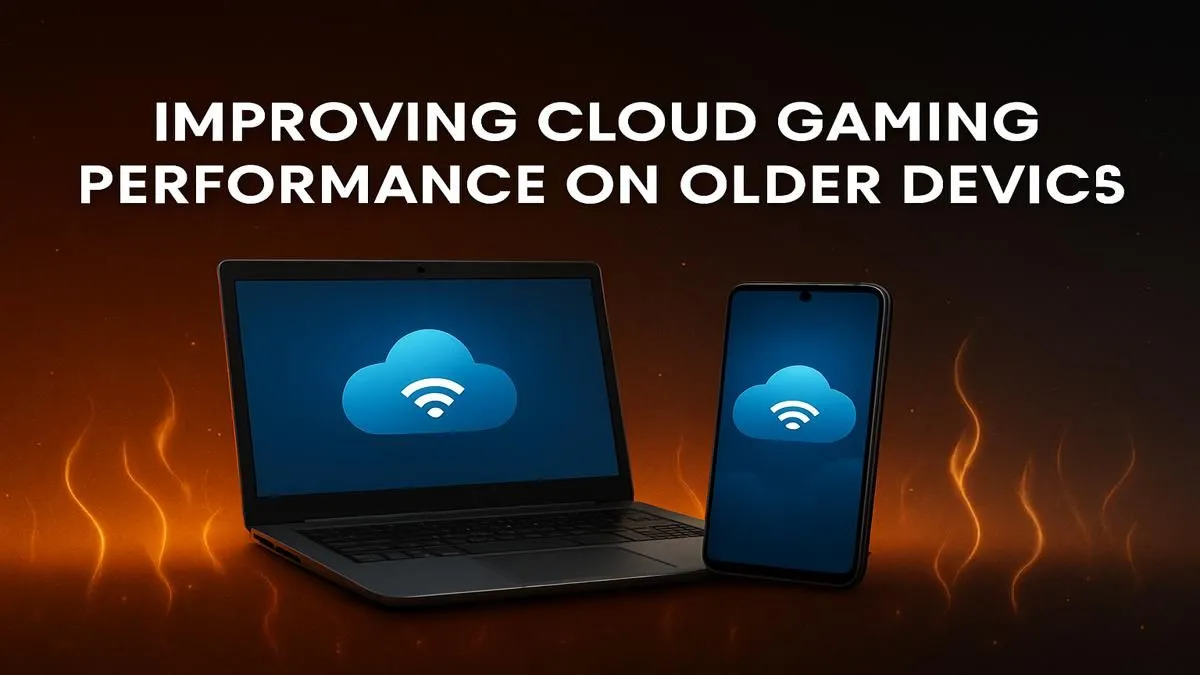
Is your trusty old PC gathering dust, unable to run the latest AAA titles like Helldivers 2 or Starfield? You're not alone. The thought of forking out thousands of Rands for a new rig is daunting. But what if you could stream blockbuster games directly to your current machine? That's the promise of cloud gaming. For many South Africans with decent fibre, cloud gaming on an old PC is no longer a dream... it's a viable reality. 🚀
Think of it like Netflix, but for games. Instead of running on your hardware, the game runs on a super-powered server somewhere else. That server does all the heavy lifting—the graphics rendering, the processing—and streams the video output to your screen. Your PC simply sends your keyboard and mouse inputs back.
This means your old computer's weak GPU or slow CPU suddenly matters a lot less. It just needs to be good enough to handle a high-quality video stream. This is a massive advantage, especially when you consider that even many modern budget gaming PCs can struggle with max settings on new releases. Services like NVIDIA GeForce NOW and Xbox Cloud Gaming are leading the charge, making high-end gaming more accessible.
While your PC's specs are less important, your internet connection is everything. A poor connection will lead to stuttering, input lag, and blurry visuals, ruining the experience. Here’s how to optimise your setup for the best possible cloud gaming performance.
A stable, low-latency connection is non-negotiable.
Not sure about your connection's stability? Open the Command Prompt on Windows (search for 'cmd') and type ping 8.8.8.8 -t. This sends a continuous ping to Google's servers. Watch the 'time=' value. If it's low and consistent (e.g., under 30ms with few spikes), your local connection is solid. If it's high or jumping all over the place, you've found your lag culprit!
Before you launch your game, give your PC and network a little TLC.
Using cloud gaming on an old PC feels like magic... until it doesn't. While it's a fantastic way to play games you otherwise couldn't, it has limitations. The biggest one is latency. Even with a perfect connection, there will always be a slight delay between your action and the on-screen reaction. For single-player adventures, it's often unnoticeable. For competitive shooters like Valorant, that small delay can be the difference between a win and a loss.
Furthermore, your stream quality is entirely dependent on the service and your internet. You might experience compression artefacts or resolution drops during peak network times. Ultimately, nothing beats the crisp, instantaneous response of a game running locally on powerful hardware.
If you're tired of compromising or want that top-tier competitive edge, an upgrade might be the answer.
Ready to Ditch the Lag for Good? Cloud gaming is an incredible tool, but for the ultimate, zero-compromise experience, nothing beats raw local power. Explore our incredible range of gaming PCs and find the perfect rig to conquer your world.
Yes, most older computers can handle cloud gaming. The demanding processing is done on a remote server; your PC just needs a stable internet connection and the ability to decode video.
To reduce cloud gaming input lag, use a wired Ethernet connection instead of Wi-Fi, close all background applications, and enable any 'Game Mode' or performance settings in the app.
No, a powerful GPU is not necessary. Cloud gaming streams video to you, so your PC's ability to decode modern video formats (like H.264) is more important than its 3D power.
To optimize Windows for cloud gaming, enable Game Mode in settings, disable background apps and startup programs, and set your computer's Power Plan to 'High Performance'.
An Ethernet cable is significantly better. A wired connection provides a more stable, lower-latency signal, which is crucial for reducing the lag and stuttering common on Wi-Fi.
To fix Xbox Cloud Gaming stuttering, use a wired internet connection, try a different browser, or use the official app. Ensure no other devices are heavily using your network.
Head-to-head comparison of RTX 5060 Ti vs RX 9070: Gaming Performance for SA gamers. Performance benchmarks, Rand pricing & which delivers better value.
Read more
RTX 5090 Star Wars Outlaws at 1440p: FPS. Real-world benchmark data, FPS numbers & performance analysis. What SA gamers can actually expect.
Read more
RTX 5060 Star Wars Outlaws at 4K: FPS Benchmark. Real-world benchmark data, FPS numbers & performance analysis. What SA gamers can actually expect.
Read more
Head-to-head comparison of RTX 5060 vs RX 7700 XT: Price-to-Performance for SA gamers. Performance benchmarks, Rand pricing & which delivers better value.
Read more
RTX 3060 Red Dead Redemption 2 FPS: Performance. Real-world benchmark data, FPS numbers & performance analysis. What SA gamers can actually expect.
Read more
Head-to-head comparison of RTX 5060 Benchmarks vs Real Gaming Performance for SA gamers. Performance benchmarks, Rand pricing & which delivers better value.
Read more
When Will the RTX 6090 Launch in South Africa Detailed answer with SA data, expert analysis & practical recommendations for local buyers.

Top Valorant Settings for RTX 5070: FPS Optimisation picks evaluated on performance, value & SA availability with current Rand pricing from Evetech.

RDNA 3.5 Graphics in Ryzen AI 400? Can You Game. Plain-English explanation of what it means, why it matters & how it affects your buying decisions in SA.

GPU Price Index : December Report. Current stock data & price tracking for SA buyers. See what is available and where prices are heading.

Core i5-14600K + B760 + RTX 5060 Build Under. Full parts list, Rand pricing & expected performance. Build confidently with SA-available components.

RX 7600 Apex Legends at 4K: FPS Benchmark. Real-world benchmark data, FPS numbers & performance analysis. What SA gamers can actually expect.

RX 7900 XTX GTA 6 at 4K: FPS Benchmark & Optimal. Real-world benchmark data, FPS numbers & performance analysis. What SA gamers can actually expect.

Head-to-head comparison of RTX 5070 vs RX 9070 XT: Gaming Performance for SA gamers. Performance benchmarks, Rand pricing & which delivers better value.
Starfield Max Settings on RTX 5070. Tested & verified settings for best FPS and visual quality on SA hardware budgets.
Top RX 7800 XT Model Under R8,000 picks evaluated on performance, value & SA availability with current Rand pricing from Evetech.
RTX 5070 Valorant Optimised Settings: Graphics. Real-world benchmark data, FPS numbers & performance analysis. What SA gamers can actually expect.

Top Laptop with Core i7 + RX 7700S: Picks picks evaluated on performance, value & SA availability with current Rand pricing from Evetech.