Tired of Alt-Tabbing mid-clutch in Warzone? Setting up multiple monitors on Windows 11 is the ultimate way to level up your battlestation. Whether you are tracking Discord or monitoring CPU temps, a multi-display rig keeps you in the zone. Let’s dive into how you can Configure Multiple Displays Windows 11 for Gaming and System Stats without breaking a sweat. 🚀
Master the Windows 11 Display Settings
Start by right-clicking your desktop and selecting Display Settings. Windows 11 makes it easy to drag and drop your monitor icons to match their physical positions. This ensures your mouse moves naturally between screens... no more losing your cursor in a digital void. Windows 11 also remembers your window locations. When you disconnect a screen, your apps won't vanish into a hidden workspace.
Optimise for High-Performance Gaming
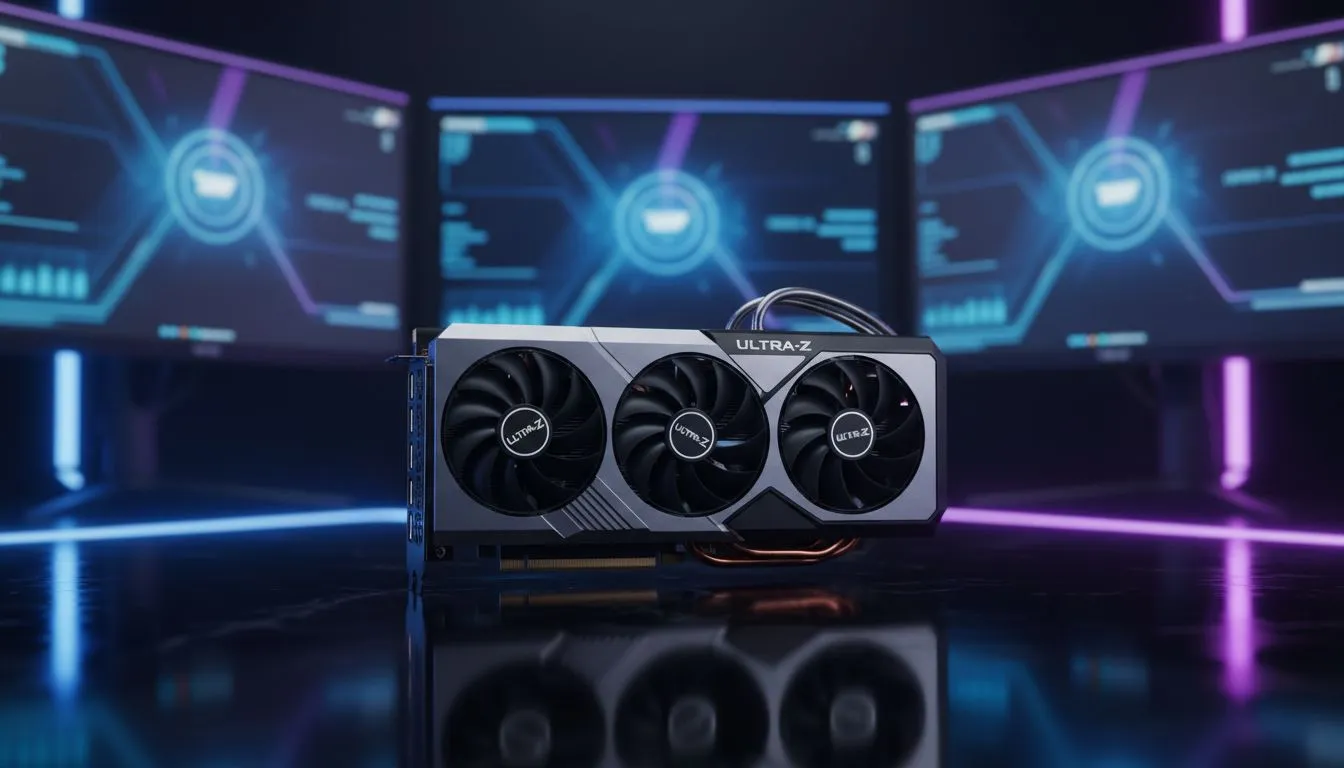
For the best experience, you need a PC that stays cool under pressure. High-performance builds often start with premium computer cases that offer superior airflow for multi-GPU or high-refresh setups. Once your screens are aligned, head to the "Advanced Display" section. Here, you can set independent refresh rates for each panel. You want your main screen at 144Hz or higher... while your side monitor handles 60Hz for static stats. 🔧
Real-Time System Stats on Your Secondary Screen
Using a second screen for system telemetry is a pro move. Software like AIDA64 or HWMonitor allows you to create custom sensor panels. Many enthusiasts house these high-end setups in Fractal Design PC cases because they offer clean lines and excellent cable management. This makes it easy to route cables for internal "stat-screens" that sit inside your chassis. You can track your GPU temperature and CPU usage while you play.
Aesthetic Integration and Budget Builds
If you want an aggressive look, Gamdias gaming cases provide plenty of RGB flair to match your multi-monitor glow. You can even synchronise the accent colour of your Windows 11 taskbar with your case lighting. You do not need to spend a fortune to get started. There are excellent budget-friendly gaming cases available for under R1500 that still offer the tempered glass side panels needed to showcase your hardware. ⚡
Productivity Pro Tip ⚡
On Windows, use the PowerToys FancyZones utility to create custom snap layouts for your windows. It's a lifesaver for managing multiple apps on an ultrawide monitor, letting you organise your timeline, preview window, and asset folders perfectly for video editing.
Ready to Upgrade Your View?
Configuring your workspace is just the start. To truly dominate the leaderboards in South Africa, you need the right hardware to power those extra pixels. Explore our latest monitor specials and find the perfect screen to complete your ultimate gaming setup.