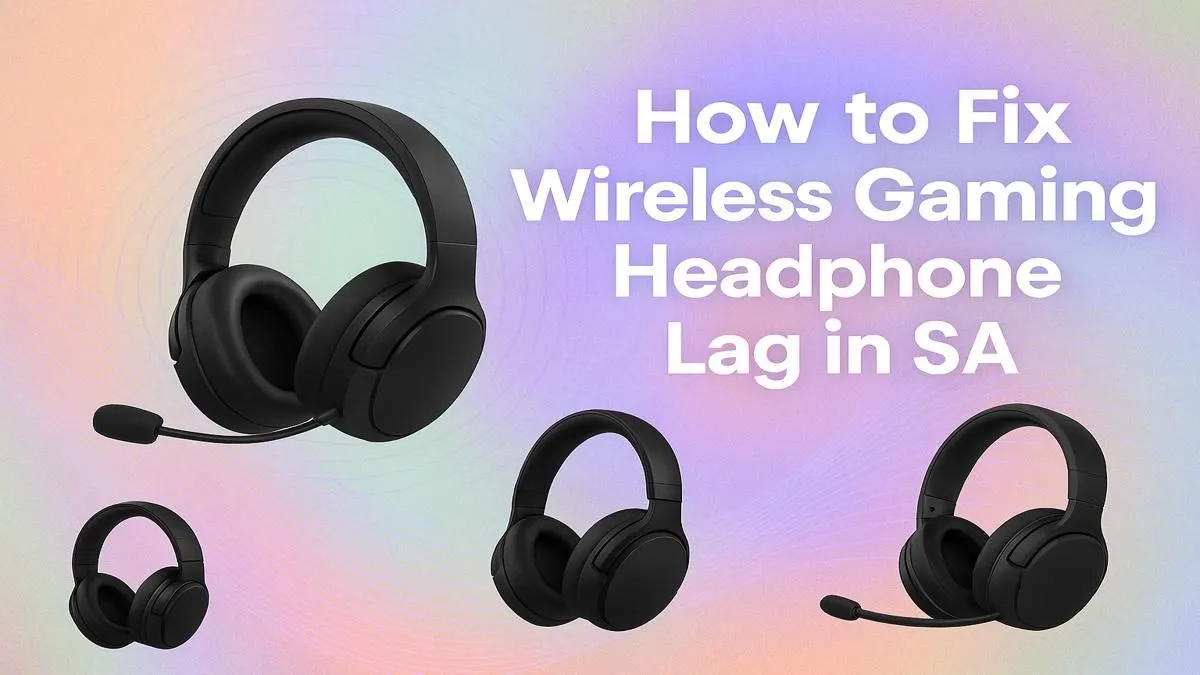
You've lined up the perfect headshot in Valorant, but the sound of enemy footsteps reaches you a split second too late. Or maybe the epic cinematic in your favourite RPG is just... off. Sound familiar, Mzansi? Frustrating audio delay, or latency, can ruin immersion and cost you the match. The good news is you don't have to live with it. This guide will show you exactly how to fix wireless gaming headphone lag and get your audio back in sync. 🎧
Understanding Wireless Audio Lag
Before we jump into the fixes, let's quickly understand the cause. Wireless audio isn't instant. It takes time for the sound to be processed, transmitted, and decoded. This delay is called latency. For general music listening, a little latency is unnoticeable. But for gaming, every millisecond counts.
The biggest factor is your connection type. Standard Bluetooth is fine for tunes, but for gaming, a dedicated 2.4GHz low-latency connection via a USB dongle is crucial. Most quality wireless gaming headsets use this technology for its speed and stability, drastically reducing the chances of audio delay.
Your Checklist to Fix Wireless Gaming Headphone Lag
Work through these steps to diagnose and solve that annoying audio delay. Start from the top and see if you can solve your wireless headphone lag for good.
1. Minimise Physical & Wireless Interference
Your Wi-Fi router, smartphone, and even your microwave can interfere with your headset's signal.
- Move your router: Try to keep your 2.4GHz router at least a couple of metres away from your PC and headset dongle.
- Use a USB extension cable: Plug your headset's dongle into an extension cable and place it on your desk, in direct line of sight with your headset. This bypasses interference from your PC case and other ports.
- Disconnect other devices: Temporarily turn off other Bluetooth devices to see if they are the source of the problem.
Firmware First! ⚡
Before you blame the game or your PC, check the manufacturer's website (e.g., Logitech G Hub, Razer Synapse, SteelSeries GG). They often release firmware updates for headsets and their dongles specifically to improve connectivity and reduce latency. It's a quick fix that many gamers overlook!
2. Update Your Drivers and Software
Outdated drivers are a classic cause of tech headaches.
- Audio Drivers: Ensure your motherboard's audio drivers are up to date.
- Headset Software: As mentioned in the tip, always keep your headset's specific software updated.
- USB Drivers: Check your motherboard manufacturer's website for the latest chipset and USB drivers.
3. Optimise In-Game and System Settings
Sometimes the fix is just a click away in a settings menu. Some games have audio buffer settings that can be lowered to reduce latency. In Windows, ensure no audio enhancements like "Virtual Surround" are enabled unless it's a feature of your headset's software, as these can add processing delays. A good gaming headset is designed to handle this, and you can browse our full range of headphones and headsets to see what's new.
When is it Time for an Upgrade?
If you've tried everything and you're still experiencing lag, your hardware might be the bottleneck. Older headsets, especially those relying on basic Bluetooth, may never achieve the low latency needed for competitive gaming.
For console gamers, it's vital to get a headset designed for your platform. There are fantastic, low-latency options specifically for PlayStation and dedicated Xbox wireless headsets that ensure perfect compatibility.
And if you demand absolute zero latency? The pro solution is still a high-quality wired gaming headset. But for most gamers, a modern 2.4GHz wireless model is the perfect blend of freedom and performance. Don't let lag hold you back; sometimes an upgrade is the simplest fix for wireless gaming headphone lag. ✨
Ready for Lag-Free Audio?
Don't let audio delay cost you another match. If your current gear isn't cutting it, an upgrade might be the ultimate fix. Explore our best gaming headset deals and hear the difference a truly responsive headset makes.