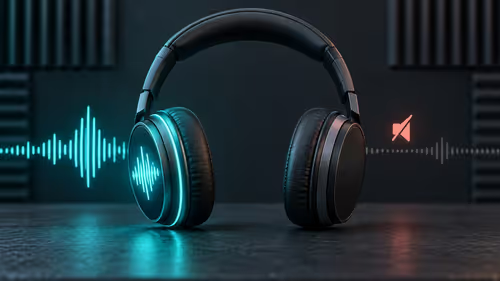
You're in the final circle in Apex, footsteps are faint but close. You're trying to pinpoint the enemy for the win... and then your audio cuts out. A blast of static, a robotic voice, then silence. We’ve all been there. That dreaded wireless gaming headset interference can ruin a perfect play. But don't rage-quit just yet. This guide is your ultimate fix for crystal-clear comms, specifically for us gamers here in South Africa. 🎧
Understanding Wireless Gaming Headset Interference
Before we can fix the problem, we need to know what's causing it. Most wireless gaming headset interference stems from one simple thing: airwave traffic. Think of it like the N1 highway during rush hour. Too many signals are trying to use the same space, especially in the crowded 2.4GHz frequency band.
Your biggest culprits are usually:
- Your Wi-Fi Router: The number one cause. It's blasting out a powerful signal on the same frequency as your headset.
- Other Wireless Devices: Bluetooth speakers, smart home gadgets, and even your smartphone can clutter the airwaves.
- Physical Obstructions: Thick walls, metal desks, and even a fish tank can weaken or block the signal.
- Household Appliances: Microwaves are notorious for causing interference when they're running.
This isn't a flaw in just one brand; it's a common challenge across many of the headphone headsets on the market. The key is learning how to manage your wireless environment.
Your Step-by-Step Fix Guide 🔧
Ready to reclaim your audio? Work through these simple steps to diagnose and eliminate that frustrating static and drop-out.
1. Create Some Space
This is the easiest fix. Your headset's wireless dongle and your Wi-Fi router are likely enemies.
- Move the Dongle: Don't plug your headset's dongle into a USB port right next to your router or other wireless transmitters. Use a front-panel USB port on your PC or a USB extension cable to give it some breathing room.
- Move the Router: If possible, shift your router a few metres away from your gaming setup. Every little bit helps reduce wireless headset interference.
2. Optimise Your Wi-Fi Channels
Most routers automatically pick a Wi-Fi channel, but it's not always the best one. Manually setting it to a less crowded channel can make a massive difference.
Wi-Fi Channel Pro Tip ⚡
Most routers live on the 2.4GHz band. Log into your router's admin panel (usually by typing 192.168.0.1 or 192.168.1.1 into your browser). Find the 'Wireless Settings' and change the 2.4GHz channel from 'Auto' to a static channel like 1, 6, or 11. These three don't overlap, giving your headset a clearer signal path.
3. Update Everything
Outdated software is a frequent source of connectivity problems.
- Headset Firmware: Check the manufacturer’s website (e.g., Logitech G Hub, Razer Synapse, SteelSeries GG) for firmware updates for your headset.
- Drivers: Ensure your PC’s USB and audio drivers are up to date through Windows Update or your motherboard manufacturer's site.
When Is It Time for an Upgrade?
If you've tried everything and still suffer from wireless gaming headset interference, it might be time to consider a new headset. Technology has improved significantly, with newer models offering superior signal stability.
Modern headsets often use smarter frequency-hopping technology to dodge interference automatically. This is especially true for console-specific models, where dedicated PlayStation headsets and optimised Xbox headsets are designed to work flawlessly within their ecosystems.
Of course, for zero-latency, interference-proof performance, nothing beats the reliability of a quality wired headset. But if you can't live without that cord-free life, exploring the latest wireless headset models might be your best bet for a stable connection. ✨
Ready for Crystal-Clear Audio? Don't let interference cost you another match. If it's time for an upgrade, Evetech has the solution. Explore our best gaming headset deals and find the perfect gear to dominate the competition, interference-free.