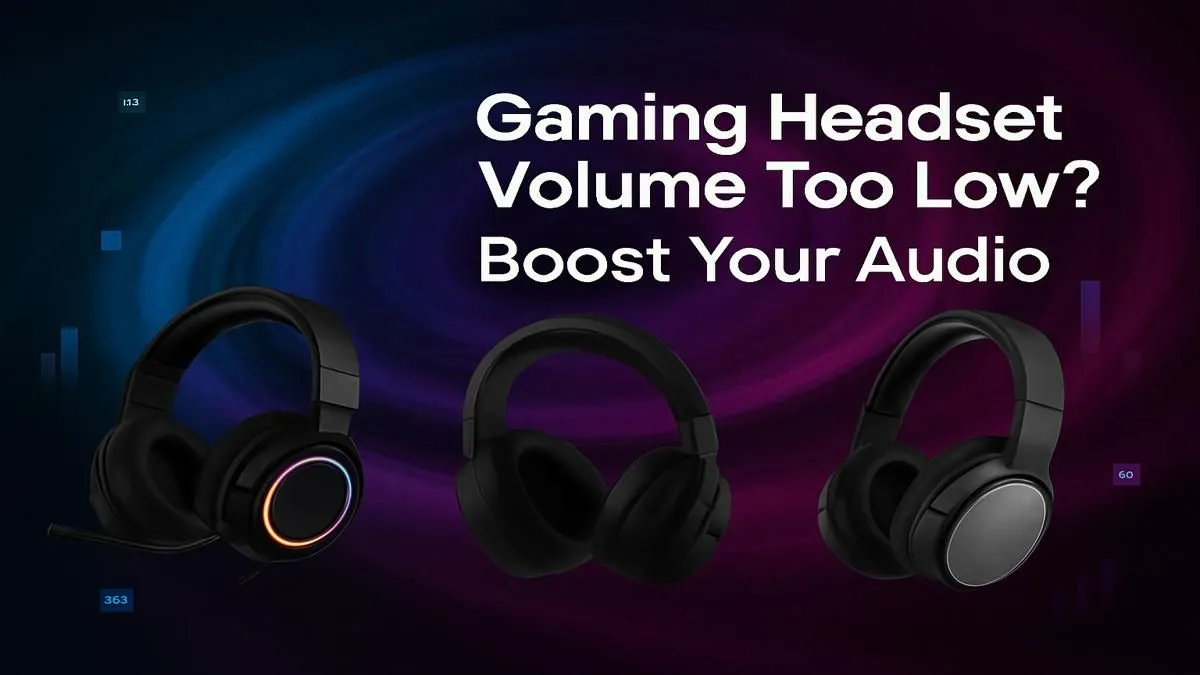
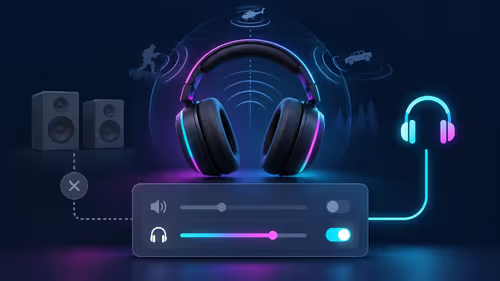
There's nothing worse than being mid-clutch in Call of Duty or getting lost in the ambient sounds of the Kalahari in a new open-world title, only for your gaming headset's volume to drop to a whisper. Frustrating, right? You're missing crucial callouts or that immersive audio that brings virtual worlds to life. If your gaming headset volume is too low, don't rage-quit your audio just yet. We’ve all been there, and often, the fix is simpler than you think. Let's get that sound pumping again!
Diagnosing Your Low Gaming Headset Volume 🔧
Before you panic-buy a new setup, let’s run through the basics. Sometimes, the solution to your audio woes is right under your nose.
Physical Checks First
Start with the obvious. Is your headset properly plugged in? For a reliable wired headset, a loose jack can cause crackling or low volume. Ensure the 3.5mm jack or USB cable is fully seated in the port on your PC, console, or controller. If your headset has an in-line volume control, give it a twist. We've all accidentally nudged it to zero during intense gaming sessions. Also, check for a physical mute button that might be engaged. It sounds trivial, but these are common culprits.
Software & System Settings
Your operating system (Windows, macOS, PlayStation, or Xbox) has its own volume controls and mixers.
- Windows PC: Right-click the speaker icon in your system tray, select 'Sound Settings' or 'Open Sound Mixer'. Ensure your gaming headset is selected as the default output device and that its volume slider is cranked up. Dive into 'Sound Control Panel' > 'Playback' tab, select your headset, click 'Properties', then 'Levels'. Max it out!
- Consoles (PlayStation/Xbox): Head into your console's audio settings. For PlayStation, it's typically 'Settings' > 'Sound' > 'Audio Output'. For Xbox, 'Settings' > 'Volume & audio output'. Make sure your headset is selected and the volume levels are optimised. Sometimes, game-specific audio settings can override system-wide preferences, so check those too.
Advanced Fixes for Persistent Low Headset Volume ⚡
If the basics didn't cut it, it's time to dig a bit deeper. These steps often resolve more stubborn low headset volume issues.
Driver Deep Dive
Outdated or corrupt audio drivers are notorious for causing sound problems.
- For PC: Right-click the Start button, select 'Device Manager'. Expand 'Sound, video and game controllers'. Find your headset, right-click, and select 'Update driver'. If that doesn’t help, try 'Uninstall device' (don't delete the driver software if prompted) and restart your PC. Windows will usually reinstall a generic driver, which can sometimes fix the issue. Visiting your headset manufacturer's website for the latest drivers is always a solid move, especially for optimising your wireless headset's signal or its proprietary software.
System & App-Specific Tweaks
Sometimes, specific settings or applications interfere with your sound.
Disable Sound Enhancements
Windows has 'sound enhancements' (like Bass Boost, Virtual Surround) that can actually reduce overall volume or introduce distortion. In your headset's 'Properties' (from Sound Control Panel), go to the 'Enhancements' tab and tick 'Disable all enhancements'. This often cleans up and boosts perceived volume.
- Exclusive Mode: In the 'Advanced' tab of your headset's 'Properties', uncheck "Allow applications to take exclusive control of this device." This prevents a single app from hogging your audio.
- Different USB Port: If you're using a USB headset, try plugging it into a different USB port. Some ports might not supply enough power, leading to a weak signal and low volume. Front panel ports are sometimes less powerful than rear motherboard ports.
- Firmware Updates: Many modern gaming headsets, especially feature-rich ones, receive firmware updates. Check your headset manufacturer’s support page for any available updates and installation instructions. This can fix bugs and improve performance.
When to Upgrade: The Hardware Angle ✨
You’ve tried everything, yet your gaming headset volume is still too low. At this point, it's worth considering if your hardware is simply past its prime, or if there's a compatibility issue.
Is Your Headset Simply Past Its Prime?
Like any tech, headsets have a lifespan. Worn-out drivers, frayed internal wiring, or degraded components can all contribute to diminishing sound quality and volume. If your headset is a few years old and has seen heavy use, it might be time for an upgrade. Modern headsets offer incredible advancements in audio fidelity, comfort, and microphone clarity. For console players seeking an edge, exploring premium PlayStation headsets or top-tier Xbox headsets can make a huge difference to immersion and competitive play.
Choosing a New Headset That Delivers
When looking for a replacement, consider factors like driver size (larger drivers often mean richer sound), connectivity (wired for zero latency, wireless for freedom), and features like surround sound. Look for reputable brands known for quality audio. Evetech often has fantastic opportunities to upgrade your setup without breaking the bank. Keep an eye on our latest gaming headset deals to snag a bargain on powerful new gear.
Elevate Your Audio Experience
Don't let low volume mute your gaming thrills. Upgrade to a headset that delivers crystal-clear sound and powerful bass, giving you the competitive edge and immersive experience you deserve. Shop all gaming headsets at Evetech today and hear every crucial detail.