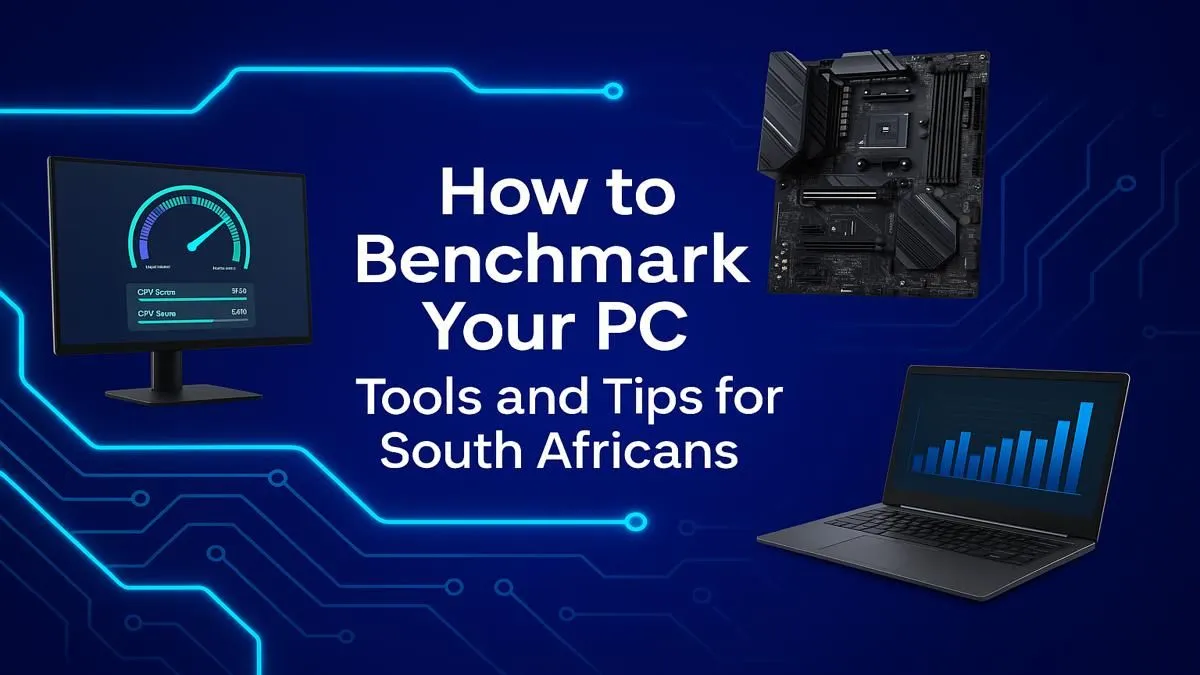
Is your PC feeling a bit... sluggish? Maybe that new AAA title is stuttering more than a nervous best man, or your export times are just plain disrespectful. Instead of guessing, it’s time to get answers. Learning how to benchmark your PC is the single best way to understand its true power. It’s a health check-up for your rig, giving you the cold, hard data you need to diagnose issues, plan upgrades, or just earn some bragging rights. 🚀
Why Benchmark Your PC in the First Place?
Benchmarking isn't just for overclocking enthusiasts with liquid nitrogen on speed dial. For the average South African gamer or creator, it’s an essential tool. Think of it as a report card for your components.
A proper PC benchmark helps you:
- Identify Bottlenecks: Is your legendary GPU being held back by an ancient CPU? A benchmark will tell you.
- Confirm Stability: Just built a new rig or upgraded a part? Stress testing ensures it runs smoothly under pressure without crashing.
- Measure Before & After: See the real-world performance gain from that new graphics card or RAM kit.
- Plan Your Next Upgrade: Knowing your weakest link helps you spend your hard-earned Rands wisely. Sometimes, a new SSD makes a bigger difference than more RAM.
Understanding your current performance is the first step towards getting one of the best gaming PC deals that actually feels like an upgrade.
Getting Started: Your Pre-Benchmark Checklist 🔧
To get accurate and repeatable results, you need to set the stage. Running a benchmark on a cluttered system is like trying to run a 100m sprint while carrying your weekly groceries... you won't get a personal best.
Before you begin:
- Close Everything: Shut down all non-essential background apps. That means Discord, your 37 Chrome tabs, Spotify... everything.
- Update Your Drivers: Ensure your graphics card drivers (NVIDIA or AMD) are up to date. This is crucial for GPU performance.
- Let It Settle: After a reboot, give your PC a few minutes to finish its startup tasks before you start testing.
Pro Tip for Clean Results ⚡
For the most accurate numbers, run each benchmark three times and take the average score. This helps smooth out any random performance dips or spikes, giving you a much more reliable picture of your PC's true capabilities. Consistency is key when you benchmark your PC.
The Tools of the Trade: Free Benchmarking Software
You don't need to spend a cent to get a solid idea of your PC's performance. Here are a few industry-standard, free tools to get you started.
For Your CPU: Cinebench
Cinebench is the go-to for testing your processor's raw power. It renders a complex 3D scene and gives you a score based on how quickly your CPU completes the task. A higher score means a faster CPU, which is vital for gaming, streaming, and content creation. If your score feels low, it might be the bottleneck holding back the rest of your system, especially in high-end rigs over R20k where every component should be pulling its weight.
For Your GPU: 3DMark & Unigine Heaven
This is the fun part! 🎨 GPU benchmarks run intense, game-like scenes to measure your graphics card's performance.
- 3DMark's Time Spy is a fantastic DirectX 12 test for modern gaming PCs.
- Unigine Heaven is an older but still very useful tool for testing stability and thermal performance.
The key metric here is Frames Per Second (FPS). If your results are lower than you'd like, it might be time to look at upgrading. Even many PCs under the R20k mark now offer incredible graphical power.
For Your Storage: CrystalDiskMark
A slow hard drive or SSD can make an otherwise powerful PC feel sluggish. CrystalDiskMark measures the read and write speeds of your drives. If you're still running on a mechanical hard drive (HDD), the results will show you exactly how much performance you're leaving on the table. Upgrading to a fast NVMe SSD is one of the most noticeable upgrades you can make, and many powerful pre-built PCs come standard with them for lightning-fast load times.
Interpreting Your Results: What Now?
So you've got a bunch of numbers... what do they mean? The best way to contextualise your score is to search online for reviews of your specific CPU or GPU. See how your numbers stack up against professional testers.
- Scores are high? Lekker! Your rig is running in top form.
- Scores are low? Don't panic. This is valuable information. It could point to a cooling issue (thermal throttling) or simply show that it's time for an upgrade. A low score is not a failure; it’s a roadmap for improvement. If you find your machine is struggling to keep up, exploring some solid budget gaming PCs can be a great way to get a massive performance boost without breaking the bank.
Knowing how to benchmark your PC empowers you to make smarter decisions, ensuring you get the most performance for your money.
Ready for a Real Performance Boost?
Your benchmark results are in, and now you have the power to act. Whether you're planning a targeted upgrade or looking for a brand new rig that smashes the scores, we've got you covered. Explore our massive range of custom and pre-built PCs and find the perfect machine to conquer any benchmark.