You're in the zone. The melody is perfect, the beat is hitting just right... and then it happens. A crackle. A pop. Your DAW freezes for a split second, killing the creative flow. For South African producers, this frustration is all too common. Effective laptop music production troubleshooting isn't just about fixing a problem; it's about reclaiming your inspiration. Before you throw your machine out the window, let's dive into the common culprits and solutions. 🎧
The Core of Your Laptop Music Production Woes
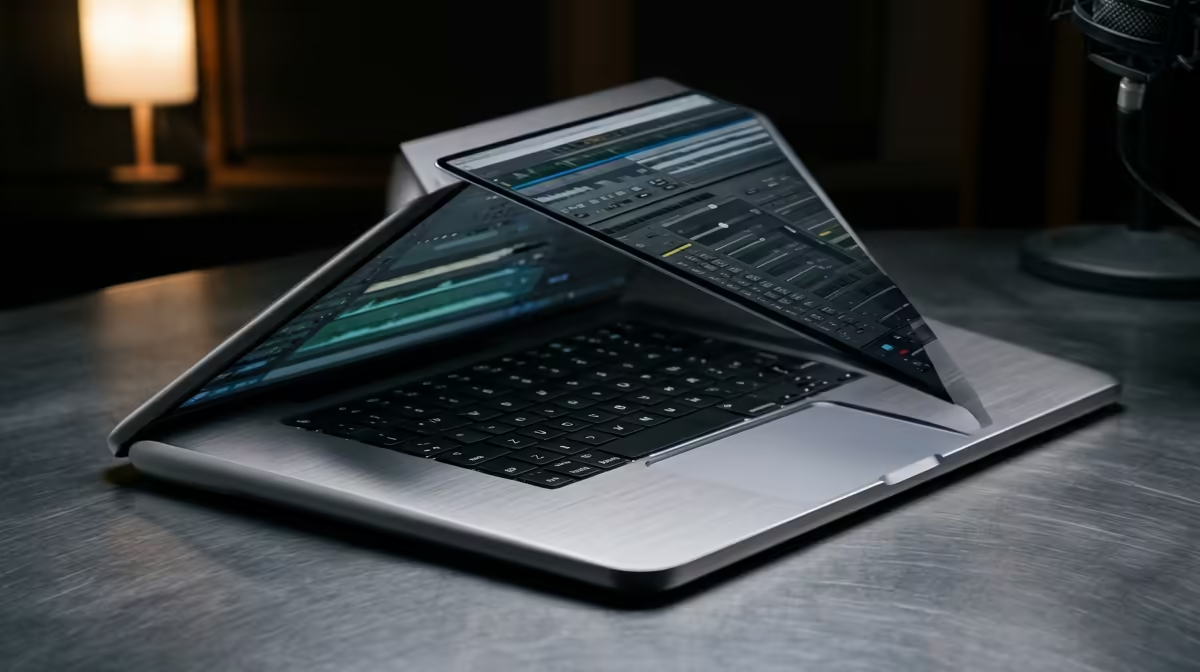
When your Digital Audio Workstation (DAW) starts sputtering, the issue almost always boils down to a bottleneck in one of three areas: your processor (CPU), your memory (RAM), or your audio drivers. A modern laptop should handle basic projects, but as you add more VST plugins, tracks, and complex effects, you start pushing the hardware to its limits. Understanding this is the first step in any laptop music production troubleshooting journey. Often, the best long-term solution is starting with a solid foundation, and there are many powerful music production laptops built to handle heavy loads.
Troubleshooting CPU Spikes and Audio Glitches 🔧
CPU overload is the number one cause of clicks, pops, and stuttering audio. Your processor simply can't handle all the real-time calculations your project demands. Here’s how to fight back.
Optimise Your Power Plan
This sounds simple, but it's crucial. Laptops are designed to save battery by throttling CPU performance. When you're producing, you need all the power you can get.
- Go to your Control Panel > Power Options.
- Select the "High Performance" plan.
- Click "Change plan settings" > "Change advanced power settings".
- Ensure "Processor power management" has both "Minimum" and "Maximum" processor state set to 100%.
This tells your laptop to prioritise performance over battery life, giving your DAW the resources it needs.
Tame Your Buffer Size
Your audio buffer is a small chunk of time your computer gets to process audio before sending it to your speakers.
- A low buffer size (e.g., 128 samples) reduces latency, which is great for recording vocals or MIDI keyboards. However, it gives your CPU less time to work, increasing the risk of glitches.
- A high buffer size (e.g., 1024 samples) gives your CPU plenty of time, which is ideal for mixing and mastering, but introduces noticeable delay.
Start with a low buffer for recording, and increase it when you move to the mixing stage. You'll find this setting in your DAW's audio preferences.
CPU Saver Pro Tip ⚡
In your DAW, 'freezing' a track renders it to a simple audio file, deactivating all its CPU-hungry VST plugins. This is a lifesaver when your project gets complex. Just right-click the track in Ableton or FL Studio and look for the 'Freeze' or 'Consolidate' option. You can always unfreeze it later to make changes!
The Driver Dilemma: ASIO and Beyond
Using your laptop's built-in sound card with its default drivers is a recipe for disaster. These generic drivers have high latency and aren't designed for professional audio work. The solution is an ASIO (Audio Stream Input/Output) driver, which allows your DAW to communicate directly with your audio hardware.
If you have an external audio interface, it came with its own ASIO driver... install it! If not, download ASIO4ALL, a universal driver that can significantly improve performance. A powerful processor, like those found in the latest Intel-powered notebooks, can process these audio streams more efficiently, further reducing the chance of dropouts.
When is it Time for an Upgrade? 🚀
You can optimise and troubleshoot all day, but sometimes the hardware is just not up to the task. If you're constantly freezing tracks, running your buffer at max, and still getting glitches, your laptop is the bottleneck. Modern DAWs and plugins are demanding, especially with multi-core processing becoming the norm. The excellent multi-threaded performance of modern AMD laptops makes them fantastic production machines.
Consider upgrading if:
- You have less than 16GB of RAM.
- Your CPU is constantly hitting 90-100% usage.
- You're running out of storage space on a slow HDD (an NVMe SSD is essential).
Interestingly, the specs that make for a great production laptop overlap heavily with gaming machines. That's why many producers find their perfect match among high-performance gaming laptops, which offer powerful CPUs, ample RAM, and fast storage right out of the box.
Ready to Silence the Glitches for Good? Troubleshooting can only take you so far. When your creativity is held back by your hardware, it's time for an upgrade. A powerful, well-optimised laptop is the ultimate fix. Explore our massive range of laptop specials and find the perfect machine to produce your next hit.