Master Your Mobile Power: How to Maximize Battery Life on Your Windows 11 Laptop
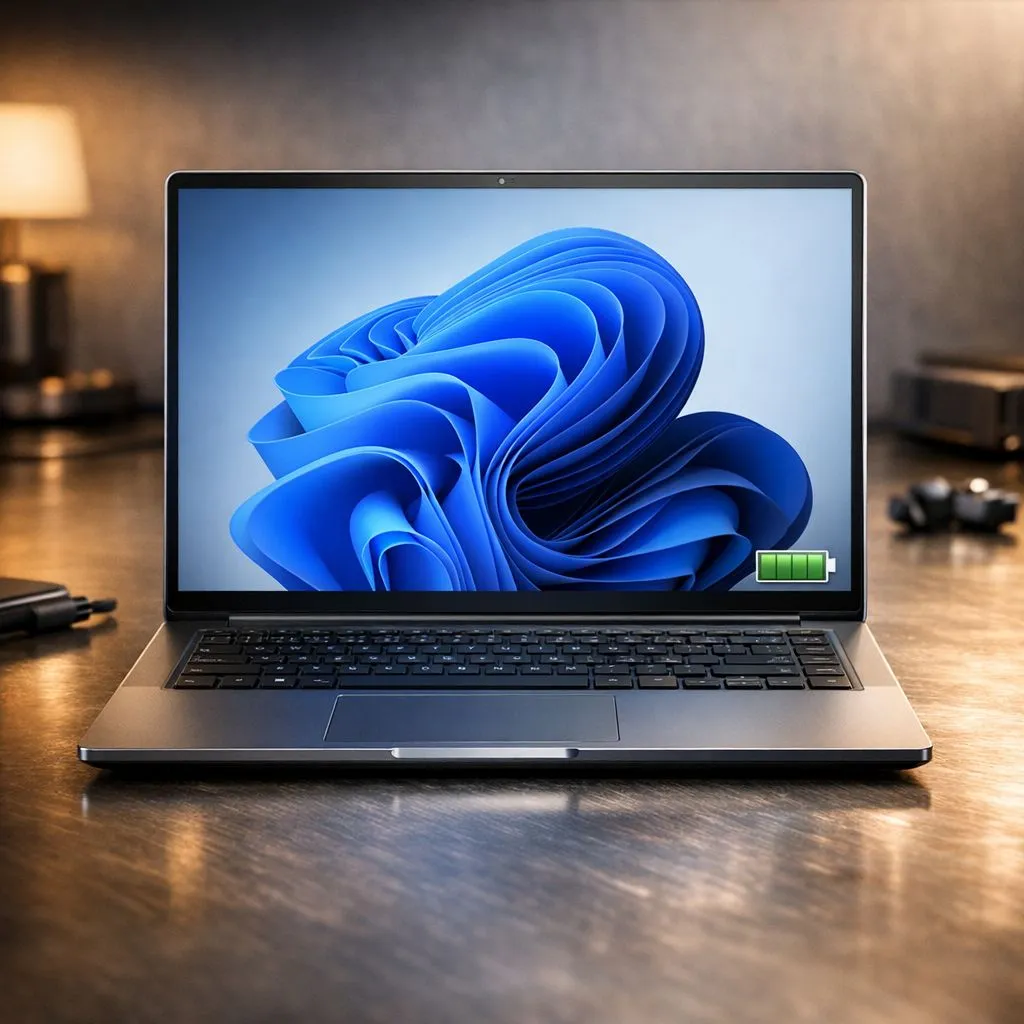
There is nothing worse than seeing that "Battery Low" notification flash while you are halfway through a critical project or a quick gaming session during a power outage. In South Africa, managing your power is a survival skill. Whether you use your rig for work or play, knowing how to maximize battery life on your Windows 11 laptop ensures you stay productive when the lights go out. ⚡
Optimise Your Power Settings for Efficiency
Windows 11 has become significantly smarter at managing resources, but the default "Balanced" mode might not be aggressive enough for long-distance sessions. By navigating to Settings > System > Power & battery, you can manually select the "Best power efficiency" mode. This throttles background processes and prioritises longevity over raw speed. If you are looking for a machine that balances these demands perfectly, checking out the latest Intel laptops on special is a great place to start... many of these newer chips feature dedicated efficiency cores designed specifically for this task.
Tame Your Display and Refresh Rates
The screen is often the biggest power drain on any portable machine. High refresh rates look silky smooth, but they eat through your watt-hours. If your laptop supports it, drop your refresh rate from 144Hz or 165Hz down to 60Hz when you are away from the wall socket. You can find many Ryzen laptop deals that offer stunning displays with variable refresh rate technology, which automatically adjusts based on what you are doing to save precious energy.
Power Saving Pro Tip ⚡
"Use the 'Dynamic Refresh Rate' setting in Windows 11. It allows your screen to jump to a high refresh rate when you are scrolling or drawing, but drops it back down when the screen is static. This simple toggle can add thirty to forty-five minutes of usage time to your daily routine without sacrificing the premium feel of your device."
Manage Background Apps and Startup Items
Every app that runs in the background is a tiny vampire sucking the life out of your battery. Open your Task Manager and look at the "Startup apps" tab. Disable anything you do not need immediately upon boot. This is especially important for high-end machines found in our best gaming laptop deals, where heavy launcher software often tries to run in the background by default. Keeping your system lean is the easiest way to maximize battery life on a Windows 11 laptop without spending a cent.
GPU Control and Hybrid Graphics
If you own a machine with a dedicated graphics card, ensure that Windows is using the integrated graphics for basic tasks like browsing or word processing. Modern GeForce RTX gaming laptops use NVIDIA Advanced Optimus to switch between the low-power integrated chip and the high-performance GPU. Forcing the integrated chip when you are on battery can double your runtime... just remember to switch it back before you launch a heavy title.
Battery Health and Long-Term Value
Even if you are shopping for gaming laptops under R20k, battery health should be a priority. Avoid letting your battery drop to 0% frequently. Most modern Windows 11 laptops include a "Battery Charge Limit" feature in their manufacturer software... setting this to 80% can significantly extend the physical lifespan of your battery cells over several years. 🚀
Ready to Find Your Perfect Match?
The quest for the perfect balance of performance and portability is easier than ever. For maximum power, choice, and value in South Africa, Windows is hard to beat. Explore our massive range of laptop specials and find the perfect machine to conquer your world.