Dropping into Al Mazrah or Ashika Island with 150ms ping is a South African reality. While we cannot move the servers closer to Cape Town, we can fix your input lag. Choosing the right setting for NVIDIA Reflex Warzone: On vs Boost for Lowest Latency determines if you land that headshot or end up in the Gulag. Let's dive into the settings that actually matter. ⚡
Reducing Latency for the Competitive Edge
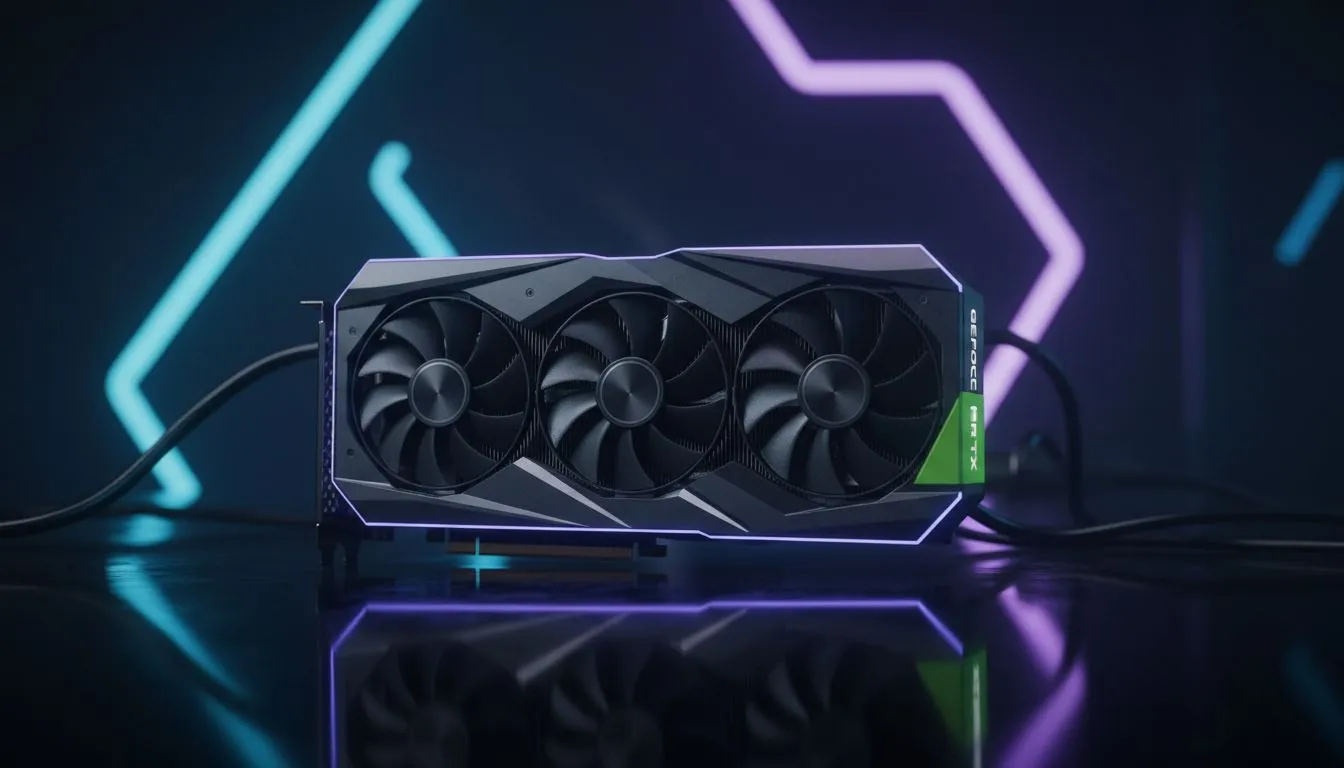
System latency is the delay between clicking your mouse and seeing your gun fire on screen. In a fast-paced shooter like Warzone, this delay is often the difference between winning a duel and heading back to the lobby. If you are running one of the latest NVIDIA graphics cards, you already have access to a powerful tool designed to eliminate the render queue.
NVIDIA Reflex works by synchronising the CPU and GPU. Usually, the CPU sends frames to a "render queue" where the GPU picks them up. This queue adds lag. Reflex tells the CPU to hold off until the GPU is actually ready... cutting that wait time down to nearly zero.
Breaking Down the Settings: On vs Boost
When you head into the Warzone graphics menu, you are faced with three choices: Off, On, or On + Boost. For most gamers using MSI GeForce GPUs, the choice comes down to how much power you want to draw versus how much latency you want to shed.
When to Select "On"
The "On" setting is the standard implementation. It effectively reduces system latency by optimising the communication between your processor and graphics card. This is the best choice if you are trying to keep your PC running cool or if you are playing on a laptop where battery life and thermals are a concern. It provides a massive improvement over having the setting "Off" without any significant increase in power consumption.
When to Select "On + Boost"
The "Boost" part of the setting is a bit more aggressive. It prevents the GPU from entering power-saving states. Essentially, it keeps the GPU clock speeds high even when the game is CPU-bound. This is particularly useful in Warzone, which is notoriously heavy on the processor.
By keeping the clocks high, you ensure that the GPU is ready to render the very millisecond the CPU hands over a frame. While some might look at Intel Arc graphics cards for budget builds, NVIDIA users have this specific advantage in high-intensity scenarios.
Pro Latency Tip ⚡
If you have a G-Sync monitor, always combine NVIDIA Reflex with G-Sync and V-Sync (set to 'On' in the NVIDIA Control Panel, but 'Off' in-game). This combination provides the smoothest tear-free experience with the lowest possible input lag penalty.
Optimising Your Setup for Competitive Play
Choosing between NVIDIA Reflex Warzone: On vs Boost for Lowest Latency isn't just for those with the most expensive rigs. Even professional workstation graphics cards can utilise these features to improve responsiveness in gaming sessions. If you find your GPU temperatures are already hitting 80°C, stick to "On". If you have thermal headroom and want the absolute lowest latency possible, "On + Boost" is the way to go. 🔧
For those on the other side of the fence, AMD Radeon graphics cards offer a similar feature called Anti-Lag. However, NVIDIA's integration within the Warzone engine is currently the gold standard for competitive responsiveness. 🚀
Ultimately, "On + Boost" is the preferred setting for South African players looking to shave every possible millisecond off their response time... helping to bridge the gap created by our distance from international servers. ✨
Ready to Dominate the Lobby?
Reducing latency is the first step to becoming a Warzone pro, but you need the right hardware to back it up. Explore our massive range of NVIDIA graphics cards and find the perfect GPU to crush the competition in South Africa.