Optimising Your RTX 5060 Valorant Settings for Peak Performance
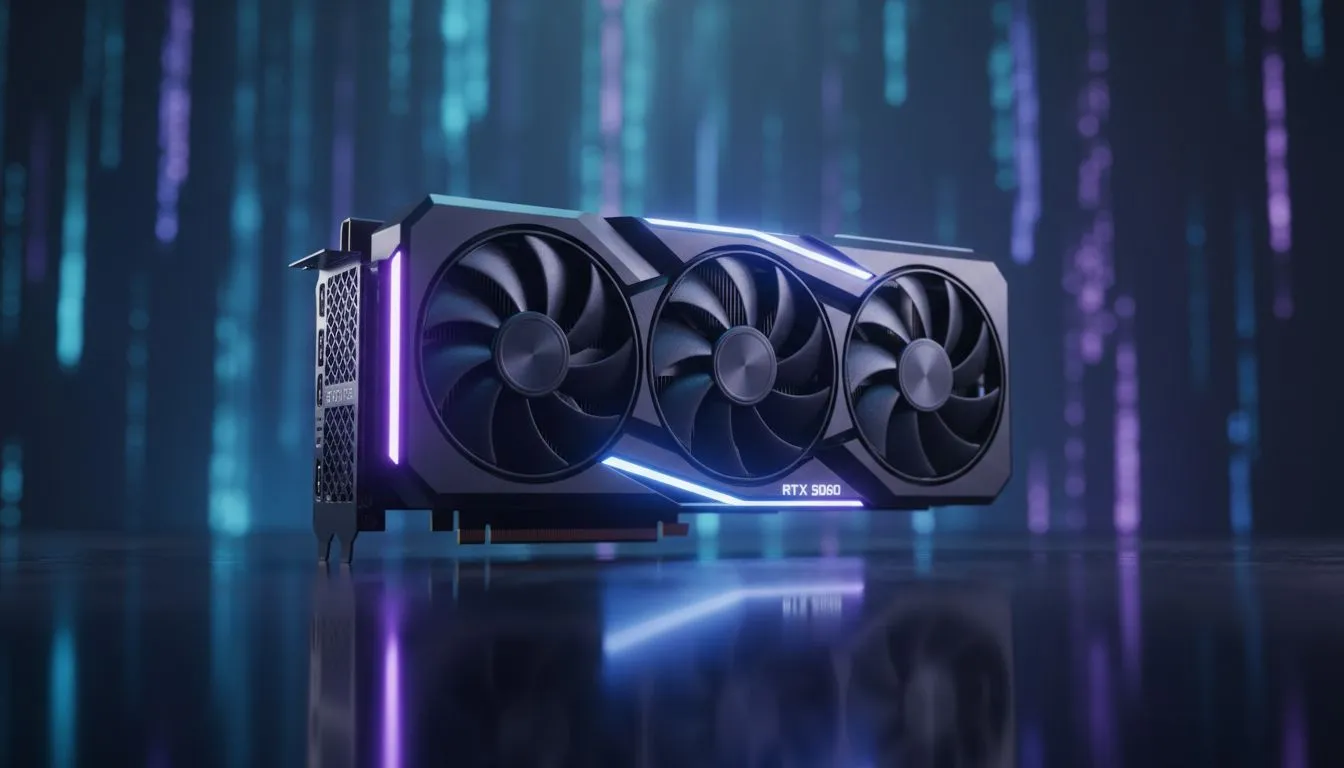
Hitting 500+ FPS in Valorant isn't just about bragging rights. In the high-stakes world of South African competitive play, every millisecond counts. If you have just picked up a new GPU, finding the right RTX 5060 Valorant settings is the difference between a clean headshot and a frustrating death. Let's look at how to push your frame rates to the absolute limit without breaking the bank. ⚡
Why High Frame Rates Matter in Tactical Shooters
Valorant is built on precision. While your monitor might only refresh at 144Hz or 240Hz, having a frame rate that nears the 500 FPS mark reduces input latency significantly. This makes your mouse movements feel more connected to the action on screen. If you are browsing budget gaming PCs, you will realise that even entry-level modern hardware can achieve impressive results with the right tweaks.
The RTX 5060 is a powerhouse for 1080p gaming. To get the most out of it, you need to balance your in-game visuals with your Windows environment. Many of the best gaming PC deals currently available feature this GPU because of its incredible efficiency in eSports titles.
The Best In-Game Settings for Maximum FPS
To reach that 500+ FPS target, you need to be aggressive with your graphics menu. Set everything to "Low" except for Multithreaded Rendering... this must always be "On" to utilise your CPU effectively.
- Resolution: 1920x1080 (Native)
- Material/Texture/Detail Quality: Low
- V-Sync: Off (Always)
- Anti-Aliasing: None or MSAA 2x
- Anisotropic Filtering: 1x
For gamers looking at PCs under R20k, these settings ensure that your frame times remain consistent during heavy utility usage like Viper pits or Brimstone ultimates. 🔧
NVIDIA Reflex Pro Tip ⚡
Always set NVIDIA Reflex Low Latency to 'On + Boost'. This prevents the GPU from entering a power-saving state and ensures the lowest possible click-to-display latency, which is vital when holding tight angles in Radiant lobbies.
Fine-Tuning the NVIDIA Control Panel
Your RTX 5060 Valorant settings extend beyond the game menu. Open the NVIDIA Control Panel and navigate to "Manage 3D Settings". Change "Power Management Mode" to "Prefer Maximum Performance". This ensures your card doesn't downclock in the middle of a clutch. 🚀
If you have invested in higher-end PCs above R20k, you might have the thermal headroom to overclock your card slightly, though Valorant is primarily CPU-bound. Ensure your Windows Power Plan is also set to "High Performance" to avoid any bottlenecks.
Hardware Synergy and Stability
Even the best software tweaks cannot save a system with poor airflow or slow RAM. Check our latest pre-built PC deals to see how we pair the RTX 5060 with high-speed DDR5 memory to eliminate stuttering. When your 1% lows stay high, your aim stays true. ✨
Ready to Dominate the Lobby?
Pushing 500+ FPS requires the right hardware and a bit of expert fine-tuning. Whether you are looking for a budget-friendly beast or a high-end monster in South Africa, Evetech has the gear you need. Explore our massive range of gaming PC deals and find the perfect machine to climb the ranks today.