Remember that ‘just-built’ PC feeling? Windows booting in seconds, games loading before you could grab a snack… it was brilliant. But over time, even the quickest rig can feel a bit sluggish. The good news? It’s often not your hardware giving up. A little bit of smart SSD maintenance for gaming can restore that snappy performance and keep your South African PC running at its absolute peak. Let’s dive in. ⚡
Why SSD Care is Crucial for Gamers
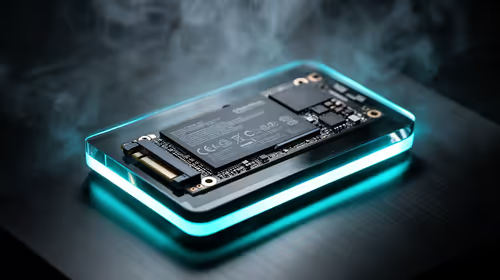
Unlike old-school hard drives, a Solid-State Drive (SSD) doesn't have moving parts. This is why they're so fast. However, they manage data in a unique way. When your drive gets too full or its internal processes aren't optimised, performance can dip. For gamers, this means longer load screens, stuttering when new areas load, and texture pop-in.
Proper SSD maintenance ensures the controller—the drive's brain—can efficiently find and write data, keeping your gaming experience smooth and responsive.
Simple Steps for Peak SSD Gaming Performance
You don't need to be a tech wizard to keep your drive in top shape. These simple, effective habits will make a massive difference.
Keep It Lean (The 75% Rule)
An SSD performs best when it has free space to work with, a process called over-provisioning. As a rule of thumb, try to keep your drive below 75-80% capacity. When an SSD is nearly full, it has to shuffle a lot more data around to write new information, which slows things down considerably.
Regularly uninstalling games you no longer play or moving large media files is a key part of good SSD maintenance for gaming. The performance boost is well worth the effort.
Pro Tip: Offload Your Data 🔧
out of space? Don't let it kill your performance. Move your screenshot folder, video recordings, and lesser-played games to a high-speed [external SSD](https: www.evetech.co.za PC-Components buy-external-ssd-199.aspx). This frees up precious room on your main drive for your current favourites.
Check That TRIM is Enabled
TRIM is a vital command that allows Windows to tell your SSD which data blocks are no longer needed and can be wiped internally. Without it, your SSD's performance would degrade over time. Windows 10 and 11 should enable it automatically for SSDs, but it never hurts to check.
Here's how:
- Open Command Prompt as an Administrator.
- Type
fsutil behavior query DisableDeleteNotifyand press Enter. - If the result is
0, TRIM is active. If it's1, it's disabled.
Keep Your Firmware Updated
Think of firmware as the operating system for your SSD. Manufacturers occasionally release updates that can improve performance, fix bugs, and enhance reliability. Big brands like Samsung (Magician), Crucial (Storage Executive), and WD (Dashboard) have free software that makes checking for and applying firmware updates a simple, one-click process.
Is It Time for a Fresh Start? 🚀
Sometimes, maintenance can only do so much. If your drive is several years old, a small capacity SATA model, or constantly full, an upgrade might be the single biggest performance boost you can give your PC.
Modern games with massive worlds like Starfield or Baldur's Gate 3 benefit hugely from the incredible speeds of the latest tech. If you're still running on an older SATA SSD, an upgrade to a faster NVMe drive will slash load times and eliminate in-game stuttering. The difference is truly night and day.
Ready for an Instant Speed Boost? A well-maintained SSD is fast, but a new one is faster. Explore the best SSD deals in South Africa and give your gaming rig the lightning-fast storage it deserves.