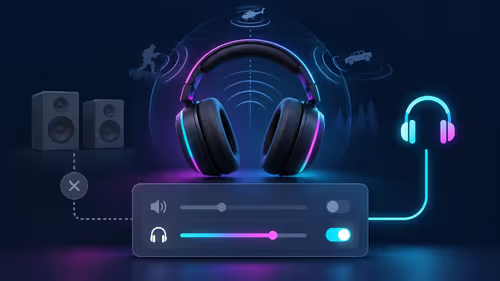
You’re deep in a clutch moment on Nuke, listening for footsteps. But something’s off. The sound is weirdly skewed to one side, pulling you out of the zone. That frustrating moment of uneven sound in headphones is a common problem for gamers, shattering immersion and putting you at a competitive disadvantage. Before you toss your headset in frustration, let’s run through some simple steps to diagnose and fix the audio imbalance for good. 🎧
First Steps: Checking for Physical Problems
Before diving into complex software settings, let's start with the basics. Often, the reason your headphone sound is louder in one ear is due to a simple physical issue. These quick checks can save you a lot of time and hassle.
First, inspect the headphone jack and cable. Is it plugged in all the way? Give it a gentle wiggle to see if the sound cuts in or out. Over time, cables can fray internally, especially near the connectors. If you suspect a faulty connection is the culprit, the reliability of a new wired headset might be the simplest solution.
Next, check for debris. Dust and lint can easily get lodged inside the audio port on your PC or controller, preventing a solid connection. A quick blast of compressed air or a careful clean with a dry cotton swab can clear it out. Also, give the ear cups themselves a once-over—earwax buildup can sometimes muffle the sound from one of the drivers.
Diving into Your System's Audio Settings 🔧
If the physical checks don't solve the audio balance issues, the problem likely lies within your device's software settings. It’s surprisingly easy for these to get knocked out of alignment.
On Windows PC & Mac
On Windows, the balance control is tucked away in the sound settings. Right-click the speaker icon in your taskbar, go to "Sound settings," select your headphones, and click "Properties." Under the "Levels" tab, you'll find a "Balance" button. For Mac users, go to System Settings > Sound > Output, select your headphones, and you'll see a balance slider right there. Ensure the sliders for both Left and Right channels are set to the same value.
Quick Windows Audio Fix ✨
't find the balance slider? Use this shortcut: Press Windows Key + R, type mmsys.cpl and hit Enter. This opens the classic Sound control panel. Right-click your headset, select 'Properties', go to the 'Levels' tab, and click 'Balance'. It's a much faster way to get to the root of audio imbalance.
On PlayStation & Xbox
Console gamers aren't immune to this either. On a PS5, navigate to Settings > Sound > Audio Output, and look for options to adjust the balance for your connected headset. Similarly, Xbox users can find audio controls in the Settings menu under "Volume & audio output." Digging through these menus often reveals the source of uneven headphone audio, especially if you use accessories from different brands. If you're looking for a seamless experience, consider a headset designed specifically for your console, like our range of PlayStation headsets or dedicated Xbox headsets.
Troubleshooting Wireless Headphone Issues
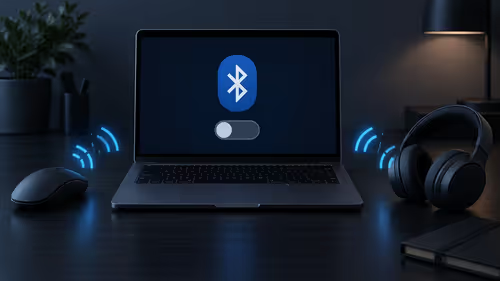
Wireless audio introduces its own set of variables. If you're experiencing uneven sound in headphones that are wireless, the first step is to re-pair the device. "Forgetting" the headset in your Bluetooth settings and connecting it again can resolve many strange glitches.
Also, check for driver updates for your headset's dongle or your PC's Bluetooth adapter. Outdated drivers are a common source of audio problems. Finally, consider your environment. Other wireless devices, or even a microwave oven, can cause interference. Try moving closer to your device to see if the signal strength improves and the audio evens out. A high-quality wireless headset often has stronger signal technology to combat this.
When It’s Time for an Upgrade
You've tried everything... the cables are clean, the settings are perfect, and the drivers are updated, but you still have an audio imbalance. Unfortunately, this could mean the driver in one of the ear cups is failing. Internal components wear out over time, and once the hardware itself is gone, no software tweak can bring it back.
If your headset has served you well for a few years, it might simply be time to retire it. Modern headsets offer huge improvements in sound quality, comfort, and microphone clarity. Instead of fighting with failing gear, it might be the perfect excuse to explore some of the best gaming headset deals available right now. Upgrading can not only solve your current problem but also give you a serious competitive edge.
Ready to Hear Every Detail Perfectly?
Don't let audio imbalance ruin your immersion or cost you a match. If troubleshooting doesn't cut it, it might be time for an upgrade. Explore our massive range of headphone and headsets and find the perfect gear to conquer your game.