


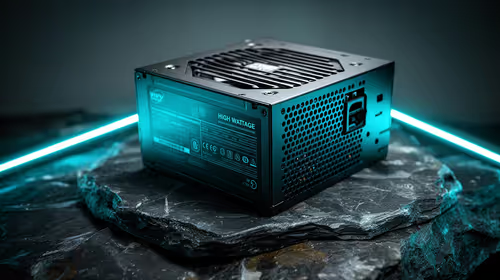
550W PSU Planning for RTX 5080 Super Builds in SA
550W for RTX 5080 Super needs a full-build check, not a simple yes. Review GPU guidance, CPU draw, transient load, connectors, PSU quality, and upgrade plans before deciding.
Read moreDual touch monitors suit South African remote workers who use direct input, detailed QHD work areas or sRGB-aware tools away from one desk. The Delta Pro Touch adds auto-rotation and an ergonomic stand, so its specialised mobile workflow must earn space in the workday.
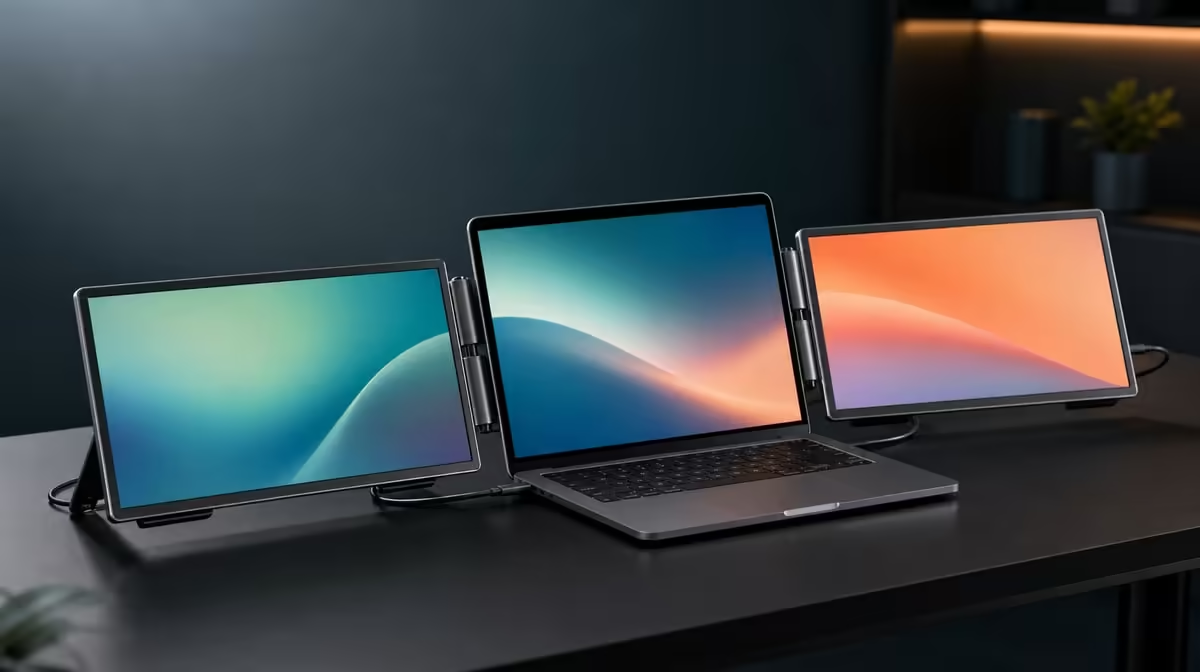
South African remote work often moves between a home desk, shared office and temporary table. A dual touch monitor for SA remote work is practical when two QHD surfaces and direct input travel with a compatible laptop and repeatedly remove real workflow friction.
Dual touch makes sense for remote workers who use gestures, pressure-aware creative tools, sRGB content or separate detailed work areas away from one fixed desk. At R11,999, the Delta Pro Touch combines two 16-inch QHD touchscreens, 180-degree auto-rotation and an ergonomic stand, so buyers should test whether those specialist functions earn their space.
List each regular work location and the applications used there. Assign a role to both Delta panels: canvas and tools, document and reference, presentation and private controls, or another specific pairing. Use the laptop's built-in screen only for a clearly assigned third task.
If one panel would show a passive chat window all week, the full interactive arrangement may be more than the job requires. Evetech's portable-monitor category offers current alternatives for different mobile display needs.
Place the laptop, monitor and necessary connections on the smallest normal table. Set both screens to 2560 x 1600 and choose readable scale. Use the built-in support under ordinary taps and confirm neither panel shifts or blocks comfortable laptop use.
Break down the workspace, move it to another regular location and rebuild it from notes. Check display order, touch mapping and window placement. Portability matters when the working desktop returns predictably.
Use a real business or creative application for single taps and supported multi-finger gestures. For pressure work, choose a compatible tool and an application control that visibly changes with force. The input-tool model and force-resolution figure remain separate compatibility questions.
The 100% sRGB gamut can support creators delivering to that colour space, but it is not proof of calibration. Office users without a colour target should weight it accordingly.
Compare Evetech's PC-monitor range when most work happens at one permanent desk and a fixed screen could provide better day-to-day fit.
Rotate a panel into the portrait or sharing position used during remote work, allow gravity sensing to settle and verify touch. Keep cable movement clear and test the stand on the actual surface rather than a large demonstration desk.
Count the minutes needed to set up and recover each week. Balance them against window switching removed, creative tasks enabled and meetings improved. The Delta's 25ms response should also be tested with representative motion if that matters to the job.
Use Evetech's monitor best-seller collection as a current reference for the R11,999 choice. Confirm availability at the buying stage.
For each regular desk, record setup time, usable panel roles, touch stability and whether rotation helps. Add the laptop applications opened there. A location that only supports one useful screen should not receive the same score as a complete dual-touch workday.
Review the sheet after several weeks. Hybrid value comes from repeatable use across real places, while a specialised function that stays unused can be removed from the price case.
During a remote meeting, place shared content on one panel and private notes or controls on another. Confirm that the laptop still handles the arrangement responsively and that windows do not open on the wrong visible surface.
Rehearse entering and leaving the meeting layout. The ability to recover the normal desktop promptly matters as much as presenting an attractive three-screen setup.
Save important work regularly and know the normal shutdown and reconnection order for the laptop-and-monitor station. After any interruption, restore the quiet desktop first, then confirm both QHD images and touch mapping before reopening a busy project.
This is a workflow resilience check, not a stock or regional infrastructure claim. The aim is to protect work and prevent several simultaneous application launches from obscuring a simple display-recovery problem.
People who repeatedly use two detailed work areas, direct gestures or compatible pressure tools across locations.
It reveals whether the monitor, laptop and working hand can share the real space comfortably.
The display order, touch mapping and application layout can be restored reliably after travel.
No. It carries more weight for work prepared for sRGB output.
Compare the exact price with the frequency and consequence of the functions the workflow will use.
Ready to test whether dual touch belongs in your remote-work week? Compare Evetech's portable monitors across your laptop, regular locations, application roles and setup time.
People who repeatedly use two detailed work areas, direct gestures or compatible pressure tools across locations.
It reveals whether the monitor, laptop and working hand can share the real space comfortably.
The display order, touch mapping and application layout can be restored reliably after travel.
No. It carries more weight for work prepared for sRGB output.
Compare the exact price with the frequency and consequence of the functions the workflow will use.
550W for RTX 5080 Super needs a full-build check, not a simple yes. Review GPU guidance, CPU draw, transient load, connectors, PSU quality, and upgrade plans before deciding.
Read more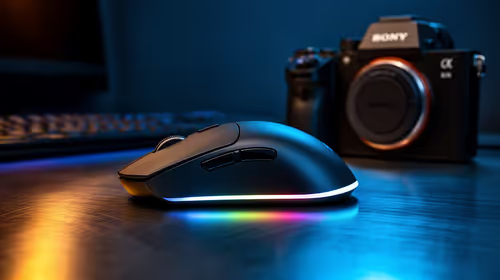
8000Hz polling is overrated for most SA gamers because gains can be tiny next to battery drain and monitor limits. Mbombela players should weigh mouse feel, game support, and system stability before chasing the number.
Read more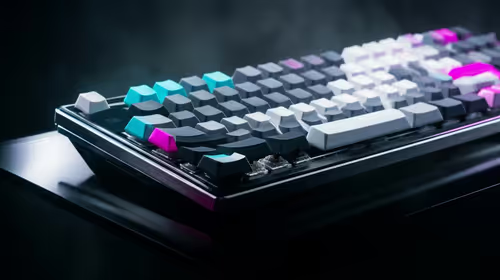
Magnetic switches are taking over SA gaming keyboards because actuation can be tuned. For Sandton gamers, rapid trigger, reset control, and profile depth can help, but layout, key feel, and software quality still matter.
Read more
Polokwane oled monitor value questions need cautious SA context because pricing can move with availability, exchange rates, specs, and warranty support. Treat the trend as a planning signal, not a fixed price promise.
Read more
Arc B580 budget builds for Midrand gamers can shift with exchange rates, supply, specs, and model tier. Treat the title as a buying prompt, then compare SA warranty, timing, and build priorities.
Read more
ROG Ally X may beat the LCD Steam Deck for SA gamers who value stronger handheld performance, more memory, and Windows flexibility. Compare battery life, controls, game libraries, and Polokwane support needs before deciding.
Read more
Minisforum's M2 Pro pairs Core Ultra X7, Arc B390 graphics and 32GB onboard memory in 1.8 litres. SA buyers should weigh its fixed memory and $1,439 launch offer against local mini PCs.

Lenovo says Legion Go failures linked to BIOS N3CN42WW are not user error. Affected SA owners should stop retrying the update, preserve proof and open a support case.

Smart monitors can add apps and convenience, but they also add privacy settings and unwanted-software risk. SA buyers should audit the operating system before paying for extras.

A fake 113GB GTA VI ISO reportedly used empty padding around a small malware payload. SA gamers should delete unofficial builds, keep Windows security active and wait for official channels.

ASUS calls the ROG GT-BN98 the first Wi-Fi 8 gaming router. SA buyers should fix coverage and client limits before paying for a future wireless standard.

Apple's M6 Mac mini adds faster AI, graphics and networking in the same compact format. SA buyers should wait for a rand listing before comparing value.

The Vulcan II XP adds hot-swappable switches, sound damping and gaming controls to a full-size wired board. SA buyers should compare feel before features.

Microsoft says Windows on Arm now has over 7,000 verified apps and games. SA buyers should still check each driver, game and work tool before switching.

Xbox Insiders can test disc-to-digital from 31 August 2026. Supported Xbox One and Series X discs gain a digital entitlement, but older discs, regions and title coverage still need exact checks.

ViewSonic's XG2738 pairs QHD QD-OLED with 240Hz and automatic panel care. SA buyers should compare warranty, brightness, ports and burn-in protection against today's R9,999-plus OLED shelf.

NVIDIA's final Windows 10 Game Ready driver is due in October 2026. SA gamers can keep using their GPU, but new game optimisations move on while critical security fixes continue quarterly.

JBL's new Quantum 520, 520X and 120 headsets cover wireless, Xbox-certified and wired use. SA buyers should compare connection, comfort and microphone needs before paying for a new badge.