


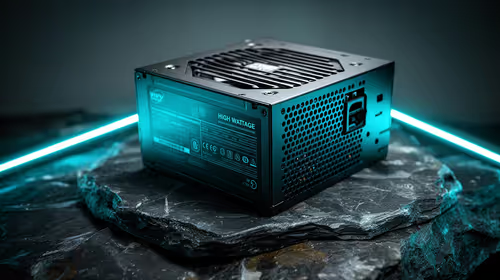
550W PSU Planning for RTX 5080 Super Builds in SA
550W for RTX 5080 Super needs a full-build check, not a simple yes. Review GPU guidance, CPU draw, transient load, connectors, PSU quality, and upgrade plans before deciding.
Read moreImprove performance by confirming stable QHD output and touch assignment, then closing unnecessary apps and live content. Two 2560 x 1600 touchscreens expand the rendered desktop and input workload, so laptop capability determines how smoothly the Delta Pro Touch runs.
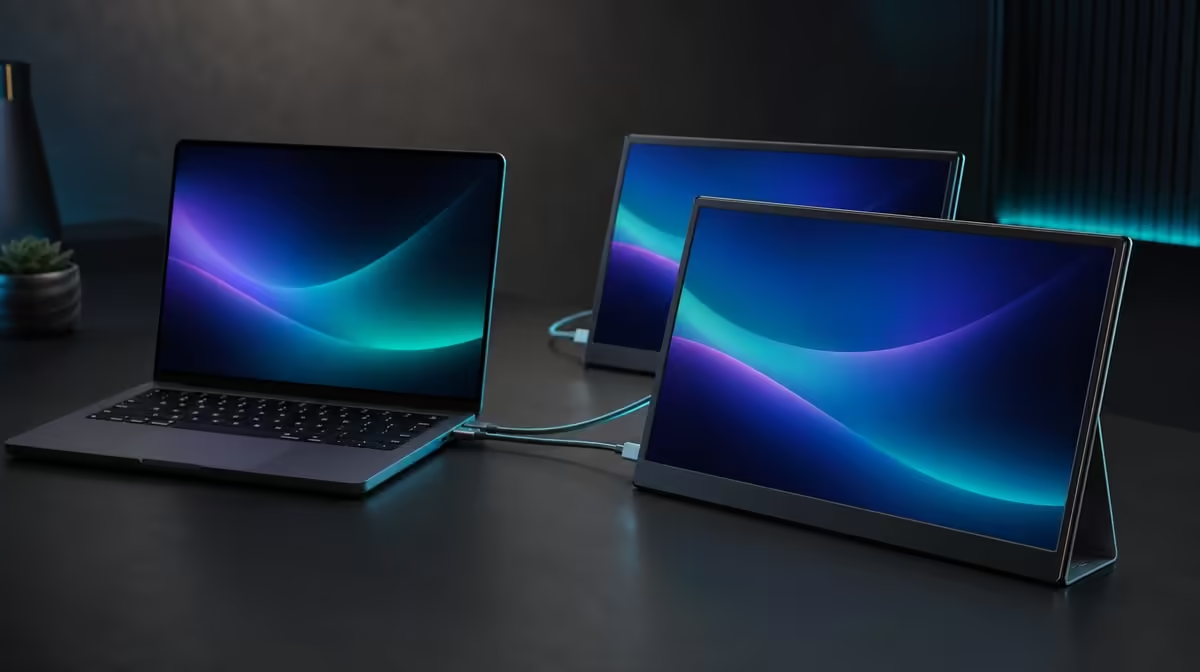
Two 2560 x 1600 touchscreens ask the laptop to manage a larger desktop, more application windows and an interactive input map. To improve laptop performance with dual QHD touchscreens, prove a stable baseline, reduce unnecessary live work and add complexity one screen or application at a time.
Set both Delta panels to native QHD, confirm correct touch assignment and close background apps or moving content that the session does not need. At R11,999, the monitor supplies two 16-inch interactive displays; the laptop's graphics capability, software and workload determine how smoothly the complete workspace behaves.
Restart the laptop and connect the Delta in the known working arrangement. Detect both screens, set 2560 x 1600 and place their desktop rectangles where the panels sit physically. Leave only a simple window open on each display and test pointer movement plus a few taps.
This baseline separates connection or mapping trouble from workload pressure. If the quiet arrangement is already unstable, opening a full creative project will hide rather than solve the cause.
Browse Evetech's portable-monitor selection with the source laptop in view. Display specifications cannot guarantee the performance of every machine and application combination.
Close unnecessary browser tabs, background creative tools, live previews and video windows. Keep the applications that serve the current task, then add the next one and watch responsiveness. Pause or simplify content that moves constantly when it contributes nothing to the work.
Do not lower both panels from native resolution as the first reaction. Check interface scale, application demands and the number of active surfaces before changing the visual target.
Tap the centre and corners of each panel, then drag across its surface. If contacts land on the wrong screen, correct assignment while the desktop is still quiet. Test multi-finger control only after ordinary placement works.
Pressure response should be tried with a compatible tool inside the intended application. A delayed brush or gesture can come from the software workload as well as the input path, so compare it against the simple test.
Evetech's broader PC-monitor range helps frame a fixed single-screen alternative when laptop performance matters more than a mobile dual layout.
Open the primary application on one Delta panel and place only its most useful reference or preview on the second. Keep the laptop screen active if it has a defined role. Move through a representative edit, document or business task while noting pauses and delayed input.
Rotate a panel only after the workload is stable, then check image orientation and touch again. Save the arrangement that performs well and repeat it after a restart.
Compare the R11,999 Delta with current options through Evetech's monitor best sellers. Check live availability when ready to buy.
Put material that changes frequently on the panel best suited to the main application and keep a document, palette or other mostly static reference on the second. This reduces simultaneous live rendering without discarding useful workspace.
Swap the roles and repeat a short task. Some software behaves differently when its preview or primary window moves between displays, so the smoother arrangement should be demonstrated rather than guessed.
Wake the laptop and check whether both images, touch devices and windows return. Repeat after a full restart, then after disconnecting and rebuilding the monitor setup. Record which event introduces delay or wrong mapping.
A specific recovery problem can be addressed without reducing the whole QHD desktop. Keep the configuration that passes these ordinary transitions before adding extra applications.
Use the same compatible tool and pressure-aware control on a quiet canvas, then repeat inside the busiest normal project. Compare line placement and force variation while other visible content is active.
If behaviour changes, simplify the project step by step and retest. This preserves the distinction between a capable input layer and a laptop or application workload that needs adjustment.
The source renders a larger desktop and may run more visible application content across it.
Remove unused applications, browser tabs, moving previews and other live content that does not serve the task.
It separates mapping problems from delays caused by a busy application workload.
Keep it only when it has a clear role and the source handles the full arrangement well.
A representative project remains responsive and restores correctly after a restart.
Ready to give every QHD screen a useful job without overloading the laptop? Review Evetech's portable monitors with your source performance, real applications and touch workflow already tested.
The source renders a larger desktop and may run more visible application content across it.
Remove unused applications, browser tabs, moving previews and other live content that does not serve the task.
It separates mapping problems from delays caused by a busy application workload.
Keep it only when it has a clear role and the source handles the full arrangement well.
A representative project remains responsive and restores correctly after a restart.
550W for RTX 5080 Super needs a full-build check, not a simple yes. Review GPU guidance, CPU draw, transient load, connectors, PSU quality, and upgrade plans before deciding.
Read more
8000Hz polling is overrated for most SA gamers because gains can be tiny next to battery drain and monitor limits. Mbombela players should weigh mouse feel, game support, and system stability before chasing the number.
Read more
Magnetic switches are taking over SA gaming keyboards because actuation can be tuned. For Sandton gamers, rapid trigger, reset control, and profile depth can help, but layout, key feel, and software quality still matter.
Read more
Polokwane oled monitor value questions need cautious SA context because pricing can move with availability, exchange rates, specs, and warranty support. Treat the trend as a planning signal, not a fixed price promise.
Read more
Arc B580 budget builds for Midrand gamers can shift with exchange rates, supply, specs, and model tier. Treat the title as a buying prompt, then compare SA warranty, timing, and build priorities.
Read more
ROG Ally X may beat the LCD Steam Deck for SA gamers who value stronger handheld performance, more memory, and Windows flexibility. Compare battery life, controls, game libraries, and Polokwane support needs before deciding.
Read more
Minisforum's M2 Pro pairs Core Ultra X7, Arc B390 graphics and 32GB onboard memory in 1.8 litres. SA buyers should weigh its fixed memory and $1,439 launch offer against local mini PCs.

Lenovo says Legion Go failures linked to BIOS N3CN42WW are not user error. Affected SA owners should stop retrying the update, preserve proof and open a support case.

Smart monitors can add apps and convenience, but they also add privacy settings and unwanted-software risk. SA buyers should audit the operating system before paying for extras.

A fake 113GB GTA VI ISO reportedly used empty padding around a small malware payload. SA gamers should delete unofficial builds, keep Windows security active and wait for official channels.

ASUS calls the ROG GT-BN98 the first Wi-Fi 8 gaming router. SA buyers should fix coverage and client limits before paying for a future wireless standard.

Apple's M6 Mac mini adds faster AI, graphics and networking in the same compact format. SA buyers should wait for a rand listing before comparing value.

The Vulcan II XP adds hot-swappable switches, sound damping and gaming controls to a full-size wired board. SA buyers should compare feel before features.

Microsoft says Windows on Arm now has over 7,000 verified apps and games. SA buyers should still check each driver, game and work tool before switching.

Xbox Insiders can test disc-to-digital from 31 August 2026. Supported Xbox One and Series X discs gain a digital entitlement, but older discs, regions and title coverage still need exact checks.

ViewSonic's XG2738 pairs QHD QD-OLED with 240Hz and automatic panel care. SA buyers should compare warranty, brightness, ports and burn-in protection against today's R9,999-plus OLED shelf.

NVIDIA's final Windows 10 Game Ready driver is due in October 2026. SA gamers can keep using their GPU, but new game optimisations move on while critical security fixes continue quarterly.

JBL's new Quantum 520, 520X and 120 headsets cover wireless, Xbox-certified and wired use. SA buyers should compare connection, comfort and microphone needs before paying for a new badge.