


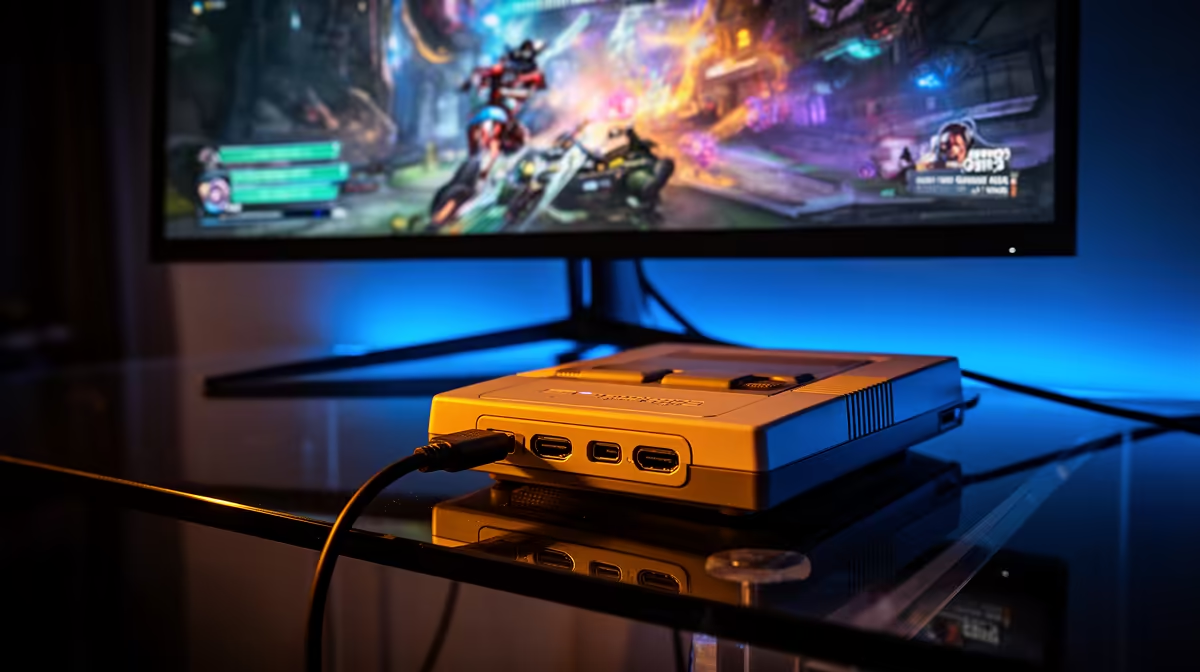
Connect game console to monitor — quick hook 🔧
If you’ve got an older PC monitor and a modern console, you don’t need to buy a brand-new display. This quick guide helps South African gamers adapt HDMI, DVI or DisplayPort setups, avoid input lag and get crisp frame rates without fuss. Read on for simple, tested steps and local tips to keep your battlestation sharp and wallet-friendly. ⚡
Connect game console to monitor — what you need
Start by identifying ports. Modern consoles use HDMI; many older PC monitors offer DVI or DisplayPort. If your monitor lacks HDMI, a simple active adapter often does the trick. For best results, use high-quality cables and keep cable length short to reduce signal loss. If you want an RGB-lit desk tidy or neat sleeving for your setup, consider an ARGB extension or premium sleeved cables for clean routing and durability—Evetech stocks options you can inspect here: Gamemax ARGB cable extension. 🚀
- Console HDMI output → Monitor HDMI: plug and play.
- Console HDMI → Monitor DVI: use an HDMI-to-DVI adapter (video only).
- Console HDMI → Monitor DisplayPort: use an active HDMI-to-DisplayPort adapter.
Caveat: adapters that force downscaling or convert refresh rates can introduce latency. For competitive play, keep to native HDMI when possible.
Connect game console to monitor — step‑by‑step setup
- Power off both devices.
- Connect your cable or adapter. If using an adapter, connect it directly to the monitor input.
- Power on monitor, then console. Select the correct input on the monitor menu.
- In console settings, match the resolution and refresh rate to what the monitor supports (e.g., 1080p @ 60Hz). If you see stretched or blank images, try a different cable or toggle the monitor’s input mode.
If your monitor supports VESA mounting, tidy up cables behind the stand for airflow and durability. For premium braided or sleeved options to keep cables neat, check these individually sleeved premium cables from NZXT.
Quick Pro Tip ✨
If you see frame skipping, test another HDMI cable first. Cheap or damaged cables often cause stutter. Use active converters for HDMI→DisplayPort and avoid passive ones that won’t negotiate refresh rates properly.
Connect game console to monitor — troubleshooting
- No signal: confirm input selection and test the cable on a TV.
- Audio missing: DVI does not carry audio; use TV speakers or an external audio solution.
- Resolution wrong: force the console to boot in low-res mode and reconfigure display settings.
For local support and parts, Evetech’s product pages list specs and compatibility, which helps when choosing adapters or cable upgrades. Refer to the Gamemax ARGB extension for tidy RGB routing and the NZXT individually sleeved range for premium cable builds.
Ready to Find Your Perfect Match? The Mac vs Windows debate is complex, but for maximum power, choice, and value in South Africa, Windows is hard to beat. Explore our massive range of laptop specials and find the perfect machine to conquer your world.











