


550W PSU Planning for RTX 5080 Super Builds in SA
550W for RTX 5080 Super needs a full-build check, not a simple yes. Review GPU guidance, CPU draw, transient load, connectors, PSU quality, and upgrade plans before deciding.
Read moreWindows labels its scheduled SSD maintenance as optimisation, but it runs a TRIM pass rather than a true defragment, since SSDs have no read head that benefits from grouped files. Evetech advises leaving the default weekly optimisation schedule alone.
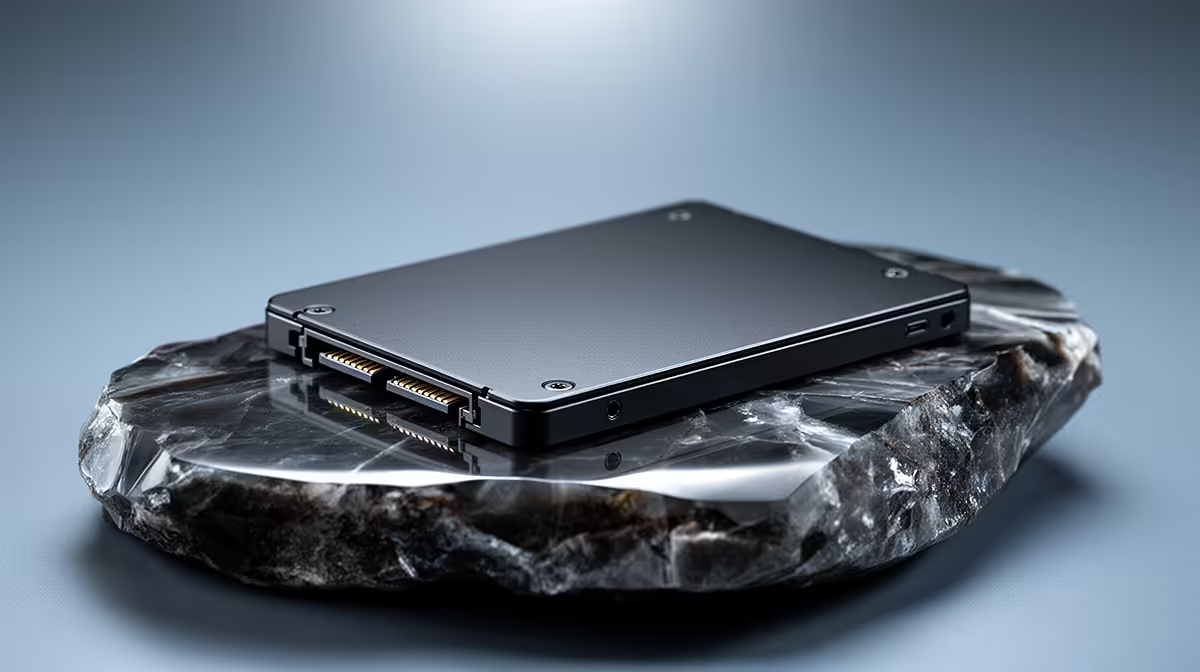
Windows calls its scheduled drive task Optimise Drives, which sounds like the old hard-drive defragmenter. For an SSD, the routine sends retrim information and can perform maintenance suited to the file system and drive. Leave the schedule enabled unless you are diagnosing a documented problem.
Open Defragment and Optimise Drives, confirm Windows identifies the SSD as a solid-state drive and keep scheduled optimisation on. Use Analyse or Optimise for a manual maintenance pass after a migration if needed. Do not install a tool that repeatedly defragments every file on the SSD.
Browse Evetech's SSD catalogue and popular solid-state drives when capacity or health calls for replacement. Windows maintenance cannot repair worn NAND or a failing controller.
Deleting a file changes the file-system record, but the SSD also needs to know which logical blocks no longer hold useful data. TRIM, or the equivalent deallocation command on the storage path, gives the controller that information. It can prepare blocks for later writes during its own garbage collection.
The command does not wipe every deleted byte at the moment you empty the Recycle Bin. Timing and secure-erasure behaviour depend on the controller, firmware and storage stack.
An SSD has no mechanical head that benefits from putting a file's pieces next to each other, so routine manual defragmentation brings no hard-drive seek advantage. Windows still manages file-system needs and can perform operations beyond one retrim under some conditions.
That is why disabling the built-in schedule based on the word defragment is a poor fix. Let the current Windows storage service choose the maintenance for the detected media. Investigate only if the drive is misidentified or the scheduled task reports errors.
Confirm the media type, last run and current status in the Optimise Drives window. Keep backups separate from maintenance; a successful optimisation does not prove the SSD is healthy.
If performance has fallen, check free space, SMART warnings, temperature, interface speed and background work. Retrim cannot compensate for a nearly full cache, thermal throttling or a slow enclosure.
The default weekly cadence is a reasonable maintenance trigger, not a demand that you run the task by hand every seven days. Windows can skip or reschedule work around normal use. A laptop that was asleep at the scheduled time does not need a third-party catch-up utility.
After restoring an image or cloning a large drive, one manual Optimise pass can notify the new SSD about unused ranges. Confirm backups and file-system health first. The operation is maintenance, not a substitute for verifying the migration.
It uses media-aware maintenance, including retrim. Windows can perform other file-system work when required, so the one-word label is incomplete.
Leave it enabled for a normal Windows installation unless vendor or support guidance identifies a specific issue.
No guarantee. Deallocation and secure sanitisation are different processes.
Confirm Windows detects the SSD correctly, leave media-aware optimisation scheduled and diagnose health, heat and free space when performance still falls.
It uses media-aware maintenance, including retrim. Windows can perform other file-system work when required, so the one-word label is incomplete.
Leave it enabled for a normal Windows installation unless vendor or support guidance identifies a specific issue.
No guarantee. Deallocation and secure sanitisation are different processes. {{PRODUCTS: { facets: { query: "Windows NVMe SSD" }, limit: 12, title: "Compare SSD Upgrades", style: "4" } }}
550W for RTX 5080 Super needs a full-build check, not a simple yes. Review GPU guidance, CPU draw, transient load, connectors, PSU quality, and upgrade plans before deciding.
Read more
8000Hz polling is overrated for most SA gamers because gains can be tiny next to battery drain and monitor limits. Mbombela players should weigh mouse feel, game support, and system stability before chasing the number.
Read more
Magnetic switches are taking over SA gaming keyboards because actuation can be tuned. For Sandton gamers, rapid trigger, reset control, and profile depth can help, but layout, key feel, and software quality still matter.
Read more
Polokwane oled monitor value questions need cautious SA context because pricing can move with availability, exchange rates, specs, and warranty support. Treat the trend as a planning signal, not a fixed price promise.
Read more
Arc B580 budget builds for Midrand gamers can shift with exchange rates, supply, specs, and model tier. Treat the title as a buying prompt, then compare SA warranty, timing, and build priorities.
Read more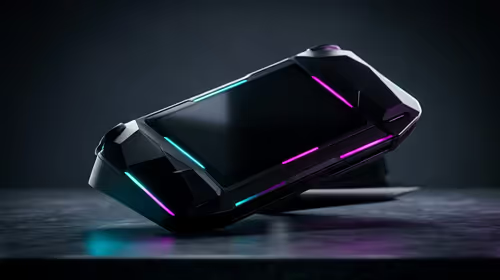
ROG Ally X may beat the LCD Steam Deck for SA gamers who value stronger handheld performance, more memory, and Windows flexibility. Compare battery life, controls, game libraries, and Polokwane support needs before deciding.
Read more
Minisforum's M2 Pro pairs Core Ultra X7, Arc B390 graphics and 32GB onboard memory in 1.8 litres. SA buyers should weigh its fixed memory and $1,439 launch offer against local mini PCs.

Lenovo says Legion Go failures linked to BIOS N3CN42WW are not user error. Affected SA owners should stop retrying the update, preserve proof and open a support case.

Smart monitors can add apps and convenience, but they also add privacy settings and unwanted-software risk. SA buyers should audit the operating system before paying for extras.

A fake 113GB GTA VI ISO reportedly used empty padding around a small malware payload. SA gamers should delete unofficial builds, keep Windows security active and wait for official channels.

ASUS calls the ROG GT-BN98 the first Wi-Fi 8 gaming router. SA buyers should fix coverage and client limits before paying for a future wireless standard.

Apple's M6 Mac mini adds faster AI, graphics and networking in the same compact format. SA buyers should wait for a rand listing before comparing value.

The Vulcan II XP adds hot-swappable switches, sound damping and gaming controls to a full-size wired board. SA buyers should compare feel before features.

Microsoft says Windows on Arm now has over 7,000 verified apps and games. SA buyers should still check each driver, game and work tool before switching.

Xbox Insiders can test disc-to-digital from 31 August 2026. Supported Xbox One and Series X discs gain a digital entitlement, but older discs, regions and title coverage still need exact checks.

ViewSonic's XG2738 pairs QHD QD-OLED with 240Hz and automatic panel care. SA buyers should compare warranty, brightness, ports and burn-in protection against today's R9,999-plus OLED shelf.

NVIDIA's final Windows 10 Game Ready driver is due in October 2026. SA gamers can keep using their GPU, but new game optimisations move on while critical security fixes continue quarterly.

JBL's new Quantum 520, 520X and 120 headsets cover wireless, Xbox-certified and wired use. SA buyers should compare connection, comfort and microphone needs before paying for a new badge.