Quick Answer
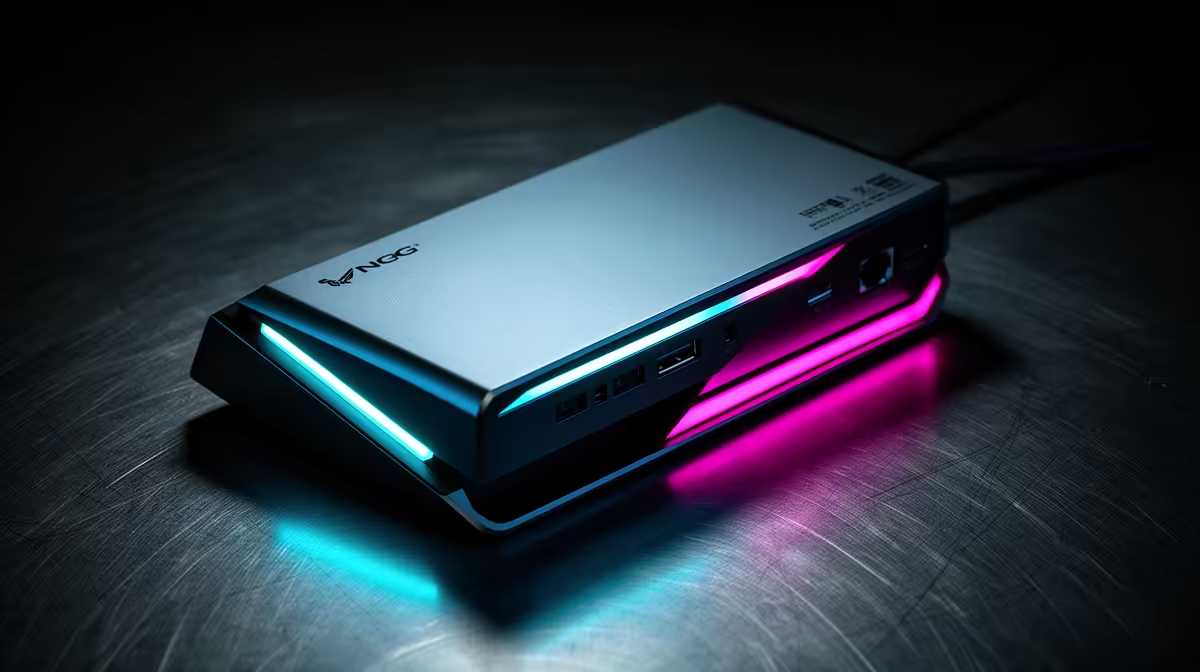
For competitive gamers, display outputs on a dock matter only when you run a second screen for chat, stats or capture; your primary high-refresh panel should plug straight into the GPU. A dual-output dock around R1,800 handles the secondaries without robbing your main display of refresh.
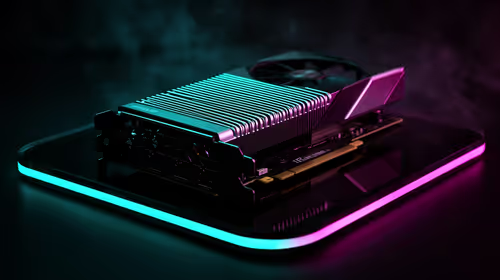
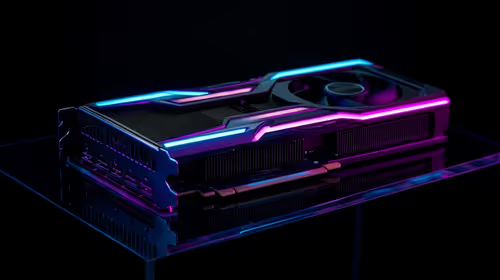
Keep The Main Screen On The GPU
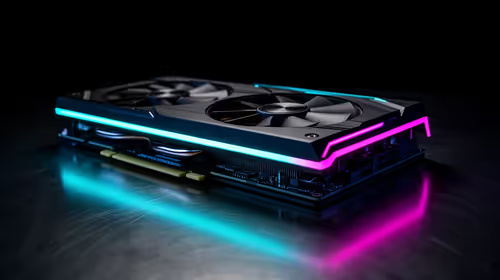
In competitive play, every millisecond of input lag counts, so route your primary 1440p 240Hz or 1080p 360Hz monitor directly into the graphics card, never through a dock. A dock's display engine can cap refresh or add a frame of latency. Use the dock's outputs for the secondary screen showing Discord, OBS or a stat overlay, where a steady 1080p 60Hz is fine.
During a tournament, label which monitor is your play screen and keep its cable plugged straight into the GPU, so a hurried re-cable between matches never accidentally routes your competitive display through the dock and adds latency.
Match Outputs To Your Layout
Decide which screens are "play" and which are "support". The play screen stays on the GPU; the support screens go on the dock. That means you rarely need more than dual output, and a true dual-DisplayPort dock covers most competitive setups. Skip triple-output docks unless your stream layout genuinely uses three secondary panels.
FAQ
Should my main gaming monitor go through a dock?
No; plug your high-refresh play screen straight into the GPU to avoid any added latency or refresh cap. Use the dock for secondary screens only.
Can a dock add input lag in competitive play?
A dock's display engine can introduce a small delay or limit refresh, which competitive players notice. Keep the primary screen off the dock to avoid it.
How many outputs do I need for streaming setups?
Usually two: one main play screen on the GPU and one support screen on the dock. Triple output is rarely needed unless your overlay uses three panels.
primary high-refresh monitor directly into the GPU and reserve the dock's outputs for secondary chat and capture screens.