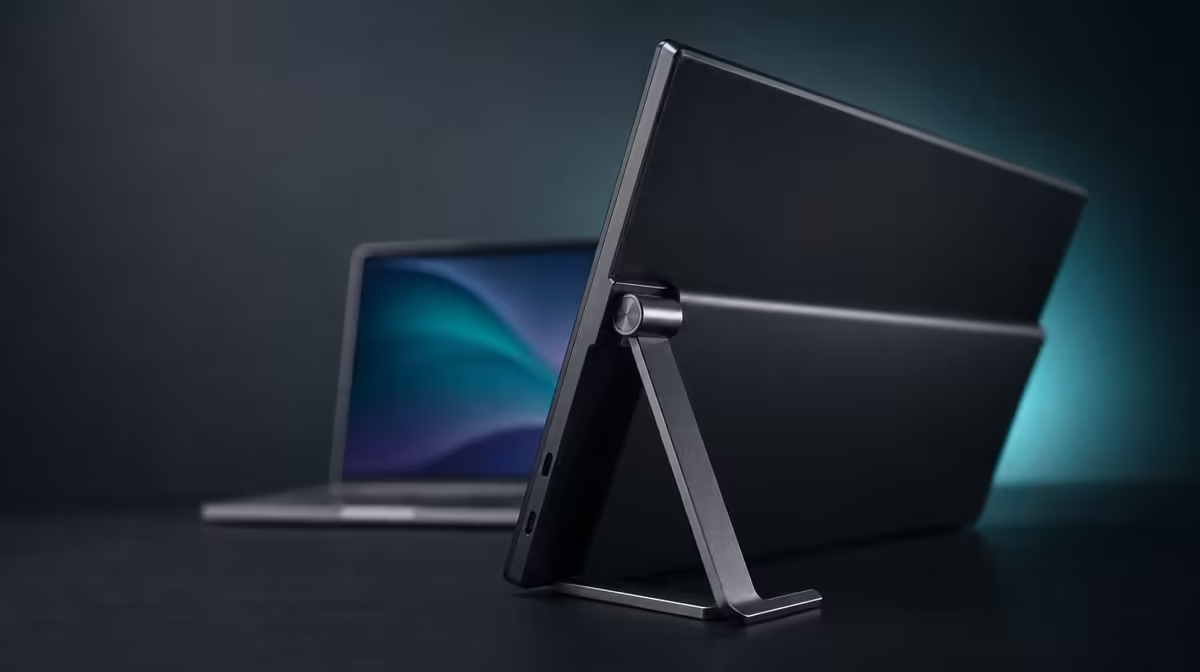
A screen stand that creeps usually has a physical cause in plain view. Portable monitor stand sliding or tipping can begin with a slick surface, off-centre device, excessive arm reach or cable pull. On the R599 UPERFECT UStand, diagnose one influence at a time instead of pressing the base down and hoping it stays.
Quick Answer
Remove the screen and cables, clean the UStand's anti-slip contact and reopen it on a firm, level surface. The stand costs R599 and supports 7-15.6-inch devices. Remount centrally with the arm shortened, then add each cable separately; stop using any position that still lifts a base edge, creeps or cannot hold predictably.
🧼 Reset the surface and rubber
Clear cloths, paper, grit and cable loops from beneath the base. A polished or flexible desk may behave differently from a firm matte surface, so test the actual location.
Inspect the all-around anti-slip rubber while the stand is unloaded. Use a gentle dry clean on accessible areas and check for damage or uneven contact.
The Evetech monitor accessories range can help compare bases after the surface problem is understood.
🎯 Move the screen back over the base
Mount the device close to the footprint and centre it across the support. A screen within 7-15.6 inches still needs its weight, thickness and case assessed separately.
Shorten the 135-degree arm before changing tilt or rotation. Long reach increases leverage and can make one edge light. Hold the display during every adjustment.
If portrait orientation tips more easily than landscape, return to the stable position and reassess. Full rotation creates options, not equal balance in every angle.
Portable displays can be compared through Evetech's monitor selection, with exact physical fit checked before mounting.
🔌 Isolate cable pull
Test the screen without cables first. Then attach one lead, support its weight near the connector and leave a relaxed loop before watching for movement.
Keep adapters and excess cable outside the base. A taut lead caught behind the desk can slowly rotate or drag the stand.
If the UStand remains stable until a particular cable is added, change that route rather than altering every joint. Charge access should never depend on a connector holding the stand in place.
For surrounding cable ideas, browse Evetech's accessory best-seller page after the base and screen pass.
Use a numbered diagnosis so one improvement is not hidden by another. Start with the bare stand, add the centred device, choose the shortest useful arm setting and then connect one cable. Observe for several minutes after each stage.
If sliding begins only after rotation, return to the last stable orientation and compare where the device's centre sits. If it begins after folding-arm extension, reduce reach instead of tightening unrelated parts.
Tripod mode requires a fresh footing check. A desktop fix cannot be copied to three support points, and a cable running to the floor may introduce a new direction of pull.
For travel, clean and fold the stand unloaded. At the next location, test the surface before mounting the screen because a glossy table, soft cover or uneven edge can change grip.
Record the working geometry in a photograph. The reference helps distinguish a later surface or cable change from the original stable setup.
After the stand remains still, rotate or tilt only once and watch for renewed creep. The change confirms whether the fix belongs to the entire setup or one narrow angle. Save the stable configuration before experimenting farther.
Keep the diagnosis note beside the stand for a week. If movement returns, record the last change before touching the setup. A new cable route or shifted desk object can reveal the cause faster than rebuilding everything.
Frequently Asked Questions
What should be checked on the desk first?
Check that it is firm, level, clean and clear beneath the complete stand footprint.
How does device position cause tipping?
An off-centre screen or excessive reach moves leverage away from the strongest support area.
Can an extended arm reduce stability?
Yes. Shorten the arm and retest before using a more distant position.
Why disconnect cables during diagnosis?
Removing them reveals whether the stand and device are stable without outside pull.
How does anti-slip rubber help?
It improves clean surface contact but cannot correct poor centring or an unsuitable base position.
What if the stand keeps creeping?
Stop using that setup. Change the surface, shorten the geometry or reassess the device fit rather than forcing it.
Does R599 include anti-slip support?
Yes. The R599 UStand combines aluminium construction with all-around anti-slip rubber.
Ready to find the exact force making a monitor stand move?
Compare Evetech monitor accessories and rebuild the UStand from a clean base through centred support and relaxed cables.