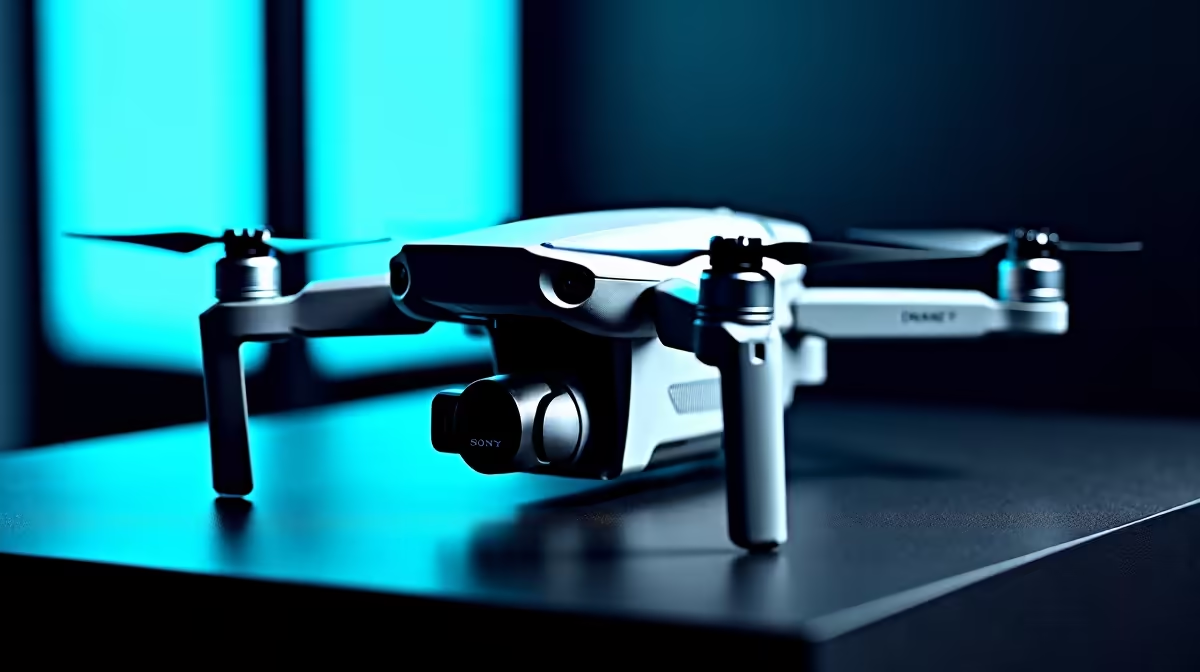
A gimbal error on a brand-new drone sends a jolt of panic through any pilot, but the message is far less serious than it looks. A drone gimbal error or a camera that will not move is almost always a small, fixable cause rather than a broken motor. Three checks clear the overwhelming majority of cases, and you can run them before you ever think about a repair.
Quick Answer
Most drone gimbal errors come from one of three things: the transport clamp was left on, a physical obstruction is blocking the gimbal, or the gimbal simply needs recalibrating in the app. Work through those in order and the error usually clears in minutes.
Check One: Remove The Transport Clamp
The single most common cause is also the easiest to miss. New drones ship with a plastic gimbal clamp that holds the camera steady in transit. If you power up with it still attached, the gimbal cannot move and the drone reports an error.
Power the drone off, remove the clamp completely, and check that nothing is left clipped around the camera. Then power back on. A surprising number of "broken" gimbals are simply clamped, and this one step resolves them. If you have flown before and the error appeared suddenly, move on, but on a first flight always rule this out first.
Check Two: Look For A Physical Obstruction
If the clamp is off and the error persists, something may be blocking the gimbal's movement. The camera assembly needs a clear range of motion, and even a small obstacle stops it.
Inspect closely for a strand of hair, a piece of grass, sand, a sticker, or packaging film caught around the gimbal arms. These are easy to overlook and common after a flight near a lawn or a sandy spot. Gently clear anything you find, taking care not to force the gimbal by hand, then restart the drone and let it run its startup movement freely.
Check Three: Recalibrate The Gimbal In The App
With no clamp and no obstruction, the gimbal may simply have lost its calibration, which can happen after a knock, a firmware update, or a temperature change. The fix lives in the drone's companion app.
Open the app, find the gimbal settings, and run the gimbal recalibration. Keep the drone still and level on a flat surface while it runs, and do not touch the camera during the process. Calibration realigns the gimbal's sensors and clears most software-side errors. Once it finishes, restart the drone and check the camera moves smoothly through its full range.
When To Go Further
If all three checks fail, a few extra steps are worth trying before assuming hardware damage. Confirm the drone's firmware is up to date, since an interrupted update can leave the gimbal misbehaving. Check the battery is properly charged, as low power can trigger odd errors. And give the drone a full power cycle, off and on, to clear any temporary fault.
If the gimbal still errors or sits visibly crooked after all of that, it may have taken physical damage and need professional attention rather than a home fix. Before that, it is worth confirming your model and any spares against the current smart home and connected device range at Evetech so you know what support and accessories are available. For replacement props, cases, and other bits that keep a drone flying, the accessories best sellers are a quick reference.
Frequently Asked Questions
What is the first thing to check for a drone gimbal error?
The transport clamp. New drones ship with a plastic clamp holding the camera in place, and powering up with it attached blocks gimbal movement and triggers an error. Remove it fully and restart before anything else.
My gimbal moves but reports an error. What now?
Look for a small obstruction like hair, grass, or sand caught in the gimbal arms, clearing it gently. If movement is clear but the error stays, run a gimbal recalibration in the app with the drone still and level.
How do I recalibrate a drone gimbal?
Open the companion app, go to the gimbal settings, and start the recalibration. Keep the drone level and motionless on a flat surface and do not touch the camera while it runs. Restart the drone once it completes.
When is a gimbal error a real hardware fault?
If removing the clamp, clearing obstructions, recalibrating, updating firmware, and a full power cycle all fail, or the gimbal sits visibly crooked, it may have physical damage and need professional repair rather than a home fix.
Cleared the error and ready to fly again? Check your drone model and accessories against the connected device range at Evetech to keep spare props, cases, and support within easy reach for your next flight.